If I want a real estate dashboard people can rely on, I need four things in place first: clean source data, strict match rules, steady refresh jobs, and tight access controls. Miss one, and I can end up with bad owner counts, wrong property links, or contacts showing up who should be suppressed.
Here’s the short version:
- I confirm which CRM and property tables feed the dashboard
- I assign one source for each key field
- I match owners and properties with fixed rules
- I merge duplicates into one main record
- I refresh data on the right schedule
- I show contact flags like DNC, TCPA, and phone status
- I limit dashboard access by role and territory
- I test suppression, retention, and compliance rules before launch
A few details matter more than most teams expect. The article points out that BatchData covers 169+ million U.S. property records, which helps with owner and property linking. It also notes batch API limits of 100 inputs per call and reverse skip trace response times of under 10 seconds for inbound use cases. Those numbers shape how I set loads, batching, and live lookups.
What this means in plain English: a dashboard is only as good as the data flow behind it. Before I worry about charts or layout, I make sure the pipeline, joins, flags, and permissions are right.
| Area | What I check | Why it matters |
|---|---|---|
| Source data | Tables, keys, field ownership | Stops field conflicts |
| Matching | Owner rules, property rules, duplicate merges | Stops double counts and bad joins |
| Refresh | Cadence, load checks, API batching | Keeps reports current |
| Contact flags | Phone status, DNC, TCPA, deceased, deliverability | Helps block bad outreach |
| Access | Role views, row filters, governance checks | Limits exposure of data |
If I follow those steps in order, I give the dashboard a much better shot at showing the right numbers to the right team.
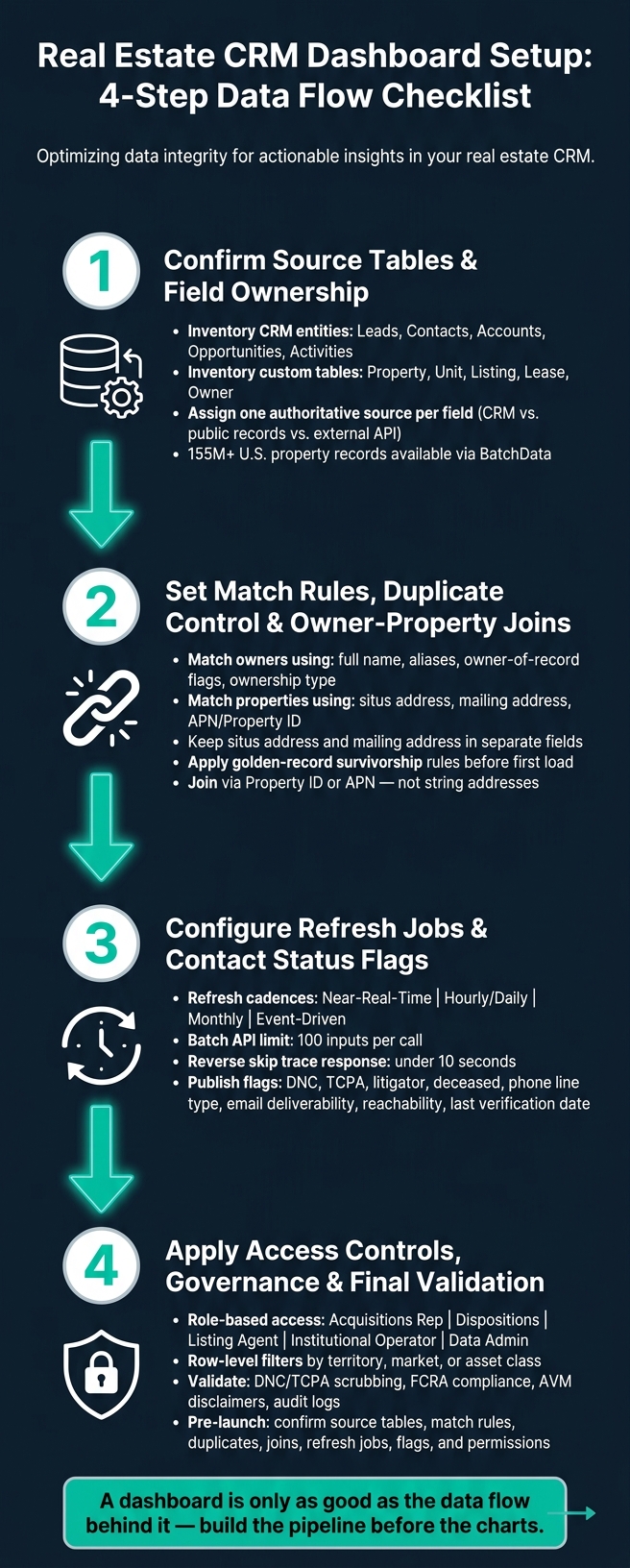
Real Estate CRM Dashboard Setup: 4-Step Data Flow Checklist
Checklist 1: Confirm CRM Source Tables and Field Ownership
Before you map a single dashboard metric, inventory every source table and identify who owns each field. Then lock that ownership before any joins or refreshes start.
This step sounds basic. It isn’t. If you skip it, your dashboard can end up mixing values from different systems without anyone noticing.
Inventory Core CRM Entities and Custom Real Estate Tables
Most real estate CRM setups have two data layers: standard objects and custom real estate tables.
Standard objects usually include Leads, Contacts, Accounts, Opportunities/Deals, and Activities. Custom real estate tables build on top of that with Property, Unit, Listing, Lease, and Owner tables.
Each table has a clear job in the dashboard. Some drive reporting. Some help with matching. Others fill in missing details. Before you build joins, confirm the primary key, business purpose, and dashboard use for every table.
| Entity | Primary Key | Purpose |
|---|---|---|
| Contact/Owner | Contact/Owner ID | Matching, outreach |
| Property | Property ID, APN/Universal ID | Reporting, valuation |
| Lead/Deal | Transaction/Listing ID | Pipeline tracking |
| Communication | Contact Method ID | Compliance, outreach |
For property records, bring in the fields you need for valuation and comps, including bedrooms, bathrooms, living area, year built, lot size, and subdivision.
BatchData provides access to more than 169 million U.S. property records. That gives dashboards a stronger shot at resolving ownership across individual, LLC, trust, and corporate-held assets.
Assign Field-Level Authority for Key Dashboard Metrics
After your table inventory is done, decide which source wins when two systems disagree on the same field.
This is where teams often get tripped up. One system says the owner name changed. Another still shows the old mailing address. A third has a different status flag. If you don’t document field-level authority, the dashboard will quietly choose one value over another, and people will argue about the output later.
Put plainly: when two systems conflict, the dashboard needs one source of truth.
| Field | Authoritative Source |
|---|---|
| Deal stage, internal status flags | Internal CRM |
| Owner name, mailing address, ownership type | Public records |
| Property attributes, mortgage data, transaction history | External property API |
| Phone number, line type, reachability | Identity resolution service |
| DNC flag, TCPA flag, litigator indicator | Compliance/scrubbing service |
Standardize dates as MM/DD/YYYY in the local U.S. business time zone. Also set null-handling rules up front, so missing fields don’t turn into messy or conflicting reports.
Next, match owners and properties with stable rules and duplicate controls.
Checklist 2: Set Record Match Rules, Duplicate Control, and Owner-Property Joins
You’ve already inventoried your source tables and assigned field authority. Now comes the part that keeps your dashboard from lying to you: making sure records from different systems point to the same owner or same property.
If you skip this step, bad things happen fast. The dashboard may count one owner twice. Or it may tie a deal to the wrong property. The fix is pretty simple in principle: set match rules first, lock down duplicate handling next, and then join records using stable keys.
Define Owner and Property Match Rules
Owner matching works best when you use several signals together instead of betting everything on one field.
For owners, combine:
- Full name: first, middle, and last
- Known aliases
- Owner-of-record flags
- Ownership type, such as individual, LLC, trust, or corporation
That mix helps you apply survivorship rules the same way every time. Normalize owner names and mailing addresses first. You can automate this by using a contact enrichment API to pull in missing data points. Then use verified phone and email data as supporting checks, not as your main match keys.
That last part matters. A single phone number can show up across several possible owners. When that happens, rank the top matches by match strength and flag the primary owner of record for the dashboard.
Property matching follows the same basic idea. Match on situs address, mailing address, and standardized property IDs. Also account for ZIP+4, county data, and address validity signals when you have them.
One rule is non-negotiable: keep the situs address and mailing address in separate fields. If you blend them together, owner-property links break the moment an investor lives somewhere else.
For multi-parcel and portfolio joins, track the number of properties owned so one owner entity can connect to multiple assets the right way. Every match rule should protect three things:
- Owner counts
- Property counts
- Deal attribution
Once those signals are set, move duplicate records into one golden record.
Control Duplicates with Golden-Record and Merge Rules
Set golden-record survivorship rules before the first load job.
Each record should resolve to one primary owner and one primary property. If several candidates tie, use ranked match strength and owner-of-record flags to decide which one survives. Then use those surviving records as the only source for owner-property joins.
That gives you one clean version of the truth instead of a pile of near-matches fighting each other behind the scenes.
Join Owners, Properties, and Deals with Stable Keys
Use Property ID or APN as the main join key between your CRM and outside property data. Use Identity ID to move from a contact record to the properties that contact owns.
String-based address joins should be your fallback, not your default. Addresses change, get formatted in odd ways, and create messy joins when you least want them to.
For one-to-many relationships, like one owner tied to multiple properties, always join through Property ID, not the owner name. If ownership changes later, your links stay intact and your dashboard totals don’t drift when records refresh or merge.
Checklist 3: Configure Refresh Jobs and Contact Status Flags
With matching and golden records in place, the next job is simple: keep the dashboard current and make sure contact flags are usable.
Schedule Refresh Cadence and Validate Load Jobs
Pick a refresh cadence based on how fast the data changes and how stale you’re willing to let it get.
| Refresh Option | Frequency | Best For | Pros | Cons |
|---|---|---|---|---|
| Near-Real-Time | Interactive / on-demand | Inbound lead qualification, identity resolution | Immediate accuracy for live calls | Higher API call volume; potential for higher costs |
| Hourly / Daily | Scheduled batch | Active pipeline, contactability flags, DNC updates | Stable reporting and current outreach data | May miss intraday status changes |
| Monthly | Periodic | AVM updates, portfolio equity, market benchmarks | Low processing overhead | Not suitable for fast-moving acquisitions |
| Event-Driven | Triggered by new data | Comparables, new sales, buy-box matches | Refreshes only what changed | Requires event detection logic |
For high-volume datasets, use incremental loads and pull only records changed since the last run. It cuts down the amount of data you move and helps jobs finish sooner. Save full refreshes for smaller reference tables or golden-record merges where stable keys are being reassigned.
There’s also a practical limit here: batch API calls cap at 100 inputs per call. So incremental logic doesn’t just trim load size. It also keeps payloads smaller and jobs moving.
For larger scheduled refreshes, use asynchronous API endpoints. For near-real-time identity resolution, synchronous calls are the better fit, especially when you need a response in under 10 seconds.
After every load, validate row counts and alert on drops you can’t explain. That check can save you from a bad dashboard day.
Once the refresh schedule is steady, publish status flags so outreach lists don’t drift out of date.
Publish Phone Verification, DNC, and Contactability Flags
The dashboard should show the flags teams need at a glance. Agents shouldn’t have to guess.
Expose:
- verified phone status
- line type
- reachability
- DNC
- TCPA
- litigator
- deceased
- email deliverability
- last verification date
Push these flags straight into the CRM flow so suppression happens automatically instead of relying on someone to do it by hand. For outbound dialer lists, refresh contactability flags on an hourly or daily cadence with API batching. For inbound calls, identity resolution through reverse skip trace can turn an unknown number into a person and linked property record in under 10 seconds.
One detail matters more than it may seem: a single phone number can belong to more than one person. Because of that, it helps to show a recent reachability flag next to each number. That way, teams can focus on contacts that have actually been reachable, not numbers that passed a line-type check months ago.
These flags help with compliance, but they do not replace state rules or internal suppression lists.
After the data and flags are current, restrict who can view or edit them.
Checklist 4: Apply Access Controls, Governance, and Final Validation
With refresh jobs running and contact flags published, the last step is simple: make sure the right people see the right data. Permissions and compliance work like a final control layer before launch.
Map CRM Roles to Dashboard Permissions
Not every user needs the same view. An agent doesn’t need the same dashboard as a CRM admin, and a dispositions rep shouldn’t be digging through fields meant for portfolio oversight.
Agents need comparables and valuation ranges. Acquisitions reps need identity resolution and linked property context. Dispositions teams need ranked buyer lists and cash purchase history. Institutional operators need portfolio revaluation and equity positions. Data and CRM Admins need audit logs, skip-trace usage, and governance controls.
Keep each role’s access tight. If a field isn’t tied to someone’s job, it shouldn’t be in their view.
| CRM Role | Dashboard Access | Row-Level Filter |
|---|---|---|
| Acquisitions Rep | Owner aliases, reachable phone/email signals, and linked property IDs | Assigned leads or inbound territory |
| Dispositions/Wholesaler | Ranked buyer lists, cash purchase history, investor portfolio size | Specific contracts or active markets |
| Listing Agent/Broker | Comparables, valuation ranges, neighborhood turnover trends | Local market, subdivision, or radius |
| Institutional Operator | Portfolio revaluation, equity positions, market benchmarks | Specific asset classes or regional portfolios |
| Data/CRM Admins | Audit logs, skip-trace usage, and governance controls | Global access |
Validate Governance Settings and Retention Rules
Once permissions are mapped, test those views against suppression and retention rules.
Before go-live, make sure compliance flags suppress records in the dashboard itself, not just in storage. That’s a big difference. A record hidden in one place but still visible in a report can create a mess fast.
Vendor-provided compliance signals are only a starting point. Internal suppression lists, consent records, and state-specific calling rules still need to sit on top of them.
Also check that the dashboard is not being used for credit, insurance, employment, or housing eligibility decisions. That falls under FCRA restrictions, and this data does not qualify as a consumer report. If you’re showing any automated valuation model (AVM) output, attach a clear disclaimer stating that it is informational, not an official appraisal.
| Governance Control | Responsibility | Implementation Check |
|---|---|---|
| DNC/TCPA Scrubbing | Shared (Vendor/User) | Confirm vendor flags are active and internal suppression lists are applied. |
| FCRA Compliance | User | Ensure data is not used for credit, insurance, or housing eligibility decisions. |
| Auditability | User | Verify that the reasoning for valuations and rankings is visible, not a black box. |
| Data Accuracy | Shared (Vendor/User) | Validate identity resolution matches and owner-of-record flags. |
Conclusion: Final Pre-Launch Checklist for CRM Data Flow
A dashboard is only as reliable as the pipeline feeding it. Before pushing to production, run through this checklist:
- Source tables confirmed – core CRM entities inventoried, field authority assigned
- Match rules locked – owner and property identifiers stable, golden-record logic in place
- Duplicates suppressed – merge rules applied, no conflicting records surfacing in reports
- Owner-property joins tested – stable keys verified across contacts, properties, and deals
- Refresh jobs monitored – cadence validated, load jobs checked
- Contact flags live – suppression indicators are active in the CRM flow
- Access controls enforced – role-based permissions and row-level filters confirmed for every user type
Dashboard design comes last. What makes a real estate dashboard work is the discipline built into the data flow long before anyone opens a chart.
FAQs
How do I choose one source of truth for each field?
Choose the source that’s most reliable and easy to trace. Records often pull from more than one feed to fill gaps, so the best pick is usually the source that stays steady and comparable across the full dataset.
For contact data, look closely at source quality. A number from a live inbound call is not the same as one scraped from a form three years ago. That gap matters. Use validation to check whether the number is still reachable today.
What keys should I use to match owners to properties?
Use a mix of identity, contact, and record IDs. The main inputs are phone numbers and email addresses, which help tie a person or business to a property that’s linked right now.
For better accuracy, start with the property ID and situs address. Then check the match against ownership details, like ownership type and whether the owner lives at the property.
How often should I refresh CRM data in the dashboard?
Refresh CRM data as often as your analysis needs it, instead of waiting for quarterly or other fixed reporting cycles.
For day-to-day work like portfolio revaluation or market benchmarking, update your data whenever new transactions and property evidence come in. That way, decisions reflect what’s happening in the market right now, not what happened weeks or months ago.
BatchData supports this with continuous data ingestion and automated scheduled refreshes.