






































If I want property search results I can use right away, I need 3 things locked down first: clean filters, fixed paging, and stable sort order. That is the whole job of advanced property search in BatchData.
Here’s the short version:
- I send a
POSTrequest to/api/v1/property/search - I include a Bearer API key and JSON body
- I put filters in
searchCriteria - I put paging values in
options - I use
query,take, andskipon every request - I narrow results with location, property, ownership, status, and equity filters
- I treat filters as AND logic, so every condition must match
- I use range fields like
minandmaxfor values such as equity and estimated price - I keep paging fixed with
skipandtake - I keep results in the same order by sorting in a predictable way, with property
idas a tie-breaker - I test zero-result searches, bad field types, and empty pages before shipping anything
In plain English: if I search a ZIP like 78704, ask for 25 records, skip 0, and add filters like out-of-state owner, single-family, and 30%+ equity, I get a tighter list with less cleanup after the API call.
A few details matter most:
- Required fields:
searchCriteria.query,options.take,options.skip - Common filters: estimated value, equity percent, owner status, foreclosure status, property type
- Optional helpers:
quickListandvaluation - Response path to check first:
results.properties - Common failure points: bad JSON shape, numbers sent as strings, and filter combinations that return 0 matches
I’d read this guide as a build checklist: first confirm the request works, then add filters one group at a time, then test paging, sorting, and error handling so exports, CRM pushes, and data jobs do not drift over time.
That’s the core of the article: build the query carefully, keep the output stable, and pass only matched records into the next step.
Authentication and Request Setup
Every request needs three pieces: the endpoint, the POST method, and a Bearer API key. Set those up first. Then you can layer in filters.
API Key, Headers, and Request Format
The property search endpoint is https://api.batchdata.com/api/v1/property/search, and it accepts POST requests. Send your criteria in the JSON body under searchCriteria and options.
Two headers are required on every request:
Authorization: Bearer YOUR_API_KEYContent-Type: application/json
Add your API key to the Authorization header as a Bearer token. The request body must be a JSON object with two top-level keys:
searchCriteriafor filtersoptionsfor pagination and limits
Required Request Fields
Before adding filters, make sure these fields are in the request:
| Parameter | Location in Body | Requirement | Example Value |
|---|---|---|---|
query |
searchCriteria.query |
Mandatory | "Austin, Texas" |
take |
options.take |
Mandatory | 25 |
skip |
options.skip |
Mandatory | 0 |
quickList and valuation are optional search fields.
Set query to a city/state string or ZIP code. Include skip and take in the first request so pagination stays fixed from the start.
First Request Example and Response Shape
Here’s a minimal valid request body that returns the first 25 properties in Austin, Texas:
{ "searchCriteria": { "query": "Austin, Texas" }, "options": { "take": 25, "skip": 0 } } This gives you a clean starting point and confirms the payload structure before you add filter logic.
A successful response returns results.properties. Each result includes a property id, address fields, plus ownership and equity data.
Start by checking the id and address fields. Once that looks right, move on to filters and how query parameters work together.
sbb-itb-8058745
Query Parameters and Filter Logic
BatchData Advanced Property Search: Build & Filter Workflow
Once the request body is set, searchCriteria decides which properties come back. BatchData gives you a handful of filter groups, and the way they work together is what turns a huge dataset into something you can act on.
Location, Property, Ownership, Status, and Equity Filters
Use these groups to narrow the search step by step, from broad market coverage to a lead list you can work with. Once you have your list, you can skip trace property owners to find their contact information.
| Filter Group | Key Fields | Data Type | Example Values |
|---|---|---|---|
| Location | city, state, zip, county |
String | Austin, Texas, 78704 |
| Property | propertyType, propertyTypeDetail, estimatedValue.min, estimatedValue.max |
String / Number | Single Family, 200000, 500000 |
| Ownership | absenteeOwner, ownerOccupied, ownerType, outOfStateOwner, mailingAddressMismatch |
Boolean / String | true, individual, corporate, trust |
| Status | mls.status, foreclosureStatus, recordingDate |
String / Date | Off Market, Pre-Foreclosure, date value |
| Equity | equityPercent.min, equityPercent.max, equity, openLien.mortgages.ltv |
Number | 30, 70, < 70 |
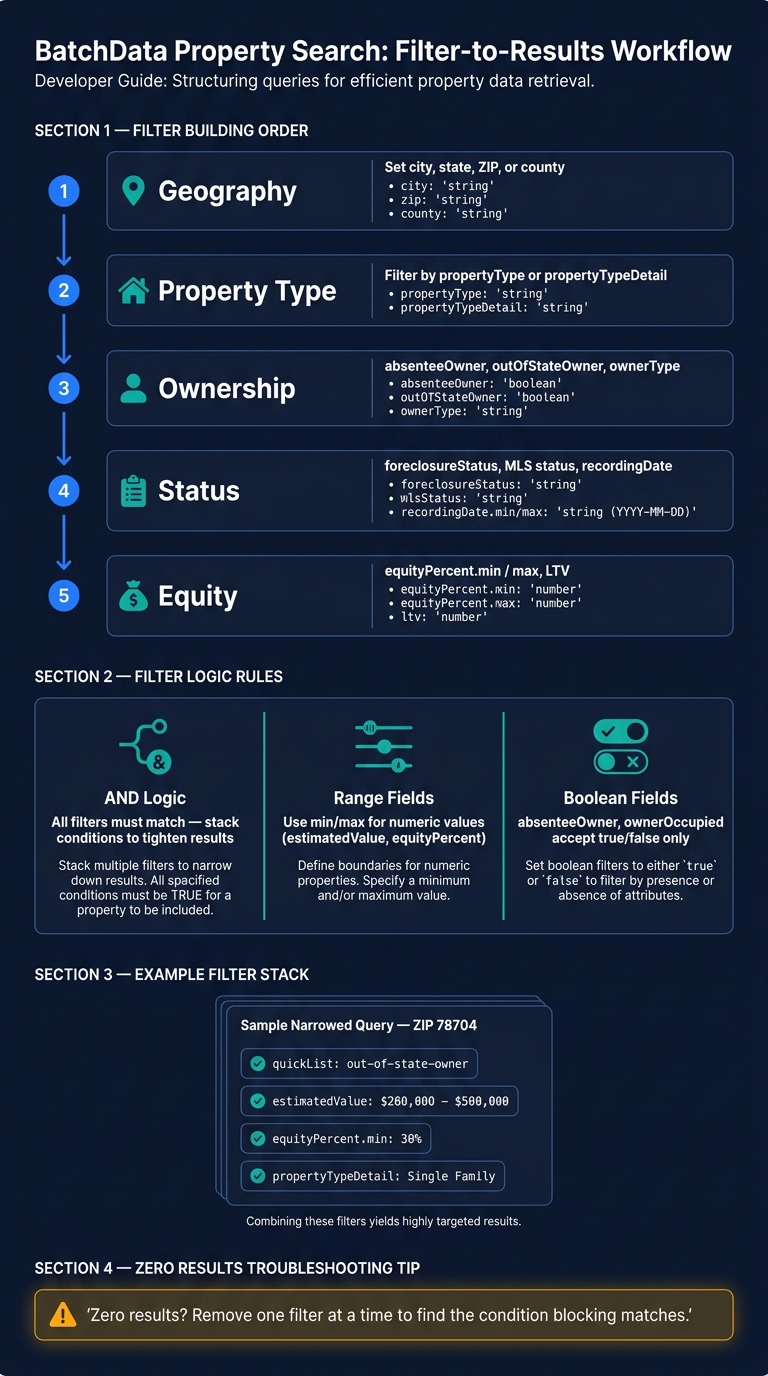
A good way to build filters is to go in this order:
- geography
- property type
- ownership
- status
- equity
That flow keeps things simple. First, define where you want to search. Then narrow by the kind of property, who owns it, whether it has a status signal, and how much equity is in the deal. Once the filter mix looks right, use AND logic and range bounds to tighten the list.
You can also use quickList for preset targeting, such as out-of-state-owner.
AND Logic, Ranges, Booleans, and Text Matching Rules
Filters in searchCriteria use AND logic. So if you set absenteeOwner: true and equityPercent.min: 30, the API returns only properties that match both conditions.
Numeric fields like estimatedValue and equityPercent use nested min and max objects. Treat both bounds as inclusive. Boolean fields such as absenteeOwner accept true or false. For exact text matches, use propertyTypeDetail.equals, like this: {"equals": "Single Family"}.
One practical note: if you stack too many tight filters, you may get zero results. When that happens, back off one filter at a time. That makes it much easier to spot the field that’s shutting the search down.
Request Examples: Broad Search vs. Narrowed Search
Start broad to make sure data exists in the area you want. Then narrow the query once you see a solid result count.
{ "searchCriteria": { "query": "78704", "valuation": { "estimatedValue": { "min": 200000, "max": 500000 } } }, "options": { "take": 25, "skip": 0 } } After that, add ownership and equity signals:
{ "searchCriteria": { "query": "78704", "quickList": "out-of-state-owner", "valuation": { "estimatedValue": { "min": 200000, "max": 500000 }, "equityPercent": { "min": 30 } }, "general": { "propertyTypeDetail": { "equals": "Single Family" } } }, "options": { "take": 25, "skip": 0 } } This query targets single-family homes in ZIP code 78704, owned by out-of-state owners, valued between $200,000 and $500,000, with at least 30% equity. Once the query is dialed in, the next step is pagination and sorting so you can move through results in a stable way.
Pagination, Sorting, and App Workflow Patterns
Stable paging and deterministic sorting help scheduled exports and enrichments avoid duplicates and missed records.
Page Size, Result Limits, and Stable Page Traversal
Use options.skip for the starting offset and options.take for page size. After you lock in the sort order, move through results with skip and take.
For example, to fetch the third page of 25 results, set "skip": 50 and "take": 25.
Sort Fields, Sort Direction, and Deterministic Ordering
Use a primary sort field and a unique property ID as a tie-breaker to keep paging steady. If two properties have the same value in the main sort field, the id tie-breaker keeps the order the same across repeat requests and batch exports.
For lead scoring, sort by your ranking field first, then by the unique property id. That way, the same query can support repeat exports and scheduled runs without shuffling records around.
Connecting Search Output to App Workflows
Once pagination is steady, send the results into the next step in your app workflow. A daily scheduled search can split results, skip trace owners, format the output, and push leads to a CRM while also generating a report. Filter before enrichment to save API credits.
For map review or territory targeting, pass the address fields to your mapping layer after the search returns. For saved searches, use a scheduled trigger to check the same criteria each day so new matching records are picked up on their own.
| Workflow Type | Search Output Used | Next Step |
|---|---|---|
| Investor lead list | Full property array | Skip trace → CRM push |
| Map review | Address fields | Address → map layer |
| Underwriting queue | Filtered high-equity records | Property detail lookup for full record |
| Saved search refresh | New records since last run | Scheduled trigger → review new matches |
| Batch export | Paginated full result set | Offset loop → ordered export |
Testing, Error Handling, and Next Steps
Test Checklist for Query Validation and Edge Cases
Once your filter logic and pagination are in place, test the query with controlled cases.
Check range limits, numeric field types, and allowed enum values before you push anything to production.
For pagination, stick with explicit skip and take values every time. Then run the exact same request again and confirm you get the same paging result. Also check that out-of-range pages return empty arrays instead of breaking the flow.
If those checks look good, the next step is payload validation.
Malformed Requests and Unsupported Filter Handling
When validation fails, start with the payload shape and field types.
Most 4xx errors come from bad JSON structure or type mismatches. Make sure the JSON shape is correct first: searchCriteria for filters and options for paging. Keep numeric fields as native JSON values, not strings.
After that, log each run so you can trace failures without digging around. For run tracking, log the result count, date, and success status. Use defensive parsing like (item.json.results || {}).properties || [] so empty or partial responses don’t break later steps.
Key Takeaways for Production-Ready Property Search
A steady property search setup comes down to three habits:
- Keep filters logically consistent
- Use explicit
skipandtakefor stable traversal - Test edge cases before rollout
If your workflow needs downstream enrichment, pass only the filtered result set into the next step so the handoff stays clean. That keeps the next part of the workflow focused on the records that matter.
FAQs
How do I add filters without breaking my query?
Add filters in BatchData as API request parameters. Start with the core ones, like location, property type, or equity percentage. Then add more detailed criteria as needed.
For automated workflows, use conditional logic or Filter steps after retrieval to chain conditions without breaking the original request. It’s a simple way to narrow results while keeping the base query intact.
Always test filters in a development environment to make sure they return the subset you expect.
What is the best way to keep paginated results stable?
Use cursor-based pagination instead of numeric offsets. That way, you’re less likely to miss records or see duplicates when the data changes while you move through the result set.
It also helps to return response metadata, such as the total record count and a next-page token or URL. On top of that, caching pages people request often and asking only for the fields your app needs can help improve reliability and performance.
How do I troubleshoot searches that return zero results?
Start by validating your request parameters against the API requirements. Then review your filters, like price ranges or geographic coordinates, to make sure they aren’t too tight.
Also confirm addresses use standard USPS formatting, including the right abbreviations and ZIP+4 codes. Check logs, response codes, and correlation IDs to figure out whether the problem is input formatting or just no matching data.