






































Managing real estate leads can be overwhelming without the right tools. Integrating BatchData with Podio helps streamline this process by automating lead management and prioritization. Here’s how:
- BatchData provides detailed property metrics like equity, loan-to-value (LTV), and vacancy status.
- These insights sync directly with Podio, eliminating manual data entry and enabling real-time updates.
- By mapping key fields (e.g., lead score, equity, vacancy) into Podio, you can filter and rank leads based on potential.
- Use scoring systems to assign numerical values to metrics like high equity or vacant properties, ensuring you focus on the most promising opportunities.
This integration simplifies workflows, automates updates, and ensures your team prioritizes leads backed by data. Below, we’ll cover setup steps, automated workflows, and scoring strategies to optimize your lead management.
Automate Lead Follow-Ups in Podio CRM with bland.ai AI Calls! (DEMO) | Code Discoveries
sbb-itb-8058745
Setting Up BatchData Integration with Podio

How to Set Up BatchData and Podio Integration for Real Estate Lead Management
Prerequisites for Podio and BatchData Accounts
Before diving in, make sure you have active accounts on Podio (with admin rights) and BatchData, and that API integration is enabled for your BatchData plan. You can confirm this by checking the "Integrations" section under "My Profile" in your BatchData account.
Next, create a custom Podio app specifically for this integration. Avoid using pre-built apps, as they might not work properly. When setting up your app, choose "Standard" as the app type and place it in a dedicated workspace designed for managing your real estate leads.
For best results, configure all Podio fields as "Text", even for numbers, to avoid formatting issues. Include fields for key details like:
- Lead Score
- Property Address
- Owner First/Last Name
- Estimated Equity
- Total Loan Balance
- Vacancy Status
- Phone Numbers/Emails
Make sure the field names match exactly with the data you want to track – this will make the mapping process much simpler later on. Once your custom app is ready, you can proceed with setting up the API connection.
Step-by-Step BatchData API Connection in Podio
This integration allows for seamless, automated lead data transfers into your custom Podio app. Here’s how to set it up:
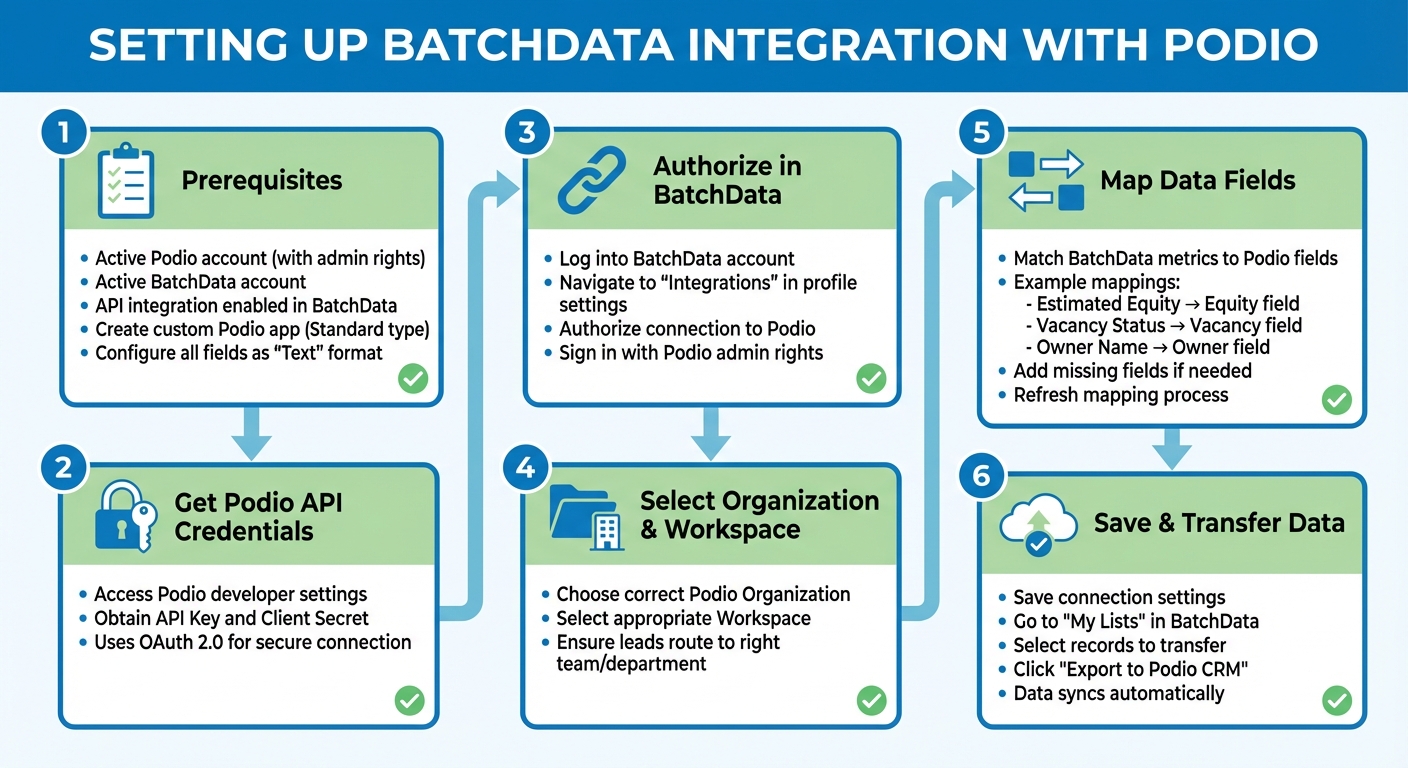
- Get Podio API Credentials: Start by obtaining your Podio API Key and Client Secret through Podio’s developer settings. The integration uses OAuth 2.0 for secure data sharing.
- Authorize in BatchData: Log into your BatchData account and go to the "Integrations" section in your profile settings. From there, authorize the connection to Podio. Make sure you’re signed into Podio with admin rights during this step.
- Select Organization and Workspace: Choose the correct Organization and Workspace within Podio to ensure leads are directed to the appropriate team or department.
- Map Data Fields: Match each BatchData metric (like Estimated Equity) to its corresponding Podio text field. BatchData will display all available data points alongside your Podio fields for easy mapping. If you notice a required field is missing, you can add it to your Podio app and refresh the mapping process.
- Save and Transfer Data: Once mapping is complete, save your connection. You can then go to "My Lists" in BatchData, select the records you want, and use the "Export to Podio CRM" option to start transferring data.
Importing Real Estate Leads into Podio from BatchData
This guide focuses on turning detailed insights from BatchData into actionable leads within your Podio workspace.
Using BatchData Bulk Data Delivery for Lead Import
Once your API connection is ready, you can start transferring leads from BatchData to Podio. The bulk data delivery feature makes it easy to handle large datasets, allowing you to move hundreds or even thousands of property records in one go.
Begin by navigating to "My Lists" in your BatchData account. Here, you’ll find all your saved property lists. Use the filtering tools to refine your selection – perhaps targeting properties with high equity, specific vacancy statuses, or particular geographic areas. Once you’ve narrowed down your list, select the records, click "Export", choose "Export to Podio CRM", and sync with your chosen Podio app. BatchData will then create new lead items in Podio, populating fields based on the mapping you set during setup. This includes details like owner information, property specifics, financial data (e.g., estimated equity, total loan balance), and contact details from skip tracing.
BatchData supports over 60 data points, covering everything from property details and owner information to financial metrics and MLS data. All data is transferred as text, ensuring consistent formatting and avoiding errors from mismatched field types.
Once your leads are successfully imported, you can set up automated workflows in Podio to speed up your response time.
Automating Lead Creation with Podio Workflows
After importing leads, automation can take your efficiency to the next level. Beyond manual exports, you can use Podio workflows to automate lead organization and management. Once leads are synced into Podio, workflows can activate automatically based on the imported data.
For instance, you can configure workflows to assign leads to team members based on lead scores, send email alerts for high-equity properties, or create follow-up tasks for leads with verified contact numbers. These workflows kick in as soon as BatchData adds new items to Podio, ensuring your team can act on fresh leads immediately. This automation helps streamline your process, enabling a more data-driven approach to prioritizing and managing leads effectively.
Scoring Real Estate Leads with BatchData Insights
BatchData’s detailed metrics take lead management to the next level. Once leads are imported into Podio, you can easily identify which ones require immediate attention. While BatchData provides a wide range of property data points, not all of them hold the same influence. A smart scoring system lets you assign numerical values to specific property and owner characteristics, helping you prioritize high-potential opportunities over less promising ones.
Assigning Scores Based on Equity and Property Metrics
One of the most telling metrics is Estimated Equity, which represents the market value minus the outstanding mortgage balance. High equity often signals a motivated seller with room for negotiation. On the other hand, Estimated Loan-to-Value (LTV) can reveal financial strain – low LTV suggests strong equity, while high LTV could indicate a short sale scenario.
Vacancy status is another key factor. Vacant properties often point to absentee owners who might be eager to sell and avoid the hassle of upkeep. Pair this with Owner Occupancy status, which can highlight landlords managing rentals from afar. For investors focused on fix-and-flip opportunities, metrics like After Repair Value (ARV) and Spread % ARV are essential, as they highlight potential profit margins.
To fully leverage these insights, map these metrics to custom text fields within a new "Standard" Podio app. Avoid relying on default market apps – customization ensures clarity and sets the groundwork for automated score calculations.
Implementing Custom Scoring Fields in Podio
Using your custom Podio app, map each BatchData metric as outlined in previous integration steps. Once the data flows into Podio, set up a field to calculate and display lead scores. Podio’s calculation fields can automatically process data from other fields, generating a numerical score. For example, assign:
- 30 points for equity over $50,000
- 20 points for vacant properties
- 15 points for ARV spreads exceeding 20%
The calculation field will sum these values, giving you a clear lead score.
To streamline the process, group these scoring metrics under a "Lead Scoring Insights" header in each lead profile. This setup allows your team to quickly assess a lead’s priority. Additionally, BatchData offers a pre-calculated Lead Score field (on a 0–100 scale) that categorizes properties as "Hot", "Warm", or "Cold." You can map this field directly into Podio, saving time and providing instant prioritization for every imported lead.
Lastly, create custom views in your Leads app to focus on top-priority leads. For instance, a "Score > 80" view can serve as your daily list of hot leads, ensuring your team spends time on the most promising opportunities.
Prioritizing High-Potential Leads in Podio
After scoring your leads, the next step is identifying the opportunities that are worth your time and effort. It’s not just about the highest scores – it’s about analyzing multiple data points to pinpoint leads that are both reachable and likely to convert. Tools like BatchData’s skip tracing results and enriched property information help streamline this process. By combining these insights, you can create workflows that focus your team on leads with real potential. Start by using skip tracing to confirm contact details and refine your lead list.
Filtering Leads with BatchData Skip Tracing
Skip tracing turns raw property data into actionable leads by verifying contact details. Once you’ve set up the integration, you can filter for reachability – prioritizing only those leads with confirmed phone numbers or emails.
For phone outreach, create a "Ready to Call" view in Podio. Filter for records with non-empty "Phone Numbers" fields and exclude any marked as "Phone Numbers DNC." For email campaigns, set up a similar view that filters for non-empty "Emails" fields. You can also use BatchData’s "SMS Lead Status" markers – like "Hot" or "Warm" – to further segment your leads. Automate this process with Zapier triggers, such as "SMS Lead Marked as Hot". This way, your leads are categorized based on their engagement level, not just their property details.
Building Podio Views for Lead Segments
Once you’ve verified contact data, you can use Podio’s custom views to organize your leads into actionable groups. For example, create a "High Priority" view by applying filters like: Lead Score above 80, a populated Phone Numbers field, and Estimated Equity over 30%. This ensures you’re targeting leads that are high-value, motivated, and reachable.
For fix-and-flip opportunities, set up a view that focuses on properties with ARV spreads above 20% and a "Vacancy" status marked as "Yes." You can also use Zapier actions like "Find Item" or "Search Field" to prevent duplicate records when updating skip tracing data. Another smart option is building a "Newly Vacant" view, highlighting properties flagged as vacant within the past 30 days – perfect for time-sensitive outreach.
Organize these views in your Podio workspace sidebar, so your team can seamlessly move between priority segments without wasting time on manual sorting. These targeted views align with your automated workflows, keeping your team focused on leads that matter most.
Advanced Strategies for Data-Driven Lead Optimization
Once your workflows are in place, take them a step further by refining your lead records with more precise data verification. The quality of your leads hinges on accurate contact details. BatchData’s phone and address verification tools help minimize wasted effort by confirming contact information before your team makes calls or sends mailers. This ensures your outreach targets leads that are both valuable and reachable. This verification process sets the stage for creating more detailed and actionable lead profiles.
Enriching Leads with BatchData Phone and Address Verification
BatchData’s skip tracing services provide verified phone numbers and email addresses that seamlessly sync with your Podio items. To capture these insights, include custom text fields in your Podio app. The integration also flags phone numbers with a "Do Not Call" status, helping you filter out leads that can’t be contacted.
Address verification does more than confirm a property’s location – it identifies whether the property is vacant and ensures mailing deliverability. Using the "Export to Podio CRM" option in the BatchLeads "My Lists" menu, you can bulk-update or sync verified records directly into your workspace. You can also automate workflows with Zapier to create Podio items whenever a property is skip traced and new contact information becomes available. This approach keeps your CRM clean and focused on leads that are ready for action.
The integration supports mapping over 60 data fields, such as APN, property type, owner-occupancy status, and estimated equity. By connecting these financial and property indicators, you can quickly identify high-value opportunities, like equity-rich properties. This added layer of detail transforms raw data into qualified leads, improving both lead quality and prioritization.
Using Scoring Criteria for Prioritization: A Quick Reference Table
To simplify lead prioritization, consider using the following scoring framework:
| Scoring Criteria | BatchData Metric | Description | Priority Impact |
|---|---|---|---|
| Equity Position | Est. Equity / Est. LTV | Assesses homeowner equity | High: Leads with over 30% equity show more motivation. |
| Financial Readiness | Total Loan Balance / Assessed Value | Evaluates debt levels and deal potential | Medium: Indicates if a lead can sell at a discount. |
| Motivation Level | Vacancy / Lead Status | Highlights vacant properties or seller intent | High: Vacant properties often signal motivated sellers. |
| Contact Accuracy | Phone Numbers DNC / Emails | Confirms valid contact details | Critical: Avoids time wasted on invalid or restricted leads. |
| Market Potential | ARV / Spread % ARV | Measures After Repair Value and profit margin | High: Helps investors focus on high-margin deals. |
| Timeline | Date Added / Last Sale Date | Tracks lead age or recent activity | Medium: Recent activity or shorter timelines suggest urgency. |
When designing your Podio app, skip the default market apps and opt for a "Standard" app with custom text fields tailored to BatchData metrics. This setup allows you to filter and sort leads based on their scoring criteria, ensuring that the most promising opportunities rise to the top of your list.
Conclusion
Connecting BatchData with Podio takes the guesswork out of managing real estate leads by introducing a data-focused approach. Instead of treating every prospect the same, you can prioritize leads based on concrete factors like equity position, vacancy status, or verified contact details. This means your team can concentrate their efforts on deals with the highest potential, rather than wasting time on less promising opportunities.
The integration also simplifies your workflow by removing the need for manual data entry and ensuring your CRM stays updated in real time. By setting up custom fields in Podio to track BatchData metrics – such as estimated equity, loan-to-value ratios, or skip tracing results – you create a centralized hub where every lead comes with actionable insights. Automation ensures that any updates in BatchData, like skip tracing results or a "Hot" lead status, are instantly reflected in Podio.
With detailed data mapping and the scoring system discussed here, you can increase your closing rates and improve overall efficiency. Verified phone numbers and addresses keep your outreach efforts focused on motivated sellers, while custom Podio views help you filter and sort leads by the metrics most relevant to your strategy.
To get started, link your BatchData account to Podio, tailor your app fields to match the data you track, and set up workflows that automatically adjust lead scores as new information becomes available. This setup allows you to spot high-value opportunities quickly and make informed decisions based on accurate property and contact data.
FAQs
Which BatchData fields should I map into Podio first?
To get the most out of your lead data, start by adding fields that provide detailed property and owner information. Focus on key areas such as:
- Property size: Helps gauge the scale of opportunities.
- Year built: Offers insights into potential maintenance or renovation needs.
- Ownership status: Indicates whether the property is owner-occupied or rented.
- Financial details: Includes mortgage information or property value estimates.
- Contact information: Ensures you can directly and effectively reach prospects.
By integrating these fields into your CRM, you can score and prioritize leads more efficiently. This enriched data gives you the tools to zero in on high-potential prospects, streamlining your efforts and improving results.
How do I avoid duplicates when syncing leads into Podio?
When syncing leads into Podio using BatchData, it’s crucial to avoid duplicate entries to maintain a clean and accurate database. Here’s how you can set up a simple deduplication process:
- Use Unique Identifiers: Rely on key data points like email addresses, phone numbers, or property addresses to identify existing entries.
- Check for Matches: Configure your workflow to search Podio for these unique identifiers before adding new leads.
- Add Only When Necessary: If no match is found, proceed to create a new entry. Otherwise, skip it to avoid redundancy.
This process ensures your database stays organized and free from duplicate records, saving time and reducing confusion down the line.
What lead score cutoffs should I use for “hot” leads?
There’s no one-size-fits-all cutoff for identifying "hot" leads, but higher scores – say, in the 80-100 range – usually signal stronger prospects. That said, it’s important to tailor these thresholds to fit your specific scoring model and historical trends. Pay close attention to factors like budget, urgency, and engagement to determine what makes a lead high-potential within your system.