




































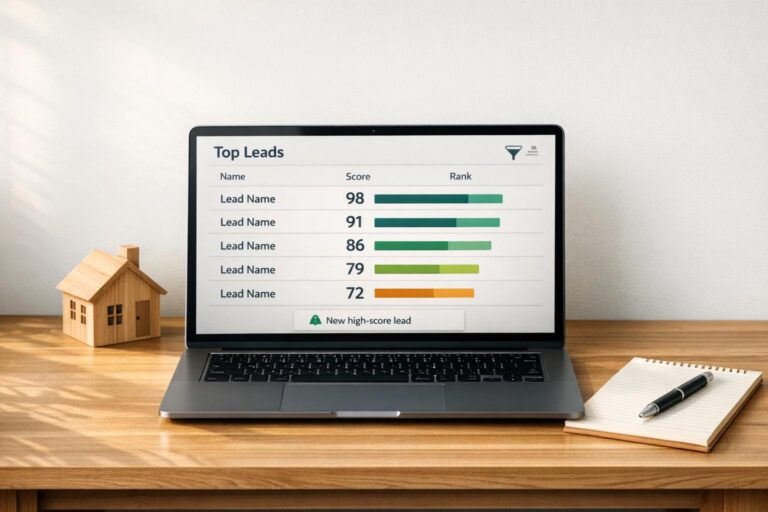
Managing real estate leads can feel overwhelming without a clear system in place. BatchData‘s Lead Scoring API, integrated with GoHighLevel, offers a simple way to evaluate and prioritize leads based on urgency, financial readiness, and engagement. This ensures you focus on high-value opportunities while saving time on less promising prospects.
Key Takeaways:
- BatchData’s API assigns scores to leads, highlighting those most likely to convert.
- GoHighLevel integration automates lead scoring and organizes contacts by priority.
- Actionable steps include setting up workflows, creating smart lists, and automating alerts for top-tier leads.
By combining BatchData’s scoring with GoHighLevel’s CRM, you can streamline your lead management process, improve conversion rates, and focus your energy on what matters most: closing deals.
Simple Lead-Scoring Formula for Your Real Estate Leads
What You Need Before Getting Started
Before diving in, make sure you have both BatchData and GoHighLevel accounts set up, along with their respective API credentials. These are essential for integrating BatchData’s lead scoring capabilities into your GoHighLevel CRM, allowing you to focus on high-value prospects with precision.
Account Setup and API Access Requirements
To get started, you’ll need active accounts for both platforms:
- BatchData account: This provides access to BatchData’s API, offering property insights and lead scoring for over 155 million U.S. properties.
- GoHighLevel account: This is your CRM platform, where you’ll apply the lead scores and manage your prospects.
Both systems require API keys for integration. You can find your GoHighLevel API key by navigating to Settings > API Keys in the dashboard. Keep this key secure, as it grants full access to your account. Similarly, BatchData will provide API credentials upon account setup.
For those unfamiliar with APIs, BatchData and GoHighLevel use Bearer tokens for secure communication. If the technical setup feels overwhelming, you can use automation tools like Zapier, Pabbly, or Make to simplify the process.
BatchData Pricing Options
BatchData uses a tiered pricing system based on the number of leads you process each month. The BatchRank add-on enhances this by providing three critical data points: Sale Propensity Score, Sale Propensity Category, and Sale Propensity Status.
| Plan Tier | Base Monthly Price | Monthly Record Limit | BatchRank Add-on Cost |
|---|---|---|---|
| Lite | $500 | 20,000 | +$250/mo |
| Growth | $1,000 | 100,000 | +$550/mo |
| Professional | $2,500 | 300,000 | +$1,250/mo |
| Scale | $5,000 | 750,000 | +$1,750/mo |
| Enterprise | Custom | Custom | Custom |
Choose a plan that fits your lead volume. For example, if you process 50,000 leads monthly, you’ll need the Growth plan, which costs $1,000 plus $550 for the BatchRank add-on, totaling $1,550 per month. If your business handles more than 750,000 records, BatchData offers custom pricing with SLA guarantees. All plans include API access and features like property search, address auto-complete, and access to over 240 property data points and 140 mortgage and lien data points.
Once your accounts and API credentials are ready, you can move on to setting up the integration within your GoHighLevel dashboard.
How to Set Up the Integration
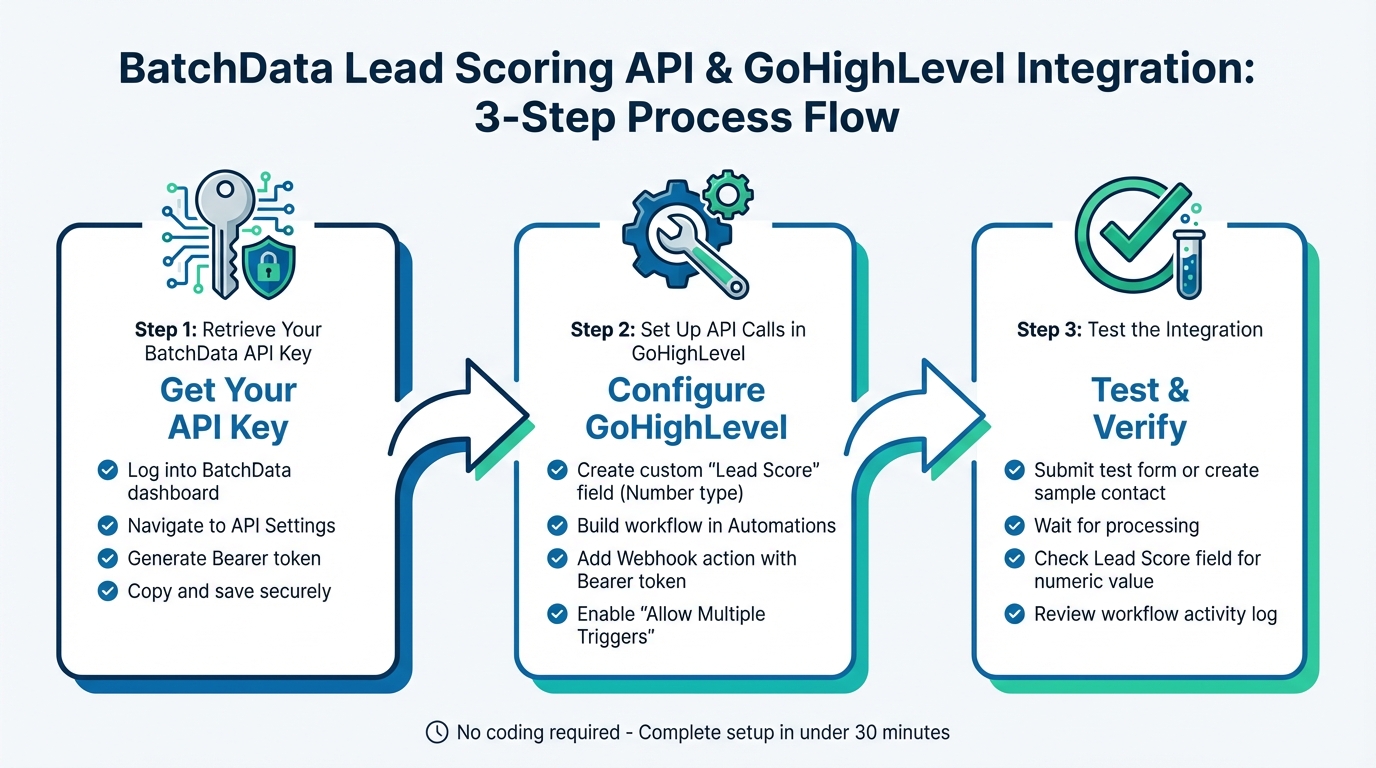
3-Step Guide to Integrating BatchData Lead Scoring API with GoHighLevel
Getting BatchData’s Lead Scoring API working with GoHighLevel is a simple process that doesn’t require any coding. The setup involves three main steps: grabbing your API credentials, configuring workflows within GoHighLevel, and testing the integration to ensure everything runs smoothly.
Step 1: Retrieve Your BatchData API Key
Start by logging into your BatchData dashboard. Head over to the API Settings section to generate your API key. BatchData uses Bearer token authentication, which provides a unique token that allows GoHighLevel to access its lead scoring data. Once you generate the token, copy it and keep it in a safe place – you’ll need it for the next steps.
Step 2: Set Up API Calls in GoHighLevel
Now it’s time to connect the API key to your GoHighLevel account by creating a custom API call in your workflow.
- Create a Custom Field:
Go to the Settings section in GoHighLevel and select Custom Fields. Create a new field, choosing "Number" as the field type, and name it something like "Lead Score" or "BatchData Score." Assign this field to the Contact group so it appears on each lead’s profile. For convenience, move the Lead Score field to the top of the contact layout. - Build a Workflow:
Navigate to Automations → Workflows and create a new workflow. Set the trigger to capture new lead activity, such as Form Submission, Contact Creation, or Survey Submission. Add an action step labeled "Webhook" or "Custom API Request" and configure it to send data to BatchData’s API endpoint. In the authorization header, include:Authorization: Bearer [Your_BatchData_API_Key] - Enable Real-Time Updates:
Make sure to enable "Allow Multiple Triggers" in the workflow settings. This ensures the lead score updates whenever the contact performs an action that qualifies for scoring. Once set up, the integration will automatically provide real-time lead scoring updates, helping you focus on high-priority leads.
Step 3: Test the Integration
To confirm everything is working:
- Submit a test form or create a sample contact to activate the workflow.
- Wait a few minutes for processing, then check the contact record in GoHighLevel. The "Lead Score" field should now display a numeric value based on BatchData’s scoring algorithm.
If the field is blank, double-check that your API key is correct and that the custom field is set to "Number." You can also review the workflow’s activity log to ensure the API call was successful. Once verified, your integration will be ready to score leads automatically as they come in.
sbb-itb-8058745
How to Use Lead Scores to Prioritize Your Leads
With BatchData’s Lead Scoring API integrated into GoHighLevel, you can easily identify which leads require immediate attention and which ones need nurturing. The numeric score assigned to each contact serves as the foundation for organizing your sales pipeline and prioritizing your efforts effectively.
Organize Leads by Score
Start by creating Smart Lists in GoHighLevel to filter contacts based on their lead scores. Head to the Contacts section and set up dynamic lists that automatically update using the Lead Score custom field. This way, as BatchData refreshes scores, your lists stay current, giving your team a clear view of priority levels.
You can also use pipeline stages and workflows to organize leads visually. For instance, leads scoring above 25 might automatically move to a "Sales Call Needed" stage, while those with mid-range scores could go into a "Nurture" stage. This structure ensures your sales team focuses on the most promising opportunities first.
| Action/Threshold | Priority Level | Recommended GHL Automation |
|---|---|---|
| Score > 25 | High (Hot) | Move to "Sales Call Needed" stage, trigger SMS alert to rep, assign manual call task |
| Score 10–25 | Medium (Warm) | Add to "Nurture" email sequence, include in "Warm Leads" list |
| Score < 10 | Low (Cold) | Move to "Cold Leads" pipeline, start a re-engagement campaign |
Once your leads are categorized, set up automations to notify your team about high-priority leads in real time.
Set Up Alerts for High-Priority Leads
To maximize your chances of converting high-scoring leads, it’s crucial to act quickly. Use GoHighLevel workflows to send instant notifications when a lead crosses a high-score threshold. These alerts can take the form of SMS messages to sales reps, emails to team leaders, or even posts in Slack channels, ensuring no opportunity slips through the cracks.
You can go a step further by automating task assignments within GoHighLevel. When a lead reaches a top-tier score, create workflow actions to assign specific tasks – like manual call follow-ups – to the right team members, based on factors like territory or availability. For your hottest leads, consider sending an automated SMS with a direct calendar booking link, allowing prospects to schedule a call right away while their interest is at its peak.
To fine-tune your approach, use conditional workflows to tailor your follow-ups. High scorers might receive direct sales offers, while mid-range leads can enter email sequences designed to nurture trust and interest over time. This way, every lead gets the attention they need to move closer to conversion.
How to Monitor and Improve Your Workflow
Keeping a close eye on your API integration is key to maintaining strong performance and staying responsive to market trends. To keep conversion rates high in your GoHighLevel CRM, it’s essential to consistently monitor and fine-tune your BatchData integration.
Track API Performance and Scoring Accuracy
Set up logging systems to track workflow performance and pinpoint any bottlenecks. A dedicated GoHighLevel dashboard can help you monitor API success and failure rates, as well as operational metrics like efficiency and workflow execution success. This proactive approach can help you catch potential issues before they disrupt your sales team.
But don’t stop at technical metrics – dig deeper to ensure your scoring system is delivering results. Keep an eye on your lead-to-opportunity conversion rate and cost per qualified lead to verify that your scoring algorithm is aligned with actual business outcomes. Build in error-handling and retry mechanisms to reduce workflow interruptions. Additionally, create a feedback loop between your sales and marketing teams. This allows you to compare lead scores with actual closing data, providing real-world insights to fine-tune your scoring parameters over time.
Adjust Scoring Criteria Based on Results
Your scoring criteria should evolve based on what the data tells you. Dive into historical conversion data to identify which property attributes most often result in closed deals and adjust the scoring weights accordingly. For instance, give more weight to high-performing lead sources like referrals.
Reassess factors such as budget range, purchase timelines, and engagement levels (like email responsiveness) on a monthly basis. To test changes, start small – focus on a specific geographic area or property type to measure the impact and refine your scoring logic before rolling it out more broadly. Use GoHighLevel function nodes to dynamically adjust scoring criteria based on conversion trends.
Scale for Larger Lead Volumes
Once your scoring system is optimized, prepare for a surge in lead volumes. To avoid slowdowns, consider adding delays between API calls or using batch processing for multiple properties. Protect your system by storing API credentials securely, such as in credential stores or environment variables, especially as more team members gain access to the platform.
Take a phased approach to scaling. Begin with basic property lookups and authentication, then layer in automated lead enrichment and scoring workflows. Over time, you can introduce advanced features like market monitoring and proactive opportunity alerts. Keep an eye on metrics like your data enrichment completion rate to ensure quality remains consistent as volumes grow. Regularly monitor your dashboard for any signs of workflow degradation, and make infrastructure adjustments to ensure your sales team can respond promptly to high-priority leads.
Conclusion
Integrating BatchData’s Lead Scoring API with GoHighLevel changes the game for lead management. By following the setup steps, you can replace hours of manual lead qualification with a system that prioritizes prospects based on data, allowing you to focus on the leads that truly matter.
The financial benefits are hard to ignore: real estate agents using similar GoHighLevel automations have seen a 60% drop in lost leads and recovered deals worth $72,000 in just one quarter. BatchData helps by filtering out 70-80% of unqualified leads, cutting down on wasted time and resources on ineffective nurture campaigns. Plus, research from InsideSales highlights that responding to qualified leads within 5 minutes makes you 100x more likely to connect, ensuring you’re engaging with the right prospects at the right time.
Getting started is simple: sign up for BatchData API access, add your key to GoHighLevel workflows, and set alerts for scores above 75 to capture high-priority leads immediately. To keep improving results, monitor metrics like lead-to-opportunity conversion rates and cost per qualified lead. Adjust scoring weights monthly based on which property attributes are closing deals in your market.
Whether you’re an individual agent juggling dozens of leads or part of a brokerage team looking to scale, this integration gives you the tools to close more deals without adding extra manual work. The combination of GoHighLevel’s automation and BatchData’s property insights creates a powerful edge, turning routine tasks into opportunities for consistent revenue growth.
FAQs
What does the lead score actually mean?
The lead score indicates how likely a lead is to turn into a deal or its potential value. It’s determined by analyzing factors such as property details, homeowner demographics, and engagement signals. This helps you identify high-priority prospects, streamline lead management, and boost conversion rates.
How often does the score update in GoHighLevel?
When using GoHighLevel, a contact’s lead score adjusts automatically based on their engagement activities, like opening emails or clicking on links. If needed, you can manually refresh this score by updating the contact’s profile, which triggers a recalculation of their engagement score.
How do I pick score cutoffs for hot, warm, and cold leads?
To determine score cutoffs, think about engagement levels and scoring thresholds that indicate lead quality. For instance:
- "Hot" leads: Scores above 80
- "Warm" leads: Scores between 50 and 80
- "Cold" leads: Scores below 50
You can tweak these ranges to fit your specific needs, considering factors like budget, urgency, or recent activity. The key is to align the thresholds with your scoring data and past experience to prioritize leads more effectively.