




































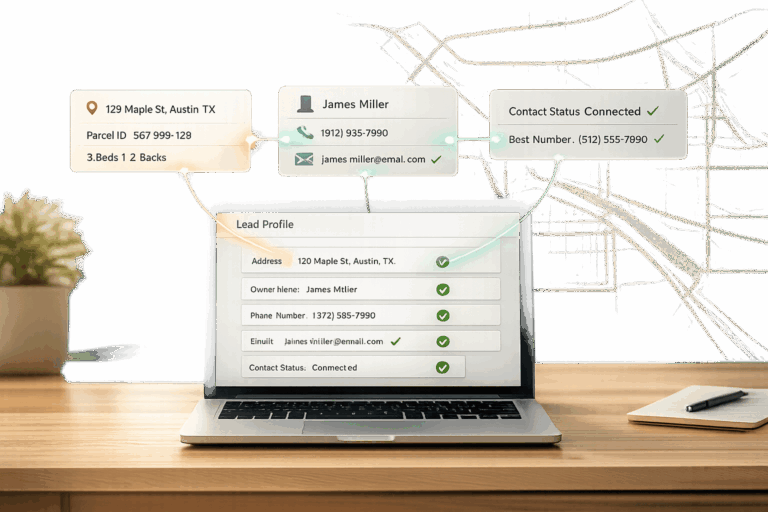
Automating property data enrichment in GoHighLevel with BatchData‘s API saves time, improves lead targeting, and boosts conversions. Here’s how it works:
- Save Time: Eliminate manual data entry by automating property data updates directly into your CRM.
- Boost Conversions: Leads enriched with property details (like market value, equity, and owner info) are 2-3x more likely to convert.
- Personalize Campaigns: Use enriched data to tailor messages, like refinance offers for high-equity homeowners or luxury listings for high-value properties.
- Easy Integration: Set up webhooks in GoHighLevel to send and retrieve data from BatchData’s API in real time.
BatchData offers over 700 property attributes and a 76% contact accuracy rate, enabling smarter workflows. By automating these processes, real estate teams can focus on closing deals instead of data entry. Below, learn how to set up this integration step-by-step.
How to use the GoHighLevel API v2 | Complete Tutorial
sbb-itb-8058745
What You Need Before Getting Started
Before diving into the setup, you’ll need a GoHighLevel account with workflow permissions, a BatchData API key, and a basic understanding of webhooks and JSON. These tools and knowledge will ensure a smooth integration process as outlined in the steps ahead.
GoHighLevel Account and API Access
First, make sure your GoHighLevel account includes access to the Automation and Workflows sections. This access is crucial because it allows you to create outbound webhooks that send lead data to BatchData in real time. Double-check that you can add a Custom Webhook Action in the workflow builder and save webhook responses. These features are key to pulling enriched property details into your CRM.
Your API access will depend on your subscription plan:
- Starter and Unlimited plans: Offer basic API access and Location API Keys.
- Agency Pro Plan: Includes advanced features like OAuth 2.0 and Agency-level API Keys.
BatchData API Key and Pricing Plans

To get started with BatchData, sign up to receive your API key, which you’ll need to authenticate requests for accessing over 155 million property records and 700+ attributes. This API key acts as your entry point to detailed property data and should be included as a Bearer token in your HTTP header (e.g., Authorization: Bearer {YOUR_TOKEN}).
BatchData offers two pricing models:
- Pay-As-You-Go: Ideal for flexible, usage-based billing.
- Custom Solutions: Designed for businesses with high-volume integration needs.
BatchData updates its property profiles daily and boasts a 76% right-party contact accuracy rate – three times higher than the industry standard.
Understanding Workflows and Webhooks
GoHighLevel workflows allow you to automate tasks based on lead behavior, such as form submissions or changes in status. These workflows use webhooks to send data to BatchData’s API endpoints in JSON format.
For example, a JSON payload might look like this:
{"address": "123 Main St"}.
You can also use GoHighLevel’s merge tags (like {{contact.email}} or {{custom_values.property_address}}) to dynamically map fields. When setting up your webhook, choose the CUSTOM event mode to access the Raw Body editor for full control over the data you send.
Understanding HTTP status codes will help you troubleshoot errors:
- 400/422: Invalid JSON formatting.
- 401/403: Authentication issues.
- 429: Rate limits exceeded.
To test your setup, tools like Webhook.site or Postman can simulate requests before you activate live workflows. With these essentials in place, you’ll be ready to integrate enriched property data directly into your GoHighLevel workflows.
How to Set Up BatchData API for Property Data Enrichment
Creating and Testing Your BatchData API Key
Your API key, provided during sign-up, is your gateway to accessing over 155 million property records and 700+ data attributes. Make sure to store this key securely, as you’ll need it for all API requests.
To test your connection, tools like Postman come in handy. Set the request method to POST, then include an Authorization header with the value Bearer YOUR_API_KEY and a Content-Type: application/json header. In the request body, you can use a sample JSON payload like this:
{"streetAddress": "123 Main St", "city": "Phoenix", "state": "AZ", "postalCode": "85001"}
A successful response will return enriched property data, confirming your integration is functional and ready to use with GoHighLevel workflows. Once this test is complete, you can start exploring BatchData’s enrichment endpoints.
BatchData Property Enrichment Endpoints Explained
BatchData provides several real-time endpoints designed to meet different real estate needs. Here’s a quick breakdown:
- Property Lookup API: This endpoint delivers over 700 data points for a single property, including details like sales history, tax records, and ownership information – all in one call.
- Property Search API: Ideal for creating filtered lists based on criteria such as property valuation, mortgage status, or demographic data.
- Property Skip Trace API: Focused on contact discovery, this endpoint provides phone numbers and emails with a 76% right-party contact accuracy rate, which is nearly three times the industry standard.
Other useful endpoints include:
- Address & Phone Verification: Cleanses databases and cross-checks against Federal DNC lists.
- Geocoding API: Converts addresses into precise geographic coordinates, perfect for mapping applications.
Each endpoint serves a specific purpose: use Lookup for detailed insights on individual properties, Search for bulk data needs, and Skip Trace for direct outreach efforts.
API Security and Compliance Guidelines
After successfully testing your API key, ensure all requests are sent over HTTPS to keep data secure during transmission. Avoid hardcoding your API keys in public code repositories. Instead, store them in environment variables or secure credential management tools to prevent unauthorized access.
When dealing with contact data, BatchData offers built-in tools to help you stay compliant with federal regulations. The DNC & Litigator Scrub feature automatically filters out phone numbers listed on Do Not Call registries and identifies known litigators. Additionally, real-time phone validation removes disconnected numbers, reducing wasted effort and legal risks. Address verification ensures that your mailing lists only include valid, deliverable addresses, which helps cut down on unnecessary marketing costs while keeping your database clean.
How to Automate GoHighLevel with BatchData
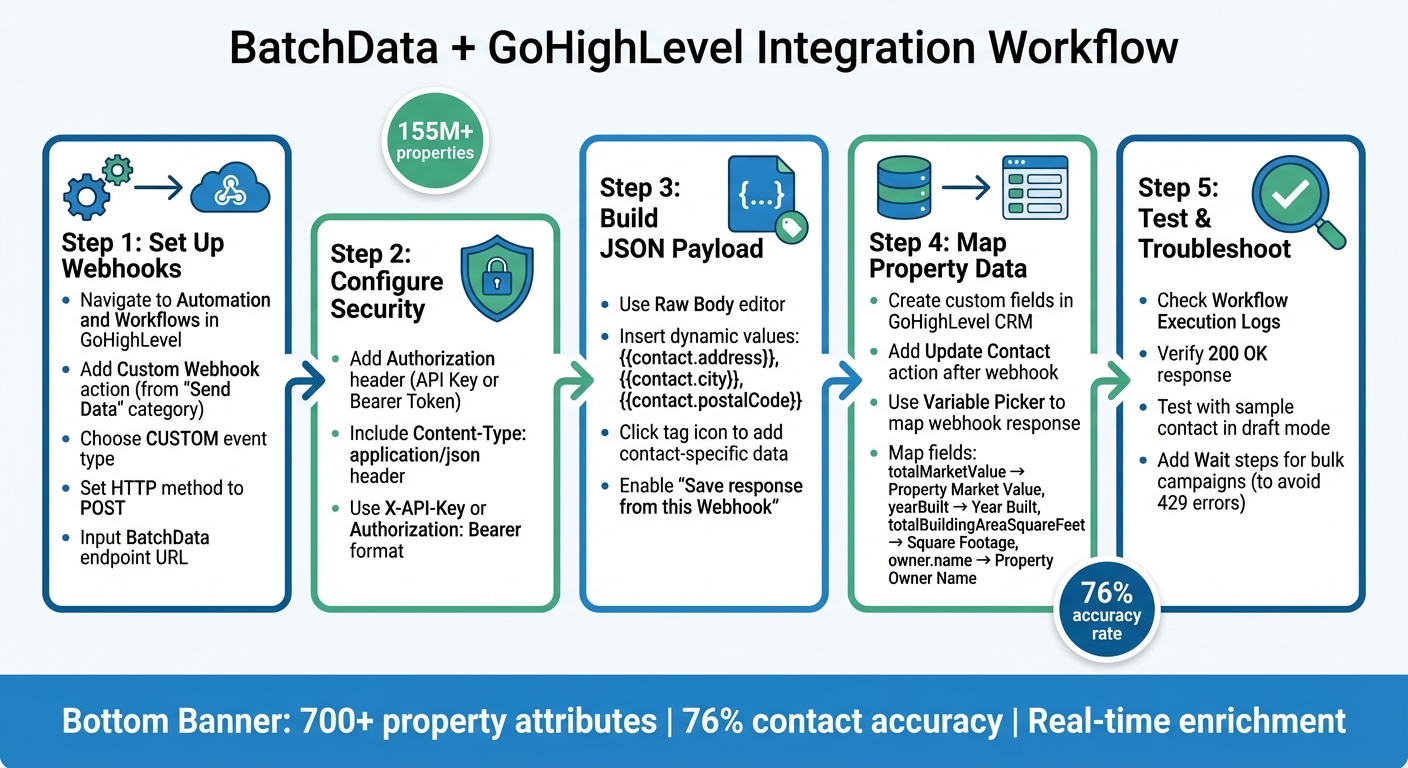
How to Integrate BatchData API with GoHighLevel: Step-by-Step Setup Guide
Once you’ve tested your API connection and set up your endpoints, it’s time to create automated workflows that trigger property enrichment in real time. GoHighLevel’s webhook system makes it easy to send property data requests to BatchData whenever specific events occur – like when a new lead enters your CRM or when a contact reaches a particular stage in your sales pipeline.
Setting Up Webhooks in GoHighLevel
Start by navigating to the Automation and Workflows section in GoHighLevel. Add the Custom Webhook action from the "Send Data" category. Choose the CUSTOM event type, which gives you full control over the HTTP method, headers, and raw JSON body needed for BatchData integration. Set the HTTP method to POST, and input the BatchData endpoint URL for property enrichment.
Next, configure your security settings in the "Authorization" section. BatchData typically requires an API Key passed as a custom header like X-API-Key, or a Bearer Token in the Authorization header. Don’t forget to include a Content-Type: application/json header to avoid 400 or 415 "Unsupported Media Type" errors. In the "Raw Body" editor, use GoHighLevel’s dynamic values to build your JSON payload – for example, insert contact-specific data like {{contact.address}}, {{contact.city}}, and {{contact.postalCode}} by clicking the tag icon.
Enable the "Save response from this Webhook" option so GoHighLevel can capture the returned property data for use in later workflow steps. If the integration doesn’t work as expected, check the Workflow Execution Logs in GoHighLevel to identify the specific HTTP status code. Once your webhooks are set up, the next step is mapping the returned data to custom fields in your CRM.
Mapping Property Data to GoHighLevel Custom Fields
Once BatchData sends back enriched property data, you’ll need to store it in GoHighLevel. Start by creating custom fields in your CRM to hold information like "Market Value", "Year Built", or "Square Footage." Then, add an Update Contact action immediately after the webhook in your workflow. This step ensures the enriched data is saved for automated segmentation or targeted campaigns. Use the Variable Picker (tag icon) to select data from the "Webhook Response" and map it to your custom fields.
| BatchData API Field | Suggested GoHighLevel Custom Field | Data Type |
|---|---|---|
totalMarketValue |
Property Market Value | Number/Currency |
yearBuilt |
Year Built | Number/Text |
totalBuildingAreaSquareFeet |
Square Footage | Number |
owner.name |
Property Owner Name | Text |
owner.phoneNumber |
Owner Phone (Skip Traced) | Phone |
Make sure to double-check dynamic value syntax using the tag icon. Errors like 400 or 422 can occur if the syntax is incorrect or if requests are malformed. If data isn’t showing up in your custom fields, verify that the webhook received a 200 OK response and that the "Save response" option captured the expected JSON keys.
Fixing API Errors and Integration Problems
Once you’ve mapped the enriched data, it’s important to address any errors that might pop up during integration. Use the Workflow Execution Logs and run history to troubleshoot issues. These logs will show whether an action was successful and provide the HTTP status codes returned by BatchData. For common HTTP status codes, refer to earlier sections for specific troubleshooting tips.
If you encounter 429 errors, add Wait steps to your workflow to slow down requests. This is especially critical in bulk campaigns where hundreds of contacts might trigger enrichment calls at the same time. For payload errors, compare your JSON structure with BatchData’s requirements and ensure nested objects like address components are formatted correctly in the Raw Body editor. To avoid 404 errors, include data validation steps in your workflow to confirm property addresses are present before the webhook triggers. Always use the Test Workflow feature in draft mode with a sample contact record to ensure everything works smoothly before going live.
Real Estate Workflow Automation Examples
With your integration in place, BatchData’s API offers practical ways to streamline lead management within GoHighLevel.
Real-Time Property Enrichment for Lead Scoring
When a new lead is added to GoHighLevel, you can instantly pull over 700 property attributes from BatchData to help score and prioritize that lead. By setting up a workflow triggered by the "Contact Created" event, the property address is sent to BatchData’s API via webhook. In just seconds, the API returns crucial data like equity, market value, and tax status. These details can then be mapped to custom fields in GoHighLevel, where conditional logic helps assign lead scores. For example, if the API flags financial distress indicators – like tax liens or foreclosure risks – you can tag the contact as a "Motivated Seller" and move them into a high-priority pipeline stage.
"What used to take 30 minutes now takes 30 seconds. BatchData makes our platform superhuman."
Since BatchData updates property profiles daily, your lead scoring remains current with the latest market and tax data. This automation not only saves time but ensures your sales team can focus on the leads with the highest potential. Next, let’s look at how bulk enrichment simplifies large-scale marketing efforts.
Bulk Property Enrichment for Marketing Campaigns
For larger campaigns, you can enrich hundreds or even thousands of properties at once while staying within API limits. Start by importing your property list into GoHighLevel and creating a workflow that processes contacts in manageable batches – usually 50 to 100 properties at a time with short delays to comply with rate limits. Tools like Make.com or N8N make this no-code process easy to implement.
Before enrichment, run your list through address verification to eliminate duplicates and invalid entries. This step avoids wasting marketing resources and improves deliverability. Once enriched, segment your list based on key metrics. For instance, you can filter for homeowners with high equity or properties built before 1980 to target renovation opportunities. Alternatively, identify absentee owners for wholesaling campaigns. Use campaign-specific tags like "Q1_2026_High_Equity" or "Investment_Property_Prospects" to keep your follow-up sequences organized. By structuring your campaigns around specific property characteristics, you can create highly targeted marketing efforts that improve response rates and ROI. And when you need to go beyond property details, BatchData’s skip tracing takes contact discovery to the next level.
Automated Skip Tracing for Contact Discovery
Tracking down accurate contact information for property owners can be a tedious task. BatchData’s skip tracing API automates this process, delivering verified phone numbers and email addresses in milliseconds with a 76% right-party contact rate. The API identifies true owners behind LLCs and trusts, while also providing metadata on phone types to ensure SMS campaigns only target mobile-capable devices.
Before launching your outreach, BatchData’s compliance tools can automatically scrub numbers against the National Do Not Call registry and filter out known TCPA litigators. Tag contacts with labels like "Skip_Traced_Owner" or "Contact_Found" to track the enrichment process. This automation dramatically reduces manual research time, allowing your sales team to connect with property owners faster and turn cold leads into warm opportunities.
Conclusion
Streamline your lead management and marketing efforts by integrating BatchData’s API with GoHighLevel. With access to BatchData’s vast property database – covering over 155 million properties and more than 700 attributes – real estate teams can skip hours of manual research. Instead, they can instantly enhance contact records with tax data, ownership details, and verified contact information.
To get started, try a pilot project in a single market or property type, then expand as your processes become more refined. Secure your BatchData API key at BatchData API Solutions and retrieve your GoHighLevel API credentials under Settings > API Keys. For guidance on setting up webhooks or installing marketplace apps, refer to GoHighLevel’s documentation at High Level API and Marketplace App Installation.
Track your ROI by monitoring metrics like lead-to-opportunity conversion rates and time saved on research. BatchData supports your efforts with up-to-date property profiles and a 76% right-party contact accuracy rate, allowing your sales team to focus on closing high-value deals.
Whether you’re scoring leads in real time, enriching bulk lists for targeted campaigns, or automating skip tracing to discover contacts, this integration equips your real estate operations with the data-driven tools they need to succeed.
FAQs
Which BatchData endpoint should I use for my workflow?
The BatchData Property Search API is a powerful tool for automating real estate processes in GoHighLevel. It delivers detailed property information such as addresses, prices, and ownership details. This makes it perfect for simplifying tasks like managing leads and refining targeting efforts within your workflows.
How do I store BatchData results in GoHighLevel fields?
To save BatchData results into GoHighLevel fields, you’ll need to use the HighLevel API to update contact or lead records with the enriched data. Here’s how it works: fetch the data from BatchData’s API, align it with the appropriate GoHighLevel fields, and then send an API request to update the contact record. For a streamlined experience, you can automate this process by embedding the API call directly into your GoHighLevel workflows, enabling real-time updates without manual intervention.
How can I avoid rate limits and webhook errors?
To avoid hitting rate limits and experiencing webhook errors when automating GoHighLevel with BatchData’s API, it’s crucial to manage your API usage carefully. Implement throttling techniques to control the flow of requests, and consider using exponential backoff to gradually retry failed requests without overwhelming the system.
Double-check that all your requests are properly formatted and that the data being sent is accurate. Keep your API keys up to date to avoid authentication issues. Also, make it a habit to regularly review error logs. These logs can help you catch potential problems early and ensure everything runs smoothly.