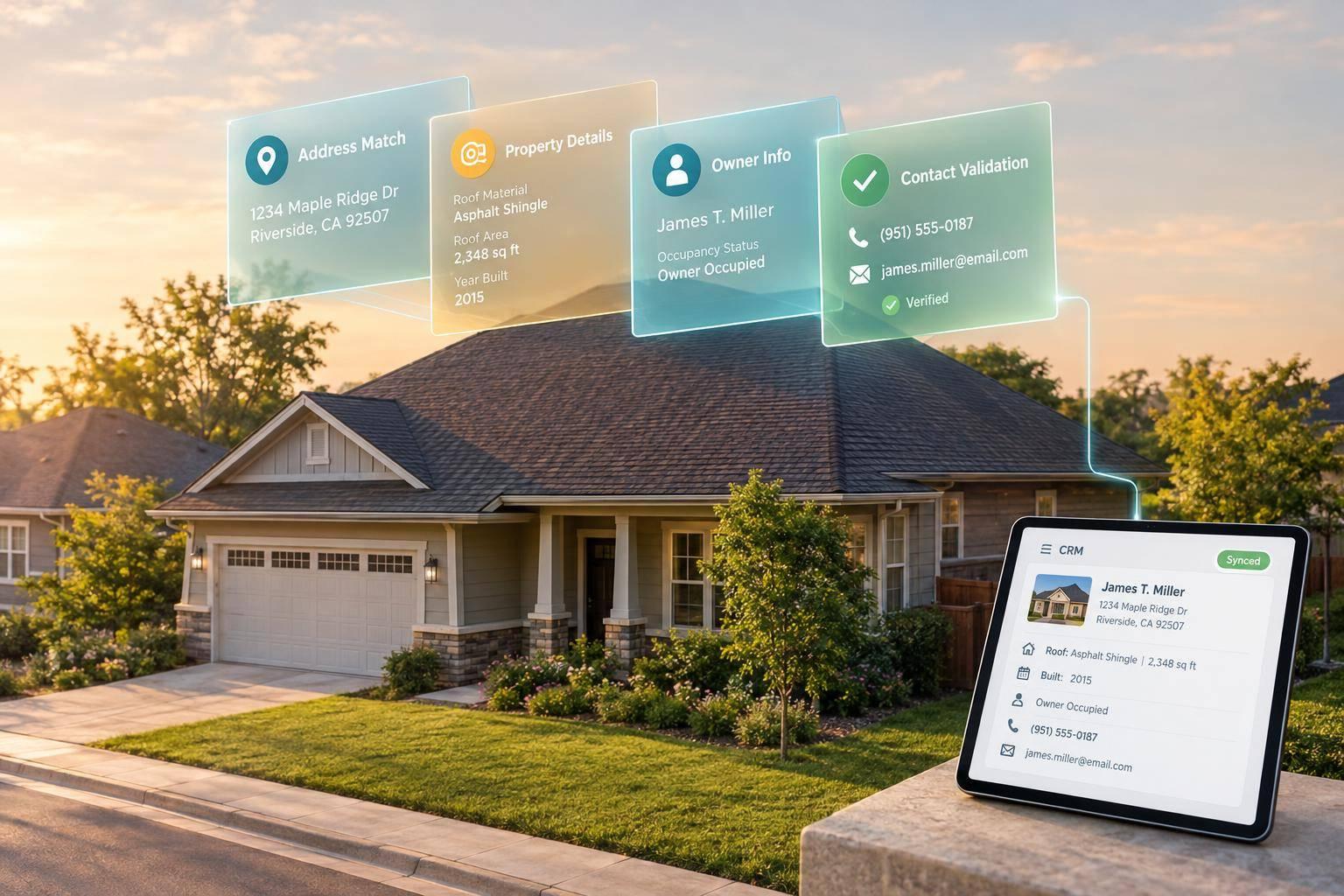
Match each bought roofing lead to its service address first, then add property facts, recorded owners, and available contact details through BatchData. Keep the owner’s mailing address separate, preserve the original lead data, and verify who can approve roofing work.
The workflow comes down to four steps:
- Clean and match: Standardize addresses, flag duplicates, and review uncertain property matches.
- Add and check data: Append property, owner, and contact fields with their sources and dates.
- Control outreach: Check contact accuracy, consent, and suppression lists before releasing leads.
- Test the CRM sync: Start with 100–500 leads, preserve submission history, and track match rate, contact coverage, import errors, and cost per usable lead.
Property data helps assess service fit - not roof condition. A matching owner record doesn’t prove buying authority, and a verified phone number doesn’t mean permission to call.
Roofing Lead Enrichment: From Service Address to CRM
Prepare Leads and Match Service Addresses
Standardize Inputs and Keep Original Lead Data
Give each submission in a purchased lead batch a stable lead ID. Store the raw and normalized service addresses side by side, along with the name, phone, email, source, submission time, mailing address, consent status, and property notes. Log each address correction with a timestamp and validation status. Cleaning inputs first helps make address matching fast and accurate.
| Input field | Normalization rule | Effect on matching |
|---|---|---|
| Street number and name | Split components; standardize suffixes and directionals | Reduces formatting differences |
| Unit, apartment, suite, or lot | Store separately; never discard | Distinguishes units at a shared address |
| City and state | Normalize city names and state abbreviations | Reduces geographic mismatches |
| ZIP Code | Validate five-digit ZIP or ZIP+4 format; preserve leading zeroes | Narrows candidate records |
| Service and mailing addresses | Store in separate fields | Prevents matching the wrong location |
| Missing fields | Flag gaps; never infer missing data | Routes incomplete records for correction |
Use the normalized address, unit, phone, email, and source ID to flag duplicates. Combine repeated purchased leads under one property record, but keep the submission history. Keep different units separate until verified. Postal formatting cleans up an address; confirming the parcel still requires a property match.
Match Property Addresses With BatchData
Match the normalized service address first. Never use the mailing address as the primary match key. In BatchData property lookup, include the parcel number, county, or property ID when available. Before building the integration, check the current request spec for supported inputs, response attributes, and datasets enabled for your account.
Save the raw address, normalized address, matched address, property ID, parcel number, county, and response timestamp. Keep your review status separate from the lookup response, and don't assume the response includes confidence fields.
Review Uncertain and Missing Matches
Compare addresses before adding property or owner fields to the active lead record. Don't accept the first candidate by default. Check the unit, county, and parcel details. For multifamily properties, confirm whether the request covers one unit or the entire building.
| Result | Acceptance check | Action |
|---|---|---|
| Exact | Street, city, state, ZIP, and unit align with one property record | Accept; save identifiers and match timestamp |
| Partial | Street and ZIP align, but city, ZIP+4, or unit is missing | Confirm missing details; retry |
| Multiple | Several units or parcels could fit | Retain candidate IDs; confirm intended property |
| Unmatched | No property record is returned | Correct inputs and retry; otherwise mark address_unresolved |
Unresolved leads can stay active while staff request a corrected ZIP Code, unit, or parcel number. Log every attempt, and retry only after correcting or validating the inputs. An address match does not prove ownership; verify that relationship separately.
Once the service address is confirmed, move the record into enrichment and append property, owner, and contact data.
Add Property, Owner, and Contact Data
Add three data layers to each confirmed service-address match: property facts, recorded ownership, and contact data. Save each field’s source, retrieval date, and verification status. Start with property details for routing and qualification, then review ownership and contacts.
Add Property Details for Routing and Qualification
Use available BatchData property fields to route leads by crew capability, service area, and project size - not to diagnose a roof. Assessor-based records can include building, land, owner, and tax details, but available fields vary by record.
| Property field | Workflow use and limits |
|---|---|
| Property type/use class | Route leads to the right workflow; don’t infer roof condition. |
| Building area, in square feet | Check project-size fit. Building area is not roof area; measure pitch, overhangs, and structures separately. |
| Lot size, in acres | Flag questions about access and equipment placement; it doesn’t confirm usable staging space. |
| Year built | Add construction context. Year built is not roof age. |
| Number of stories | Flag equipment and safety needs; it doesn’t establish roof pitch or access difficulty. |
| Parcel/APN | Link property records; identifiers may change after parcel splits or merges. |
| Assessed value | Add valuation context, not proof of roof condition or replacement need. |
| Last sale date and price | Flag ownership changes for review. |
| Permit type, date, status, and jurisdiction | Find recorded work to check; a permit doesn’t prove completion, workmanship, or current roof condition. |
After routing, verify who owns the property and which mailing addresses appear in the ownership records.
Confirm Recorded Owners and Mailing Addresses
Use owner records as a starting point for finding the decision-maker, then verify mailing addresses and contact links. Retrieve all recorded owner names, keeping full LLC, corporation, or trust names.
Flag recent transfers, multiple owners, and any conflict with the name supplied by the lead. Keep both names and their source dates for review.
| Record element | Meaning and limits |
|---|---|
| Service address | Physical address where roofing work would occur. |
| Owner mailing address | Recorded owner’s correspondence address; it doesn’t prove residence. |
| Owner of record | Listed person or entity; they may not handle repairs. |
| Legal entity | Recorded LLC, corporation, trust, or other ownership vehicle; it doesn’t identify an authorized signer. |
| Property manager | Manages the property; verify their role and authority. |
| Tenant | Occupies or uses the property; they may lack authority to approve work. |
| Enriched contact | Phone, email, or person linked to an owner, property, or record; the link doesn’t establish ownership, occupancy, consent, or buying authority. |
Add Available Contacts With BatchData
Add contact data after reviewing ownership, and don’t treat it as proof of authority. Use Contact Enrichment to append owner-linked phone numbers and emails. BatchData’s documentation distinguishes Contact Enrichment, which generally returns one owner per property, from Skip Tracing, which can return up to three people.
Keep each contact’s source, retrieval date, and verification status. Remove duplicate contacts while preserving historical values. Flag disconnected numbers, bounced emails, and identity mismatches.
Phone verification is not consent. Before outreach, screen contacts against suppression lists and follow applicable calling, texting, email, and privacy rules.
Next, validate the enriched fields before syncing them to the CRM.
Validate, Prioritize, and Sync Leads
Set Data Validation and Update Rules
Validate every enriched record before sending it to your CRM. A successful lookup does not mean a lead is cleared for outreach. Check the service-address match and property identifiers, compare returned owner names with ownership records, and confirm that the owner’s mailing address is complete and standardized. Keep returned values separate from internal approval labels.
| Validation field | Accepted values | Follow-up action |
|---|---|---|
| Internal match status | Confirmed, probable, ambiguous, no match, stale, suppressed | Route confirmed records; hold probable and ambiguous records; update stale records before outreach; exclude suppressed records from outreach; correct unmatched addresses. |
| Confidence | Provider value, if returned; otherwise not returned | Keep the provider’s scale. Define internal confidence separately using address, parcel, and ownership evidence, and test thresholds against manually reviewed samples. |
| Ownership consistency | Consistent, conflicting, not established | Review conflicts and suspected transfers. Don’t reject a record just because the lead name differs. |
| Contact status | Verified, unverified, suppressed, not returned | Allow outreach only through approved channels. Keep unverified or restricted contacts out of automation. |
| Source update date | Supplied date or not returned | Update outdated records. Review undated fields rather than assuming they’re current. |
| Retrieval date | Automatically recorded timestamp | Use for audit history, not as proof that source data is current. |
| Internal review flag | None, unit mismatch, multiple parcels, owner conflict, incomplete mailing address, stale, contact not verified, compliance hold | Record the reviewer, decision, and decision date before release. |
Set separate age limits for ownership data, mailing addresses, contacts, and property facts that change slowly. Update records before outreach based on those limits - or when you suspect a sale, receive returned mail, or encounter failed contact verification. Keep previous values and document the reason for each change.
Score Service Fit, Not Roof Condition
Rank records for routing and outreach based on confirmed territory coverage, supported property types, owner-match quality, a usable mailing address, and permission to contact. Keep scores separate from data-quality and suppression flags. Unresolved ownership must block automated outreach.
Use the score only to route approved records.
Map BatchData Results to Your CRM
After validation and prioritization, map approved records into your CRM. Freeze the input snapshot and assign permanent lead IDs before submitting normalized address components.
Use a versioned mapping table for documented BatchData response fields. Link each result to its lead ID, not its row order. Write only approved fields, and never overwrite original lead details, consent records, or source metadata.
Store missing fields as null. Separate validation errors from temporary failures, and limit retries using exponential backoff. Make writes idempotent so a retry updates the same record rather than creating another one.
Deduplicate before and after enrichment. Start with the internal lead ID, then cautiously use a composite key such as the normalized service address plus parcel ID. Don’t merge records based only on similar owner names.
Store raw responses outside ordinary CRM notes. Protect them with restricted access, encryption, access logs, and retention limits. Keep API credentials server-side.
Before scaling, run a small pilot batch that covers different ZIP Codes, address formats, units, property types, and known edge cases. Manually check each match category and track:
- Match rate: Usable matches ÷ submissions.
- Review rate: Records requiring review ÷ submissions.
- Verified-contact coverage: Verified, permitted contacts ÷ matched records.
- Cost per usable lead: Enrichment plus review cost ÷ outreach-approved leads.
Resolve exceptions before releasing records to sales.
Conclusion: Test Your Lead Enrichment Workflow
Keep raw lead data intact, match service addresses, and enrich only confirmed properties. Check contact details and data age before syncing approved records to your CRM.
Before scaling, run a small pilot using the same match and validation rules as the main workflow. Start with 100 to 500 leads in BatchData, including complete, incomplete, rural, multifamily, and duplicate addresses across your service area. Track match rate, no-match rate, contact availability, cost per usable lead, and CRM import success.
Review uncertain matches and use what you learn to adjust thresholds. Check that each CRM field gets the right value without overwriting original lead data.
Set launch thresholds for match rate, owner coverage, unresolved matches, CRM errors, and cost per usable lead. Scale by market or lead source only when those thresholds are met, and recheck a sample after API or CRM changes. Use enrichment for service-fit decisions and personalized outreach - not roof diagnoses, inspection, or consent to contact.
FAQs
How can I tell if lead enrichment is worth the cost?
Track cost per acquired customer, not just cost per lead, to see whether enrichment improves profitability. Start with a small pilot that compares campaigns using enriched data with those that don’t. Before scaling, check match rates, contact accuracy, compliance signals, and closing rates.
Keep costs in check by caching results to avoid repeat lookups, updating records no more than once every 30 days, and grouping records into fewer requests.
How do I verify who can authorize roofing work for an LLC?
When an LLC owns a property, the platform returns an entity match that confirms the legal owner of record - not the person authorized to sign for roofing work.
The platform also helps identify decision-makers behind LLCs, but you still need to manually check who can sign or act as the primary contact. Verify that person’s authority to represent the LLC before moving forward with a roofing contract.
What if a lead’s consent doesn’t cover an enriched phone number?
Enriched contact information is for screening only. It doesn't give you permission to contact an owner. Don't use an enriched phone number to call or text until you've documented permission for that specific channel.
Before calling or texting, you're responsible for checking numbers against the National Do Not Call Registry, maintaining internal suppression lists, and following all applicable federal, state, and channel-specific consent and privacy regulations.