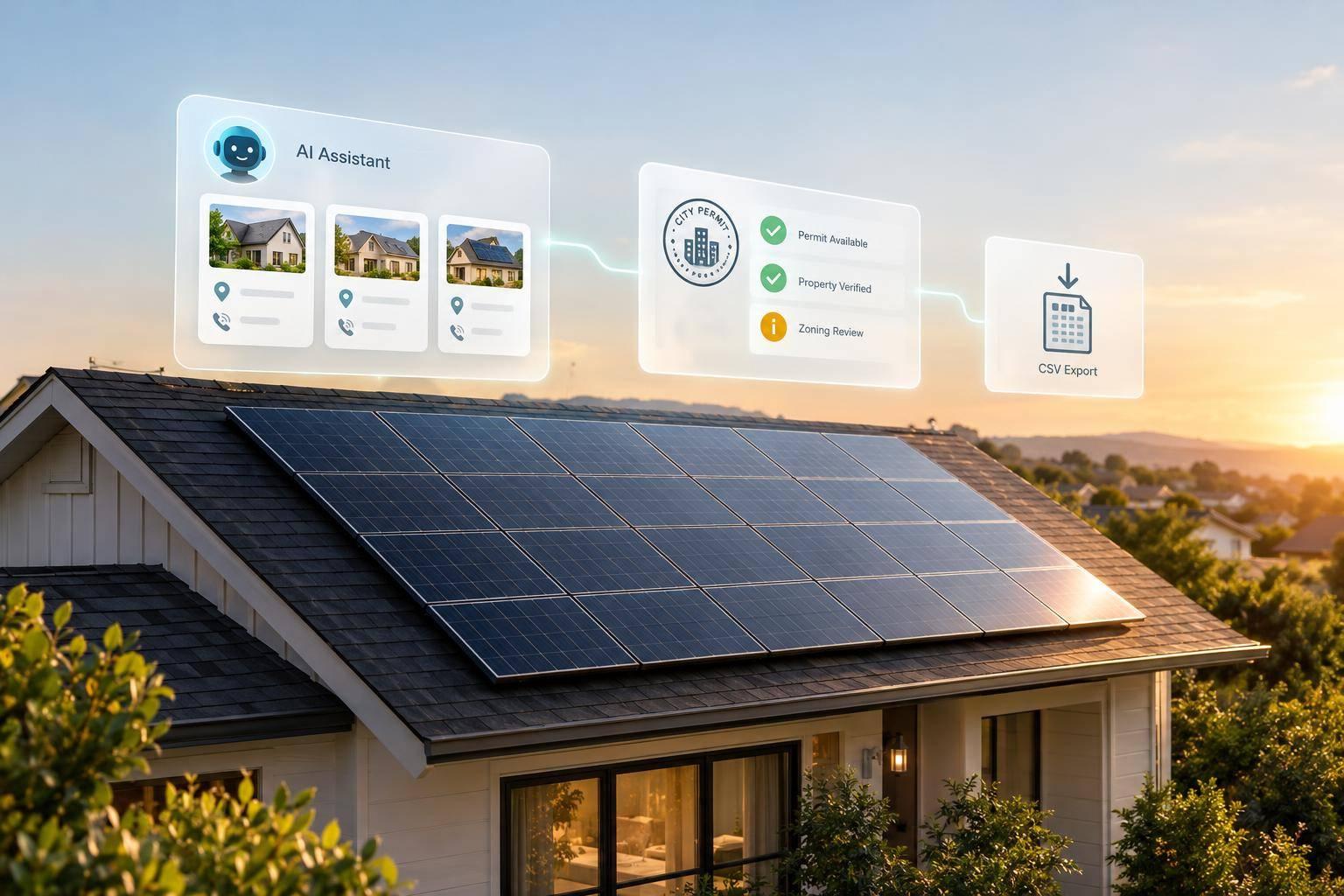
To find roofing and solar leads with an AI assistant, connect authorized data through MCP, define the search filters, and verify each match before outreach. Start with a ZIP code, supported property criteria, and a result limit. Ask for a count before requesting records.
The process has three steps:
- Check data access: Confirm available tools, fields, and permissions. Permit history requires a separate integration.
- Set screening rules: Use roof records for roofing leads and supported roof and property data for solar screening. A home built before 2000 does not necessarily have an old roof.
- Review and export: Check addresses, owner matches, source dates, and phone status before exporting CSV or JSON. Keep missing data marked as unknown.
A property match is not a confirmed buyer, and contact information is not consent. Human review and checks for applicable outreach rules - including DNC and TCPA requirements - come before contact.
MCP Workflow for Roofing and Solar Leads
Step 1: Connect Your Assistant to Authorized Data
Check the MCP Client, Server, and Permissions
Connect an MCP-compatible client to https://mcp.batchdata.com over Streamable HTTP, then authenticate with OAuth 2.1 or a bearer token.
Enable the datasets you need. Before searching, check your tool permissions, geographic coverage, accepted inputs, and returned fields. Once connected, match your request to the tools and fields the dataset actually provides.
Check Available Tools and Field Coverage
MCP clients discover tools through tools/list and run them with tools/call. Check the tool list before writing prompts.
Use list_property_datasets and list_property_dataset_fields to verify the exact field names and paths your prompt needs. Roofing and solar prompts require different field sets. Building permits aren't a standalone MCP tool here, so you'll need a separate REST integration for permit data.
Test lookup_property with a known address or a county FIPS code and APN in the required format. Inspect the returned record, including identifiers such as propertyId, rather than relying on a summary response.
If access fails, check dataset activation and token permissions. If a field is missing, check its dataset definition instead of asking the assistant to guess. Confirm field coverage in the returned record before requesting a larger lead list.
Step 2: Write a Clear Lead Request
Define the Area, Filters, Fields, and Limits
State the exact area, filters, fields, exclusions, and result limit. Use ZIP codes or another supported boundary, such as a city, county, subdivision, bounding box, or radius. Ask for a count first to check how many properties match before requesting the full list. Build your request around fields the MCP tools return.
Roofing Prompt: Separate Home Age From Roof Age
Find single-family homes built before 2000 in [ZIP codes] for roofing outreach. Return the property address, year built, owner-occupancy status, roof age, roof condition, roof cover/type, installation date, replacement history, and owner contact information where available and permitted. Exclude [supported exclusions] and return up to [limit] records. Mark unsupported or missing fields unknown; do not describe age alone as proof of roofing need.
Year built tells you the structure’s age - not the roof’s age. Ask for roof-history fields to support the lead. If an authorized integration provides roofing permit history, you can exclude homes with a roofing permit on file in the last 5 years. Mark missing permit history as unknown.
Solar Prompt: Use Data-Backed Suitability Criteria
Find owner-occupied homes in [service area] that meet these solar screening rules based on roof cover, roof type, year built, and permit history: [supported criteria]. Return the property address, owner-occupied status, available screening fields, and owner contact information where available and permitted. Exclude [supported exclusions] and return up to [limit] records. Return the source-backed criteria used to qualify each property.
Set the screening rules before you search. Ownership or occupancy data can help filter for owner-occupied homes. Roof cover, roof type, year built, and energy-related permits can help with screening, but they don’t establish solar suitability or purchase intent. Request DNC and TCPA flags with each phone number.
Next, check each returned record against the source fields before exporting.
Step 3: Review, Enrich, and Export Your Leads
Review each returned record using the datasets and fields you confirmed in Step 1. Request standardized addresses, matched criteria, ownership and occupancy signals, roof and solar indicators, and owner contact details when permitted. Include sources, source dates, and confidence scores where supplied so you can see what supports each record - and what’s missing.
Match Dataset Coverage to Your Outreach Needs
A missing field doesn’t mean a lead failed qualification. It means you still have something to verify. Before exporting, use the checklist below to separate complete records from partial matches. Check each match against the same fields you requested in your prompt.
| Data Category | Specific Signals to Request | Missing Evidence | Verification Needs |
|---|---|---|---|
| Standardization | USPS-formatted address, geocodes | Address not yet standardized | Verify and standardize address |
| Ownership | Owner name, occupancy status, mailing address | Occupancy confirmation or contact details | Review property-owner matches |
| Indicators | Roof cover, roof type, permit history, solar or battery permits | Any roof or solar details not included in the record | Check source dates and permit history |
| Contact | Phone, email, DNC/TCPA flags | Contact data not available | Verify phone status before outreach |
Available fields depend on the authorized dataset. Keep sourced facts separate from modeled indicators.
Verify Records and Export CSV or JSON
Ask the assistant to use authorized BatchData tools: verify_address for USPS address standardization, [skip_trace_property](https://batchdata.io/blog/batch-skip-tracing/how-to-skip-trace-property-owners) to add available owner contact details, and verify_phone for phone checks. Request DNC and TCPA flags for every number before outreach.
After verification, export only records that match your outreach filters and have verified fields. Request CSV or JSON with stable field names such as source_property_id, property_address, owner_occupied, and year_built. Include the requested roof and solar fields, matched criteria, source dates, contact-check results, and supplied confidence scores. Keep missing values as null.
Conclusion: Check Your Lead List Before Outreach
After exporting your list, give it one last review before outreach. Check each lead against the source fields you used to find it. A property match suggests fit - not purchase intent.
Check Contact Rules and Require Human Review
Have a person check service-area fit, qualification signals, owner contact matches, and DNC/TCPA status before outreach. For properties owned by an LLC or trust, a matched contact may not be the owner or decision-maker.
Contact information is not consent. Follow the outreach and consent rules that apply to every channel you use.
Limit access to only the endpoints and fields your campaign uses.
FAQs
How can I rank leads with incomplete roof data?
Use BatchRank, an AI propensity model that scores properties from 0 to 100 based on how likely they are to sell in the next 6 to 12 months. Ask your AI assistant to prioritize high-scoring properties, then check available permit history for homes with no recent roofing or exterior upgrades on record.
These signals can help you decide whom to contact first, but they don’t prove intent to buy roofing services.
What extra checks confirm a home's solar potential?
Check property-specific permit and feature data in BatchData. Look for existing solar or battery permits so you don’t repeat outreach. Review roof cover and type, living area, year built, and owner-occupancy status.
Recent permits for electrical work, electric meters, heat pumps, or EV chargers can help narrow your list. They point to energy-related upgrades - not purchase intent.
How often should I refresh my lead data?
BatchData refreshes its records daily, so you don’t have to keep updating them manually. Set your criteria once, then use monitoring and alerts to notify your system or CRM automatically when matching data changes. You’ll get near-instant updates as new property information becomes available, keeping your outreach tied to current property and ownership details.