





































Trying to change an address in Google Maps? The first mistake is assuming there's one address to change.
Google splits this into separate workflows, and using the wrong one wastes time. A saved Home label, a public map pin, and a business listing address are not the same object inside Google's system.
Quick overview
| Task | Correct tool | Result |
|---|---|---|
| Change your personal Home or Work | Your Google account labels in Maps | Updates your private navigation setup |
| Fix a wrong public address or misplaced pin | Suggest an edit in Google Maps | Requests a map change for everyone |
| Update a business location | Google Business Profile | Changes the managed listing for the business |
If you work in real estate, lending, title, or local marketing, this distinction matters because one bad map point can create downstream confusion in routing, property research, and customer trust.
SEO Title: Change Address Google Maps the Right Way
Meta Description: Learn how to change a Home address, fix a public map pin, or update a business address in Google Maps using the correct workflow.
Meta Keywords: change address Google Maps, change home address Google Maps, fix Google Maps address, move Google Maps pin, update business address Google Maps, Google Business Profile address, Google Maps suggest an edit
What Kind of Address Are You Trying to Change
There isn't one universal “change address Google Maps” button. Google separates personal labels, public map data, and business-managed listings into different systems, and most user frustration starts when those get confused.
Google's own guidance separates these workflows, including a separate path for organizations that need to fix multiple addresses through Google Maps Content Partners rather than the standard user flow, as described in Google Maps help for address data workflows.
Three jobs that look similar but aren't
A lot of people search one phrase when they have one of three different problems:
You want to change your personal Home or Work.
This is private account data. It affects your own directions, commute suggestions, and saved places.You want to fix a public address or move a wrong pin.
This is a map data correction. You're asking Google to change what other users see.You run a business and need your listing updated.
This belongs in Google Business Profile, not in the normal public correction flow.
Practical rule: Before you click anything, decide whether you're changing a private label, public map data, or a managed business listing.
Address change method by goal
| Your Goal | Method to Use | Who It Affects |
|---|---|---|
| Update Home or Work for your own account | Edit saved labels in Google Maps | Only your signed-in account |
| Correct a wrong address or misplaced residential pin | Use Suggest an edit or address feedback in Maps | Public map users |
| Change an active business location | Edit in Google Business Profile | Customers searching for that business |
One more distinction matters in property work. A mailing address is not always the same as the physical location a pin should represent. If you need a clean explanation of that difference, this guide on physical address vs. mailing address is worth reviewing before you submit any map change.
Why professionals should care
In real estate operations, the wrong workflow creates bad data habits. Teams sometimes “fix” a delivery issue by changing a personal label, then assume the public map is corrected. It isn't.
That's why experienced operators treat Google Maps edits as a classification problem first. If you identify the object correctly, the actual edit is usually straightforward.
How Do You Change Your Personal Home or Work Address
Need Google Maps to stop sending you to the old place every morning? Change your Home or Work label in your own account settings. This is a private account edit that affects your saved destinations, commute suggestions, and voice shortcuts tied to that Google login.
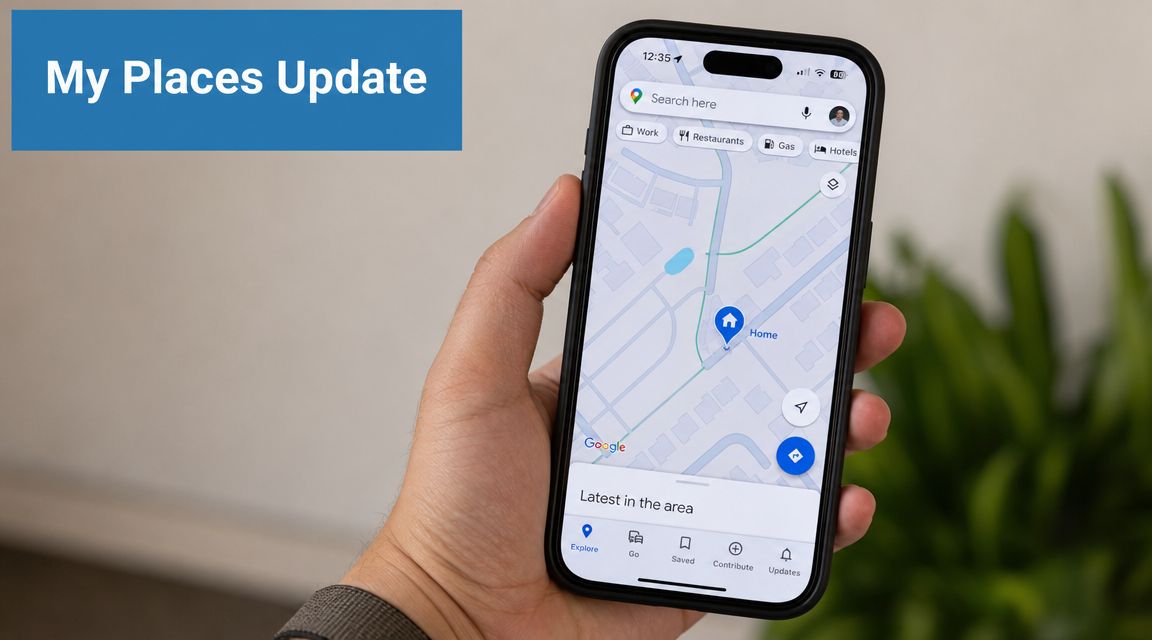
Use this workflow if you moved, changed offices, or want Google Maps to route you to a different regular destination. Use a different workflow if the building pin itself is wrong, the street number is incorrect, or other people are seeing the bad address in public search results.
On mobile
On mobile, open Google Maps while signed in to the right account, then go to Saved → Labeled and edit Home or Work. In practice, this is the fastest fix for stale commute routing after a move.
A clean process looks like this:
- Open Google Maps.
- Confirm you are signed in to the correct Google account.
- Tap Saved.
- Tap Labeled.
- Choose Home or Work.
- Remove the old label if needed.
- Enter the new address or pick the location on the map.
- Save the change.
If Google struggles to recognize a newer address, it helps to verify the exact location first with a reverse geocoding method to get an address from latitude and longitude. That is especially useful in new subdivisions, large multifamily sites, and properties with inconsistent address formatting across apps.
On desktop
Desktop uses the same account label logic. Open Google Maps, go to Saved, then Labeled, then update Home or Work. The result should sync anywhere that same Google account is active.
Account mix-ups cause a lot of false troubleshooting. I see this often when someone edits the label on a personal phone but expects the change to appear on a work laptop signed into a different profile. Google did save the edit. It saved it to the other account.
If the update does not appear across devices, check the signed-in account before anything else.
What this changes and what it does not
A personal Home or Work update affects your private Maps experience:
- saved destination shortcuts such as “take me home”
- commute suggestions and routine routing
- Home and Work labels on devices signed into the same account
It does not affect public map data, your property's visible pin for other users, or a business listing.
That distinction matters in real estate and relocation work. A tenant can update their Home label and still have delivery drivers routed to the wrong entrance because the public pin was never corrected. If you are also handling the non-Google side of a move, TLC Moving & Storage's Boston guide is a practical checklist for the address records people often forget to update.
A short video walkthrough helps if you prefer to see the taps visually:
When this method is the wrong tool
Personal labels are for your account only. They are useful for convenience, not map data maintenance.
If buyers, inspectors, appraisers, or delivery drivers are being sent to the wrong structure, the issue is usually public map data or pin placement. That needs a public correction workflow, not a Home label edit.
How Do You Report an Incorrect Address or Move a Map Pin
Are you trying to correct what everyone sees on Google Maps, or just change a saved label in your own account? This section covers the public correction path: the workflow for a wrong street address, a misplaced residential pin, or a map point that routes visitors to the wrong spot.
The standard public edit workflow
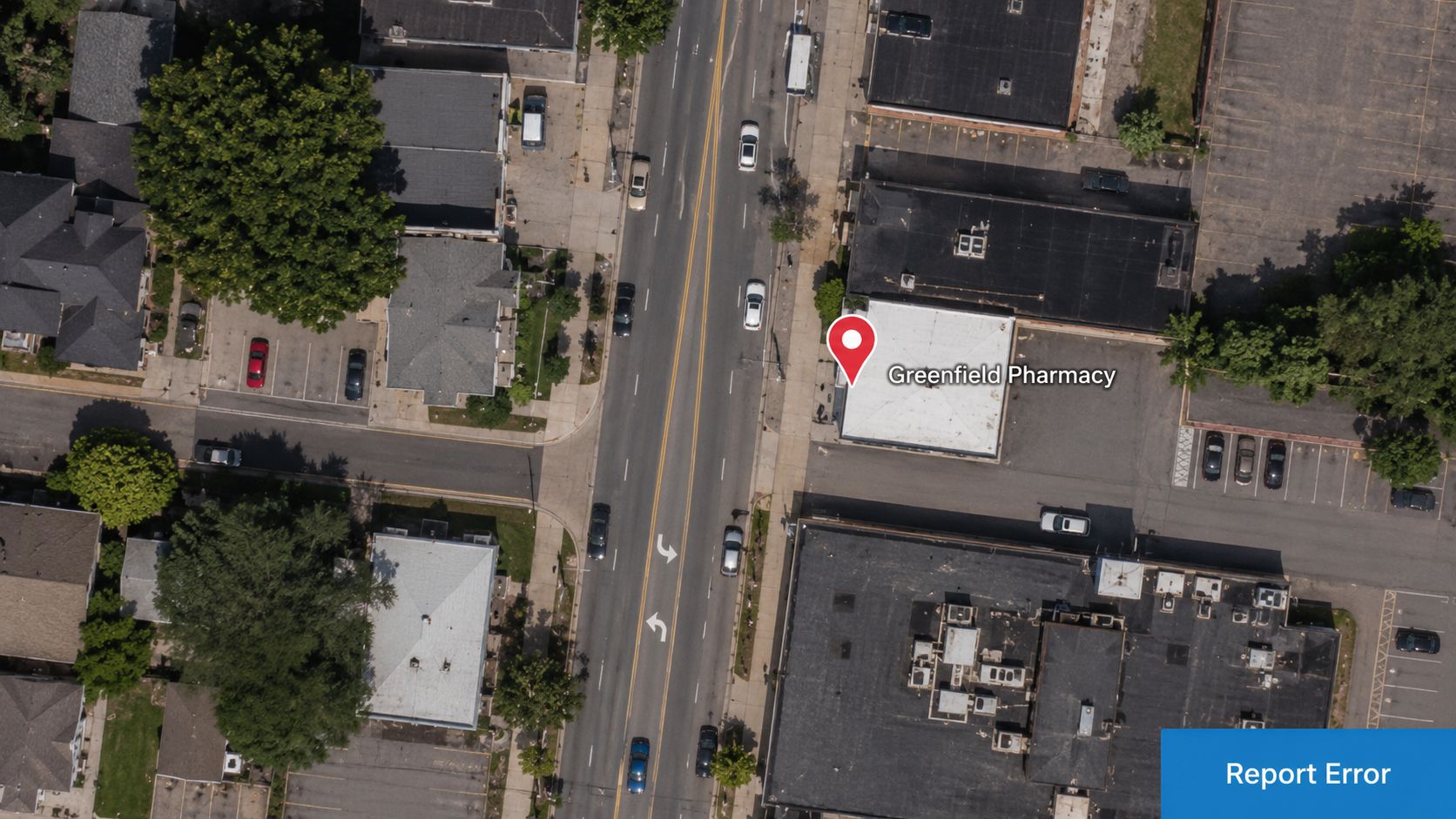
Open the location in Google Maps, select Suggest an edit, then choose the address or location correction option that fits the problem. If the map point is wrong, fix the pin first and then review the written address.
That order matters. In practice, a close-enough street address with a bad pin still sends buyers, inspectors, contractors, and delivery drivers to the wrong place.
What to correct in each scenario
Use the public edit process for issues like these:
- The address text is wrong: street number, street name, ZIP code, or formatting error.
- The pin is wrong: the location marker sits in the street, on the wrong parcel, or on a neighboring structure.
- The entrance is wrong: large lots, rear-entry homes, and corner properties often need the pin moved closer to the actual access point.
- The property is hard to match: new construction, subdivided parcels, and multi-unit sites often need a more careful pin placement.
Do not use this method for your private Home or Work label. Do not use it to manage your own business listing. Those are separate workflows, and mixing them causes delays.
Pin placement usually matters more than text cleanup
Google can often normalize address formatting. Pin errors are less forgiving.
For a single-family property, place the marker on the structure, not the road centerline. For a duplex, townhouse cluster, or apartment site, place it where a visitor should reasonably arrive. On some properties, that is closer to the practical entrance than the geometric center of the parcel.
I see this issue often with infill construction and homes on flag lots. The mailing address may validate, but the visible pin still lands where the old lot geometry used to be. Routing follows the map point.
A better approach for difficult properties
Simple edits work for straightforward cases. Edge cases need more discipline.
- Search the base address first: If the full unit string fails, start with the main street address.
- Switch to satellite view: It is easier to place the pin on the actual roofline, driveway approach, or entry point.
- Check the road access: A correct rooftop pin can still be unhelpful if the route approaches from the wrong street.
- Add detail carefully: Unit numbers and secondary descriptors help only after the primary location resolves correctly.
If you regularly sanity-check pins against parcel or coordinate data, this guide on getting an address from latitude and longitude is useful for comparing the displayed map point with the underlying address record.
What usually causes a correction to fail
Weak submissions tend to fall into a few patterns:
- Text-only edits with no pin adjustment
- Pins dropped on the roadway instead of the building
- Too much unit or formatting detail before the base address is recognized
- Corrections submitted for a business that should be updated through Google Business Profile
- Requests that reflect a private labeling issue rather than a public map data problem
What to expect after you submit
Google reviews public edits, and approval timing varies. Some changes appear quickly. Others sit longer, especially if the location is new, ambiguous, or conflicts with other map data.
The practical standard is simple. If people are arriving at the wrong place, treat the pin as the primary fix and the text as supporting data. That is the difference between a map that looks close and one that routes correctly.
How Do Businesses Update Their Address on Google Maps
A business address change belongs in Google Business Profile. Use that workflow if the listing represents a company, office, storefront, or service business that you own or manage.
That distinction matters because this article covers three different address-change jobs that often get lumped together. A personal Home or Work label only affects your account. A public map correction fixes shared map data. A business listing update changes a managed commercial profile tied to search visibility, directions, and customer trust. If the address appears on a business listing, treat it as profile management.
The correct workflow for business listings
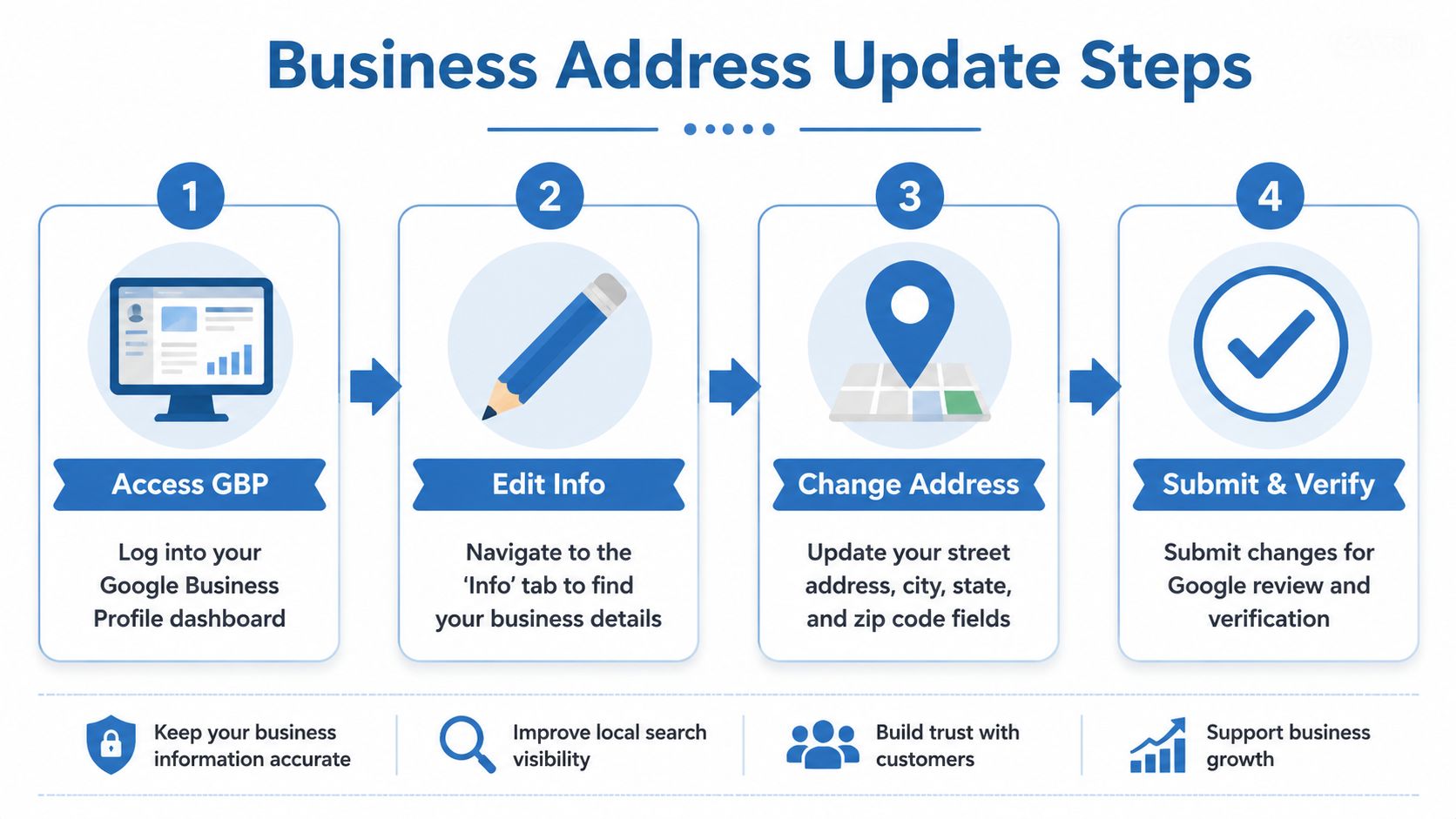
Use this sequence:
- Sign in to the Google account that manages the Google Business Profile.
- Open the business profile management view.
- Edit the address in the business information settings.
- Replace the old address with the new one, including suite or unit information if that is part of the mailing and customer-facing address.
- Submit the change.
- Complete any verification Google requests.
Google expects businesses to manage their own listing information through Google Business Profile. Public place edits exist for community corrections, not for routine control of an active business listing.
Which method fits which scenario
The wrong workflow creates delays and bad data. Use the one that matches the record you are changing.
| Scenario | Right Method | Why |
|---|---|---|
| You moved your office, storefront, or leasing center | Google Business Profile | The business or its authorized manager should control the listing |
| The map shows the wrong location for a public place you do not manage | Suggest an edit | This is a public correction request |
| You want your own saved Home or Work address to route correctly | Personal label in your Google account | This only changes your private navigation experience |
I see one mistake often in real estate and local operations. A broker, agent, property manager, or small business owner tries to fix their own listing through Suggest an edit because it looks faster. That can work for some public map issues, but it is the wrong tool for a managed business profile. If you need reliable control, use the business dashboard.
What makes business address updates harder than they look
Typing a new street address is the easy part. The harder part is keeping the listing consistent with the rest of the business footprint.
Three issues usually slow these edits down:
- Verification requirements: Google may ask for another verification step before the change is fully accepted.
- Address edge cases: Suite moves, office moves within the same building, and service-area adjustments often get closer review.
- Data mismatch: If the website, signage, lease documents, or customer-facing location details still show the old address, the update is more likely to create confusion.
This has real downstream effects. A wrong business address can send prospects to the wrong entrance, split reviews across duplicate listings, confuse vendors, and create bad location signals in other directories that copy Google data.
What to check after you submit the change
Do not stop once the form is submitted. Confirm that the listing works the way customers use it.
Check these points:
- Search result display: The business name should show the new address consistently.
- Routing behavior: Directions should lead to the correct building and entrance.
- Suite accuracy: Unit details should appear only if they help users arrive correctly.
- Cross-channel consistency: The website, signage, and listing should match.
For real estate teams, this is an operations issue as much as a marketing issue. If a leasing office, sales center, or brokerage location moves, the listing needs to be correct before campaigns, tours, and vendor deliveries start pointing people to the old place.
Troubleshooting Common Issues and Verifying Your Changes
Did Google Maps ignore your address change, or did it accept the edit and still route people to the wrong place? Those are different problems, and the right fix depends on which type of address change you made in the first place: a personal label, a public map correction, or a business listing update.
A lot of failed edits are not failures, but rather workflow mismatches. Someone changes a saved Home label and expects the public map to update. Or they submit a public map correction for a business they manage, when the change belongs in Google Business Profile. Start by checking which system you touched. That usually explains the result faster than waiting and guessing.
My edit was submitted, but nothing changed
For personal Home or Work labels, changes are usually visible right away inside your account. If you still see the old address, check whether you updated the correct Google account and whether the device is syncing the latest saved places.
For public map corrections, delays are normal. Google may keep the existing address or pin if your submission did not add enough evidence to outweigh current map data. In practice, text-only edits are weaker than a precise pin adjustment tied to the actual structure or entrance.
Use this checklist:
- Confirm the request type: Personal label, public correction, and business listing edits follow different review paths.
- Check your email status: A confirmation means Google logged the submission, not that the map has already changed.
- Review what you changed: If the address text changed but the pin did not, routing can still fail.
- Test outside your usual session: Logged-in views can show cached or personalized results.
The address looks right, but the pin is still wrong
This happens often with new construction, large multifamily sites, corner parcels, and properties with separate leasing-office and resident entrances. The written address may be valid while navigation still lands at the wrong curb cut or building face.
In that case, re-submit the correction with a tighter pin. Use satellite view if the parcel shape or building placement is clear enough to place it accurately. Aim for where a visitor should arrive, not the geometric center of the lot. For real estate teams managing multiple locations, this is also a data hygiene issue. A bad source record tends to spread into CRMs, ad platforms, and routing tools, which is why teams often pair map review with address cleansing software.
One more check matters. Run directions from a neutral starting point and confirm where turn-by-turn guidance ends. That is the user outcome that matters.
My business address still will not update correctly
If the listing is business-controlled, public map edits are usually the wrong route. Work inside Google Business Profile, then verify that the address on the website, storefront signage, and customer-facing pages matches the listing. Conflicting address data slows approval and can keep Google from trusting the change.
Real estate operators often get tripped up. A leasing office move, temporary sales center, or suite change may be operationally obvious internally, but Google still needs consistent public signals. That affects more than map accuracy. It also affects campaigns tied to local intent, including broader property marketing strategies for homeowners.
How to verify a change properly
Do not rely on one logged-in phone.
| What you see | Likely cause | What to check next |
|---|---|---|
| Old address still appears | Cached or personalized view | Check another device, browser, or account |
| Address text is correct but directions fail | Pin is misplaced | Run directions and inspect arrival point |
| Business name and address do not match everywhere | Listing management or trust issue | Compare Google profile, website, and signage |
| Edit seems to disappear | Wrong workflow used | Reconfirm whether it was a personal, public, or business change |
Verification should be practical. Search the place, open directions, inspect the pin, and compare the result across more than one environment. If a buyer, tenant, vendor, or driver would still end up at the wrong entrance, the change is not finished.
Why Accurate Address Data Is Critical for Real Estate Professionals
In real estate, a wrong Google Maps address isn't a cosmetic issue. It creates operational drag and bad decisions.
A misplaced pin can confuse a buyer before the showing even starts. An outdated public address can break routing for inspectors, appraisers, contractors, and delivery teams. A bad entrance point can make a multifamily asset feel harder to access than it is.
Where map errors create real damage
Real estate professionals deal with location data across marketing, underwriting, and due diligence. If Google's representation of a property diverges from canonical property records, teams start reconciling by hand.
That creates friction in several places:
- Lead handling: Prospects abandon when directions feel unreliable.
- Marketing alignment: Listing pages, local landing pages, and map results stop matching.
- Portfolio analysis: Address mismatches complicate entity resolution across source systems.
- Field operations: Vendors arrive at the wrong structure, gate, or entrance.
For landlords and managers, the problem carries into leasing. Clear public location data supports listing quality, and that sits next to broader execution choices like the property marketing strategies for homeowners used to position rental inventory effectively.
Why data hygiene matters more at scale
At single-property scale, a bad pin is annoying. At portfolio scale, it becomes a data governance problem.
Teams that aggregate parcel, tax, listing, and owner data need address standardization before they can trust joins, deduplication, or map presentation. That's why tools built for address cleansing software matter in serious property data operations.
Google itself also separates consumer edits from bulk institutional fixes. For organizations handling many address issues, the enterprise path is different from the normal user workflow. That distinction is easy to ignore until you're maintaining large location inventories across markets.
The bottom line is simple. If the map is wrong, the workflow around the property gets slower, noisier, and more expensive.
If your team depends on accurate property, ownership, valuation, and location data at scale, BatchData is worth a close look. It gives real estate operators, lenders, insurers, and proptech teams access to large-scale property datasets, standardized records, and developer-friendly delivery options that help reduce the manual cleanup work bad address data creates.