




































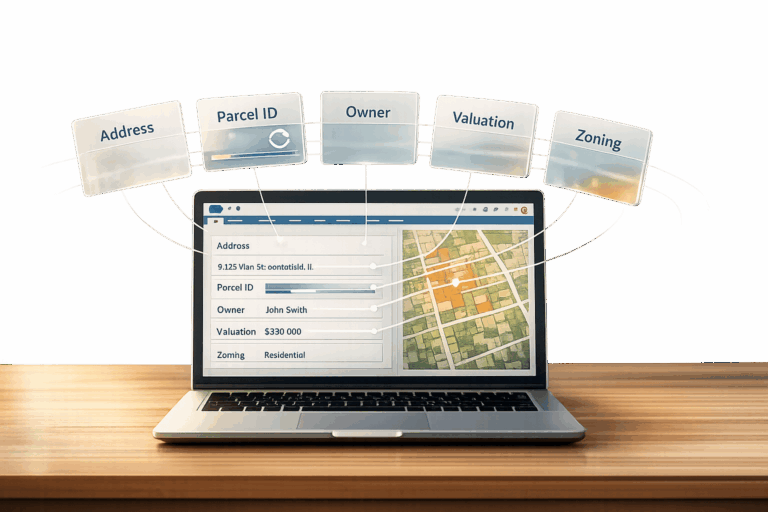
Want to supercharge your Salesforce records with property insights? This guide explains how developers can integrate BatchData‘s API to enrich Salesforce with property data like valuations, ownership, and sales history – all while automating workflows and improving data accuracy.
Key Takeaways:
- Enrich Salesforce records with a wide range of property attributes from BatchData, including valuation, tax assessment, and ownership data.
- Automate data enrichment using Apex batch classes, reducing manual processing and helping manage large data volumes.
- Integrate BatchData with Salesforce using batch processing while accounting for Salesforce governor limits.
- Use Salesforce Named Credentials to securely manage the BatchData API connection and authenticate requests using a Bearer token.
- Align Salesforce custom fields with the current BatchData schema for seamless integration.
- Optimize batch processing to handle Salesforce governor limits effectively.
Why It Matters:
Property data enrichment eliminates manual data entry, improves decision-making, and creates a centralized data environment in Salesforce. Real estate firms, mortgage brokers, and insurers can gain actionable insights – like identifying high-equity properties or assessing loan eligibility – directly within their CRM.
Ready to dive in? Let’s explore how to set up, authenticate, and deploy this integration step by step.
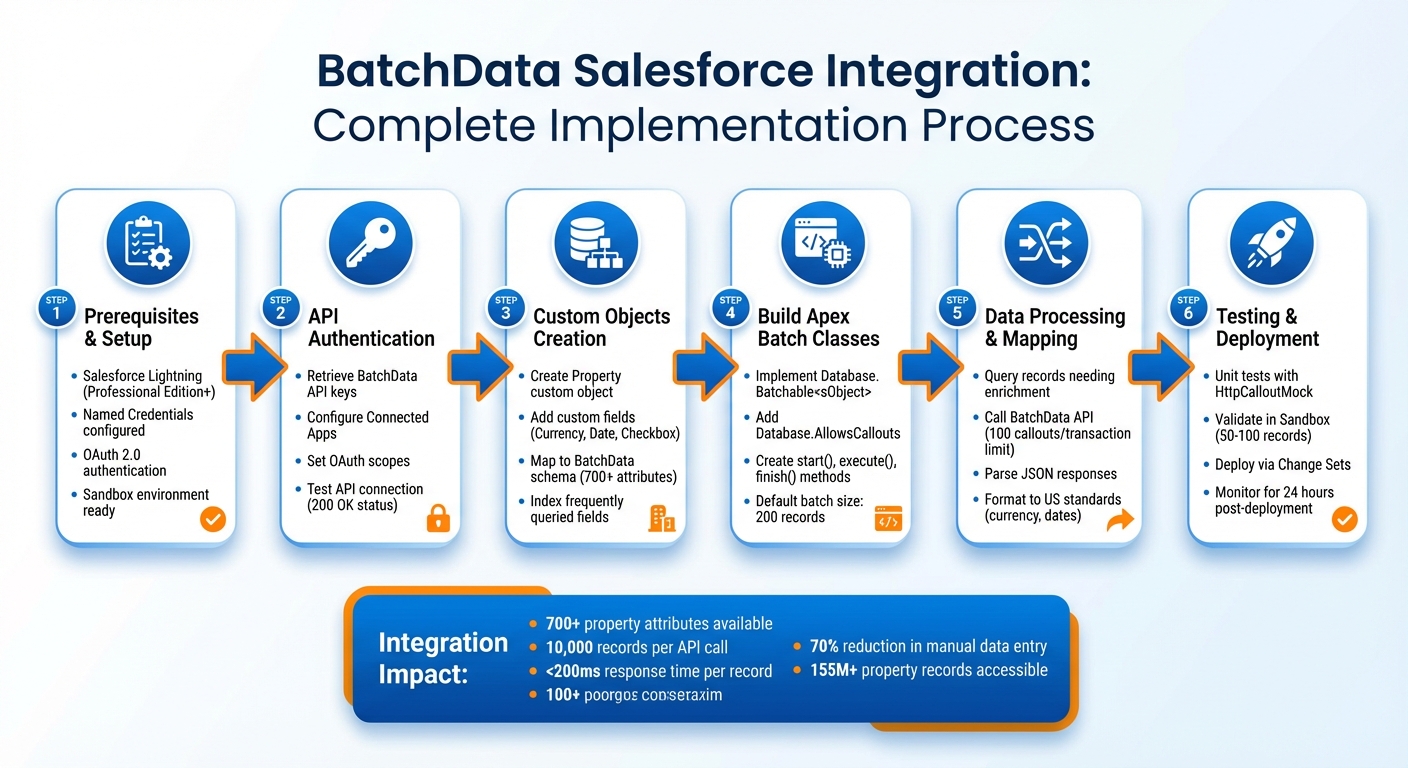
BatchData Salesforce Integration: 6-Step Implementation Process
Prerequisites for BatchData Salesforce Integration

Technical Requirements and Setup
To integrate BatchData with Salesforce, you’ll need Salesforce Lightning and permissions to create Apex classes, including batch classes, controllers, and triggers for API callouts. Make sure you’re using a Salesforce edition that supports custom development.
Set up Named Credentials in Salesforce to securely manage the BatchData API connection. BatchData uses Bearer token authentication through the Authorization header. You can retrieve your BatchData API credentials from your account dashboard. For declarative integrations, BatchData provides OpenAPI schema definitions that can be used to support API integrations.
It’s recommended to use a Salesforce Sandbox environment for testing before deploying to production. Developers should be skilled in Apex programming, particularly for handling HTTP callouts, parsing JSON data, and managing asynchronous processes. For more complex setups, consider using middleware tools to consolidate systems.
These foundational steps will help you map property data to custom objects and design efficient Apex batch processes.
Next, let’s dive into the capabilities of the BatchData API, which are key to successful integration.
Understanding BatchData APIs
The BatchData Property Search API offers real-time access to over 155 million property records, each enriched with more than 700 attributes. These datasets include details like valuations, tax assessments, sales history, ownership, and contact information, all delivered in JSON format.
BatchData’s compound query feature allows you to retrieve multiple datasets in a single API call. This helps optimize performance and stay within Salesforce’s governor limits. For instance, instead of making separate requests for property valuations, tax data, and sales history, you can fetch all this information in one call.
The platform manages over 1 billion data points, including 64 million verified phone numbers and 26 million verified email addresses, with a 76% right-party contact accuracy – about three times the industry average. Daily updates ensure the data stays current, while compliance features like Federal DNC scrubbing and litigator detection help reduce legal risks during outreach.
When planning your integration, you’ll need to decide between Remote Process Invocation (for real-time property lookups triggered from Salesforce record pages) and Batch Data Synchronization (for enriching large volumes of existing records). Always use a Named Credential in your callout endpoints to simplify authentication and streamline your Apex code. Additionally, implement idempotency by using unique message identifiers to prevent duplicate records during repeated API calls.
With this understanding, you’re ready to configure and test the API connection within Salesforce.
sbb-itb-8058745
Salesforce Integration: Salesforce External Client App Setup & REST API Testing Using Postman
Setting Up API Authentication Between Salesforce and BatchData
Establishing API authentication is a key step in integrating BatchData with your Salesforce environment.
Getting API Credentials from BatchData
Start by logging into your BatchData account dashboard to access your API credentials. Store your credentials securely, as they are required to authenticate requests to the BatchData API.
BatchData uses Bearer token authentication. Requests should include the token in the Authorization header:
Authorization: Bearer <token>
When configuring the Salesforce integration, use Named Credentials to securely manage the BatchData API connection and authentication.
Configuring Salesforce Named Credentials
In Salesforce Setup, configure a Named Credential for the BatchData API. Use the BatchData API base URL:
https://api.batchdata.com/api/v1
Configure the authentication so requests are sent using the Authorization: Bearer <token> header.
Do not configure OAuth 2.0 flows, OAuth scopes, or Salesforce Connected Apps as part of BatchData authentication.
Once the Named Credential is configured, use it from Apex when making HTTP callouts to BatchData API endpoints.
Testing the API Connection
Before implementing the full Apex integration, test the connection to confirm that Salesforce can successfully authenticate with the BatchData API and receive a valid response.
From Salesforce’s Developer Console, execute a test callout using Anonymous Apex and request a supported BatchData API endpoint. A successful request should return an appropriate HTTP response with JSON data.
If you receive a 401 Unauthorized response, verify the Bearer token and the Authorization header configuration in the Salesforce Named Credential.
Use only endpoints documented in the current BatchData API specification when testing the integration.
Creating Custom Objects for Property Data in Salesforce
Once you’ve confirmed that your API connection is functioning properly, the next step is to set up a structure in Salesforce to store property data retrieved from BatchData. This involves creating custom objects and fields based on the property data required by your Salesforce workflow and the fields available in the current BatchData API schema.
Setting Up Custom Fields for Property Attributes
To begin, go to Setup > Object Manager > Create > Custom Object and create a new object for the property data. Assign it a clear label, such as “Property”, with a plural label like “Properties.” Salesforce will automatically append __c to create the API name (for example, Property__c), which can be used in Apex.
After creating the object, add custom fields for the BatchData attributes required by your integration. Choose Salesforce field types that are appropriate for the corresponding data returned by the API. For example:
- Use Currency fields for monetary values when the corresponding BatchData field represents a monetary amount.
- Use Date or Date/Time fields for date-based values returned by the API.
- Use Checkbox fields only when the corresponding BatchData field represents a true/false value.
- Use Text fields for address, identifier, or other string-based values where appropriate.
Map Salesforce fields only to attributes supported by the current BatchData API schema. Do not assume that a field exists based solely on an example or older article.
You can also add Help Text to document BatchData as the data source and use Formula Fields for values derived from data already stored in Salesforce.
With these fields in place, you’re ready to align the Salesforce field mappings with the current BatchData schema and build the integration.
Using BatchData Schemas for Data Mapping
To simplify your data integration process, align your Salesforce field API names as closely as possible with BatchData’s JSON schema keys. For instance, if BatchData provides a property price in the JSON response, name the corresponding Salesforce field something descriptive like Property_Valuation__c instead of a generic label.
Take advantage of Schema Builder to map BatchData’s attributes – such as mortgage, transaction, and demographic data – to your custom objects. Use Lookup Relationship fields to connect properties to Contact records without creating dependency issues when records are deleted. For fields that will be queried frequently, such as APN (Assessor’s Parcel Number), be sure to index them to maintain strong query performance. For fields like “Property Type”, use Picklists with standardized values to ensure consistency with BatchData’s structured responses.
These customizations create a solid framework for integrating property data into your Salesforce workflows, enabling you to work efficiently with enriched and accurate information.
Building Apex Batch Classes for Data Enrichment
To automate property data enrichment, you’ll need to build an Apex batch class. This class should implement both Database.Batchable<sObject> and Database.AllowsCallouts. These implementations are essential because they enable external API requests during batch processing. The batch framework divides the workload into smaller, manageable chunks, with each transaction resetting governor limits. This design acts as a bridge between your custom objects and external data enrichment.
The class includes three key methods:
start(): UsesDatabase.getQueryLocatorto identify records needing enrichment, capable of handling up to 50 million records.execute(): Processes records in batches, with a default size of 200, and makes API calls to BatchData.finish(): Handles post-processing tasks, like logging enriched records or sending summary emails.
To track counters or maintain state across transactions, implement Database.Stateful. This ensures continuity throughout the job’s lifecycle.
Querying Salesforce Records for Enrichment
The first step is identifying which records need to be enriched. In the start() method, write a SOQL query targeting records with missing or outdated property data. For example, you can query properties where Property_Valuation__c = null or Last_Enriched_Date__c < LAST_N_DAYS:90. This prevents redundant API calls, saving both time and costs.
You can also refine your query to focus on high-priority records, such as properties in specific zip codes or those tied to active opportunities. This ensures that the most business-critical data is enriched first.
Calling the BatchData Property Search API
In the execute() method, iterate through the records and prepare HTTP requests to BatchData’s Property Search API. Use property addresses or APNs (Assessor’s Parcel Numbers) as identifiers. BatchData offers over 700 data points across 160 million properties, so you can retrieve information like valuations, ownership history, and demographics in a single API call.
Salesforce limits you to 100 callouts per transaction, so it’s critical to optimize your API requests. Construct each request with proper authentication headers, set the endpoint URL, and include the necessary property identifiers. If you encounter heap size or CPU time constraints due to complex JSON parsing, reduce the batch size to 50 using Database.executeBatch(myBatch, 50).
Processing and Parsing JSON Responses
Once the API response is received, map the data to Salesforce fields efficiently. To do this, create an Apex wrapper class that matches the BatchData JSON schema. Use JSON.deserialize() within a try-catch block to handle potential errors gracefully, ensuring issues with one record don’t roll back the entire batch of 200 records.
The API can return up to 203 items per request, so handle the response carefully. Extract key attributes – such as valuations, mortgage details, and ownership information – and map them to your custom Salesforce fields. After updating the records, set a timestamp in the “Last Enriched” field to track when the data was last refreshed.
For unit testing, use Test.setMock(HttpCalloutMock.class, ...) to simulate API responses. This allows you to test your logic without making actual callouts, as Salesforce prohibits them during Apex tests.
Mapping and Formatting Data for US Standards
Field Mapping Best Practices
When mapping BatchData JSON attributes to Salesforce custom fields, accuracy is key. Start by creating a mapping document that aligns fields from BatchData (like property_address, assessed_value, sqft_living_area) to their corresponding Salesforce custom fields (e.g., Property_Address__c, Assessed_Value__c). Always use consistent data types – addresses should be mapped to Text fields, monetary values to Currency fields, and square footage to Number fields.
Before processing data in batches, validate your mappings using sample JSON responses. Tools like Salesforce Schema Builder can help you visualize relationships and ensure no data is lost during Apex deserialization. For dynamic field assignments, consider using Apex maps. For example:
Map<String, Object> fieldMapping = new Map<String, Object>{ 'Assessed_Value__c' => response.get('assessed_value') }; This approach simplifies the mapping process.
Here are some common examples of field mapping:
- BatchData’s
parcel_numbermaps toParcel_Number__c(Text field). property_typemaps toProperty_Type__c(Picklist with values like “Single Family” or “Condo”).year_builtmaps toYear_Built__c(Number field).owner_namemaps toOwner_Name__c(Text field).
If any numeric values, such as square footage, are returned as strings (e.g., ‘1250’), convert them before assigning to a Number field. For instance:
Integer squareFootage = Integer.valueOf((String)response.get('sqft')); Once your fields are mapped, ensure all data adheres to US-specific standards for currency, dates, and numbers.
Formatting US Currency, Dates, and Numbers
After mapping, formatting the data correctly is crucial for compliance with US standards. Here’s what you need to know:
- Currency: Use the dollar symbol and two decimal places (e.g., $250,000.00).
- Dates: Follow the MM/DD/YYYY format (e.g., 12/25/2025).
- Numbers: Include commas for thousands and a decimal point for fractions (e.g., 1,250.50 sqft).
To ensure consistency, set your Salesforce org locale to the United States. You can do this by navigating to Setup > Company Information > Default Locale, where you’ll configure:
- Currency as
$#,##0.00 - Dates as
M/d/yyyy - Numbers with proper comma and decimal formatting.
In Apex, handle formatting during field assignments. For currency, you can use:
Decimal assessedValue = (Decimal)response.get('assessed_value'); record.Assessed_Value__c = assessedValue; Salesforce will automatically format this as $X,XXX.XX.
For dates, parse ISO strings like this:
Date propertyDate = Date.valueOf((String)response.get('sale_date')); This ensures dates are stored in the MM/DD/YYYY format.
It’s a good idea to wrap these conversions in try-catch blocks to catch parsing errors. For example:
if (record.Assessed_Value__c < 0) { record.addError('Invalid US currency format'); } This approach ensures data integrity and compliance with US standards.
Error Handling and Batch Processing Optimization
Using Try-Catch Blocks for Error Handling
To prevent a single failed record from disrupting the entire batch chunk, wrap API callouts and data processing within try-catch blocks in the execute method. Use methods like Database.update(records, false) or Database.insert(records, false) to allow partial processing of records. These methods return a Database.SaveResult[] array, which you can inspect to identify and handle errors for specific records.
For better tracking, log error details in a custom Log__c object. Include information like the exception type, stack trace, and affected record IDs to maintain an audit trail. Implementing the Database.Stateful interface can help track failed records across execution chunks, allowing you to summarize them in the finish method.
Since standard try-catch blocks don’t capture governor limit exceptions, use the Database.RaisesPlatformEvents marker interface to trigger BatchApexErrorEvent. This feature provides detailed error tracking, as highlighted by the Salesforce Developers Blog:
“BatchApexErrorEvent… provides more granular error tracking than the Apex Jobs UI. It includes the record IDs being processed, exception type, exception message, and stack trace.”
You can create an Apex trigger on BatchApexErrorEvent to log these failures automatically or initiate retry logic. Always re-query records before processing to ensure you’re working with the most current data.
The next step is optimizing your process to handle Salesforce governor limits effectively.
Managing Governor Limits in Salesforce
Managing Salesforce governor limits is essential for smooth batch processing. These limits include 150 DML operations and 100 SOQL queries per transaction, with a maximum of 10,000 records processed synchronously. Batch Apex jobs are capped at five simultaneous executions, with a default batch size of 200 records. If you encounter heap size or CPU time limits, reduce the batch size using Database.executeBatch(job, size). For API-heavy tasks, set the batch size to 10–50 records; for simpler logic, you can maintain or increase it to 200–2,000 records.
To avoid performance issues, process records in collections like Lists, Sets, or Maps. Never place SOQL queries or DML operations inside loops. Use Database.getQueryLocator in the start method to efficiently handle large datasets. For external API integrations, such as BatchData’s Property Search API, add Database.AllowsCallouts to your class and perform callouts in the execute method. Defer DML operations to the finish method to avoid “uncommitted work pending” errors.
Monitor batch jobs through Setup > Environments > Apex Jobs or by querying the ApexAsyncJob record in the finish method to identify any governor limit issues. Additionally, track the Sforce-Limit-Info HTTP header from BatchData API responses to monitor daily API usage (e.g., api-usage=25,000/100,000).
With governor limits under control, you can implement retry strategies to handle transient failures.
Retry Logic and Scheduling Batch Jobs
Retry strategies are key to handling API failures or timeouts. For example, if BatchData requests fail, implement retry logic with a maximum of 3–5 attempts to avoid infinite loops. Use a 5-second delay and exponential backoff for retries. Catch specific exceptions, such as System.CalloutException, instead of relying on a general exception handler.
A secondary “Retry Batch Job” can process the record IDs logged in your custom error object. This keeps your main enrichment job focused and efficient. Use the Apex Scheduler to process failed records automatically at set intervals. Design the retry framework to clean itself by removing or marking error logs as resolved once retries succeed.
For CONCURRENT_REQUESTS_LIMIT_EXCEEDED errors, apply exponential backoff to manage traffic spikes. Make sure your Batch Apex class uses API version 44.0 or higher to support BatchApexErrorEvent. Keep in mind that code triggered by this event runs under the “Automated Process” user, which may impact audit fields and permissions compared to the initiating user.
Testing and Deploying the Integration
Running Unit Tests with Mock API Responses
To ensure your integration is reliable, start by creating unit tests that simulate responses from the BatchData API. Use the HttpCalloutMock interface to build a mock class with a respond method. This method should return a fake HTTPResponse that mimics the expected status code, headers, and JSON body of the Property Search API.
Before running any code that makes HTTP requests, set up your mock by calling Test.setMock(HttpCalloutMock.class, new YourMockClass()). For asynchronous processes like batch jobs, wrap Database.executeBatch calls within Test.startTest() and Test.stopTest(). If your JSON payloads are complex, store them in Static Resources. This keeps your test classes clean and easier to maintain.
Make sure to test different scenarios, including both successful and failure responses. For instance, simulate timeouts by throwing a CalloutException in your mock implementation. Use System.assertEquals() to verify outcomes and confirm your code handles these situations correctly. These practices ensure your integration is well-tested and ready for deployment in sandbox environments.
Validating in a Sandbox Environment
Before moving your integration to production, thoroughly test it in a Full Sandbox or Developer Pro Sandbox. These environments should closely resemble your production setup. Begin by running a batch job on a small dataset – around 50–100 records – to quickly spot any issues. Compare the enriched data against trusted external sources to confirm accuracy.
Take time to audit your data, removing duplicates to maintain consistency. Gradually increase the batch size to test the system’s ability to handle larger data volumes without hitting governor limits. Once you’ve confirmed that the data is accurate and the system performs as expected, you can move forward with deploying the integration using change sets.
Deploying to Production with Change Sets
When you’re ready to deploy, use the Validate feature in change sets to catch any missing dependencies or test failures before they impact live data. Make sure your change set includes all necessary components, such as Apex classes, custom objects, fields, Remote Site Settings for the BatchData API, and test classes.
To avoid hardcoding sensitive information like API keys, configure Named Credentials. Additionally, specify the BatchData API version in your endpoint URLs to ensure compatibility with future updates. Implement error handling to provide users with clear messages if the BatchData service experiences downtime.
Schedule the deployment during off-peak hours to minimize disruption. Once live, monitor Apex Jobs closely for the first 24 hours to catch and resolve any errors. This step-by-step process ensures a smooth integration of the BatchData API into your Salesforce environment.
Conclusion
This guide walks you through the complete process of integrating BatchData with Salesforce, from API authentication to deployment. By following these steps – setting up API authentication, creating custom objects, building Apex batch classes, and deploying to production – you’ve established a solid framework for automated property data enrichment within your CRM.
Incorporating enriched property data into Salesforce can transform operations. It enables precise lead scoring, streamlines mortgage approvals with automated property valuations, and supports compliance reporting aligned with U.S. standards for currency, dates, and measurements. Real estate firms using similar data enrichment strategies have seen impressive results – cutting manual data entry by up to 70% and boosting conversion rates by 25-40%. These gains come from property-specific insights that fuel personalized campaigns and accelerate decision-making.
To measure the success of your integration, focus on key metrics such as:
- Enrichment coverage: Percentage of records updated with property data.
- API success rates: Aim for rates above 95%.
- Processing efficiency: Target under 30 minutes for processing 10,000 records.
Additionally, track business outcomes like pipeline value improvements and higher deal closure rates. Regular sandbox audits are crucial for maintaining data quality and identifying potential issues before they affect your live environment.
For optimal performance, refine batch jobs by selecting only necessary columns, managing governor limits with appropriate batch sizes (typically 200 records), and adding retry logic for temporary API failures. Schedule these jobs during off-peak hours and closely monitor Apex Jobs, especially during the initial 24 hours after deployment. These practices ensure smooth operations and help you get the most out of BatchData’s API.
With BatchData’s robust API at your disposal, you’re equipped to deliver actionable property intelligence that drives better business results. Start with a pilot project, verify each integration step, and scale confidently as your needs grow.
FAQs
Which Salesforce records should I enrich first?
To get the most out of your efforts, start by improving high-priority records like hot leads, high-value properties, or recent inquiries. These are the lifeblood of decision-making and outreach, so keeping them accurate and up-to-date is essential.
Next, tackle incomplete or outdated records. By ensuring property ownership details, contact info, and other key insights are current, you’ll boost data accuracy and streamline real estate operations. This step is crucial for maintaining efficiency and making informed decisions.
How do I prevent duplicate or incorrect property matches?
To minimize duplicate or incorrect property matches, the first step is to standardize your data. This means ensuring consistency in details like addresses, owner names, and property information. Tools such as fuzzy matching and entity resolution can help refine this process and improve accuracy.
Another crucial step is to validate your data using reliable sources like county records, MLS, or USPS. Pair this with deduplication techniques to eliminate redundancies. Regularly compare your records with trusted databases and stick to standardized formats to keep your property data accurate and distinct.
What batch size works best to avoid governor limits?
A batch size of about 200 records is generally suggested to avoid hitting Salesforce governor limits. This size strikes a balance between processing efficiency and system restrictions, helping to maintain smoother operations and improve overall performance.
Related Blog Posts
- How to Automate GoHighLevel with Property Data Enrichment Using BatchData’s API
- GoHighLevel + BatchData: Automatically Enrich Real Estate Leads with Property & Contact Data
- Podio for Real Estate: Auto-Enrich Property Records with BatchData’s Developer API
- How to Automate Salesforce with Real Estate Property Data Using BatchData’s API