
Manual lead scoring is slow and often inaccurate. Using BatchData‘s API, you can automate the process, scoring real estate leads in seconds with detailed property data. This system helps prioritize leads by analyzing key factors like equity, ownership duration, and distress status. Here’s how it works:
- BatchData API: Access data on 155M+ U.S. properties, including ownership, financials, and physical attributes.
- Scoring Criteria: Focus on equity (>40%), absentee ownership, property age, and more.
- Automation: Use webhooks and workflows to score leads instantly and update your CRM.
- Notifications: Alert your team immediately for high-value leads.
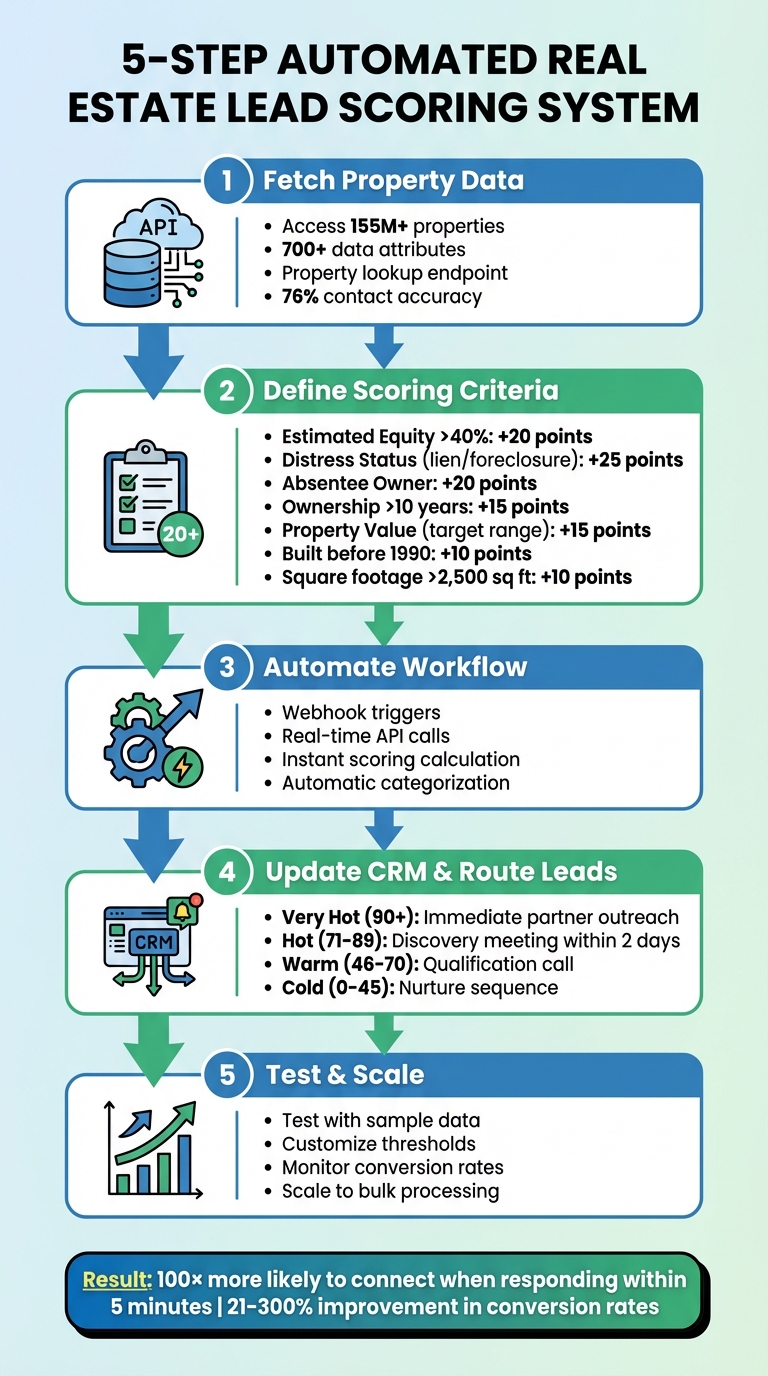
5-Step Automated Lead Scoring System Using BatchData API
Real Estate Lead Automation: Build a System
sbb-itb-8058745
Prerequisites: Tools and Setup
To get started, you’ll need your BatchData API key and a properly configured development environment. This process will enable seamless integration of BatchData’s API into your software.
Getting BatchData API Access
First, head over to BatchData’s website to request API access. The platform operates on a pay-as-you-go model, so there are no subscription commitments. Once your account is approved, you’ll receive an API key, which is essential for authenticating your requests. Make sure to store this key securely in environment variables – never hardcode it or expose it in public repositories.
BatchData offers access to a massive database of over 155 million properties, each with more than 700 attributes. Their API documentation provides detailed information about the available endpoints, which include property search, address verification, skip tracing, and phone verification. Take the time to review the documentation thoroughly to understand the structure of the data fields, response formats, and how authentication works. The platform boasts 76% right-party contact accuracy for verified phone and email data, making it an essential tool for improving lead scoring.
Setting Up Your Development Environment
Your development environment should be capable of handling API requests, processing JSON responses, and implementing custom scoring logic. If you’re working with JavaScript, Node.js is a great option, while Python is ideal for workflows that involve heavy data processing.
Begin by installing your preferred programming language and setting up a project repository to keep your code organized. You can refer to the zellerhaus/batchdata-mcp-real-estate GitHub repository for examples of server configurations related to property data, address verification, skip tracing, and geocoding. Use it as a guide for structuring your own setup.
To secure your API key, configure environment variables properly. Next, install any required HTTP client libraries, such as Axios for Node.js or Requests for Python, to facilitate API calls. Finally, test your connection by making a simple API request to ensure your authentication is working as expected.
Step 1: Fetch Property Data Using BatchData’s API
Now that your environment is set up, you can start pulling property data to fuel your lead scoring efforts. BatchData’s Property Lookup API provides access to over 700 property data points, including details like valuation, sales history, and mortgage information. With this extensive dataset, you can create scoring models based on factors like equity, property features, and financial trends.
Configure API Endpoints
BatchData’s API is organized into specific endpoints tailored to various needs. For lead scoring, two endpoints are particularly relevant:
- Property Search (
GET /properties/search): Use this to filter properties based on criteria like location, size, or financial metrics. - Property Details: Retrieve detailed profiles for specific addresses or property IDs.
When making requests, you’ll need your API key, which should be securely stored. Configure the requests with parameters such as:
- Location: City, state, or ZIP code.
- Physical attributes: Bedrooms, square footage, year built, etc.
- Financial metrics: Equity percentage, which is especially useful for identifying homeowners with strong financial positions or motivation to sell.
To avoid interruptions when processing large datasets, implement exponential backoff to manage rate limit errors. This ensures smooth operation even when dealing with high volumes of leads.
Example Request for Address Lookup
Here’s an example of a POST request to the /property/lookup endpoint:
{ "address": "123 Main St", "city": "New York", "state": "NY", "zipcode": "10001", "api_key": "your_api_key" } This request returns detailed property data, including equity, vacancy status, and other essential attributes. These insights are critical for building an accurate scoring model.
The API uses standard HTTP status codes to communicate results:
- 200: Success.
- 401: Authentication error (e.g., invalid API key).
- 429: Rate limit exceeded.
Step 2: Define Lead Scoring Criteria
Once you’ve gathered detailed property data, it’s time to establish the lead scoring criteria that will power your automated system. Not all leads hold the same potential – a property with over 40% equity and absentee ownership is far more promising than a recently purchased home with little equity. Your scoring criteria should reflect the traits of leads that have historically led to conversions.
Key Factors for Scoring Real Estate Leads
The best scoring models blend financial data, ownership trends, and property attributes. Start with estimated equity – properties with more than 40% equity often signal motivated sellers. Next, consider length of ownership – homes owned for over 10 years may indicate an increased willingness to sell. Look for distress indicators, such as active liens or pre-foreclosure status, as these point to urgent selling opportunities.
Tailor property details to fit your investment strategy. For example, if you’re targeting renovation projects, you might prioritize homes built before 1990. On the other hand, if you’re seeking move-in-ready properties, newer construction might be more appealing. Occupancy status is another critical factor – absentee owners, identified by mismatched mailing and property addresses, often score higher because they manage their properties remotely and may be more inclined to sell.
Once you’ve identified these factors, convert them into a scoring system that assigns measurable values to each lead.
Create a Scoring Algorithm
To develop your scoring algorithm, assign point values to each factor based on its importance. Here’s a practical example:
| Scoring Factor | High-Value Indicator | Points Assigned |
|---|---|---|
| Estimated Equity | > 40% | +20 |
| Distress Status | Active Lien or Pre-foreclosure | +25 |
| Occupancy Status | Absentee Owner | +20 |
| Length of Ownership | > 10 Years | +15 |
| Property Value (AVM) | Within target investment range | +15 |
| Property Age | Built before 1990 | +10 |
| Square Footage | > 2,500 sq ft | +10 |
| Out of Target Area | Outside service counties | -50 |
Integrate this framework into your automated workflow, allowing you to score leads in real time using conditional logic based on BatchData responses. Set thresholds to categorize leads: scores above 60 as "High-Value", 40–59 as "Qualified", 20–39 as "Potential", and below 20 as "Unqualified."
This tiered system helps your team focus on the leads that matter most. Responding to high-value leads within five minutes can make you 100× more likely to connect and 21× more likely to qualify compared to waiting 30 minutes.
Step 3: Automate the Lead Scoring Workflow
Once your scoring model is ready, the next step is to automate the process so leads are scored and categorized instantly. By combining your scoring algorithm with property data from BatchData, you can create a workflow that evaluates leads in real time. This means no manual input – just seamless, automated scoring. As soon as a lead enters your system, the workflow pulls property data, calculates a score, and routes the lead to the appropriate category, all in just moments.
Trigger Lead Scoring with Webhooks
The automation kicks off with a webhook that captures new lead details as soon as they’re created. Configure your CRM to send the lead data to your automation platform’s webhook URL. Make sure the payload includes the complete property address – this is essential for querying BatchData’s API. Tools like n8n can connect your CRM, BatchData’s API, and even Slack for instant team notifications, ensuring quick responses to high-priority leads.
Incorporate BatchData API Calls
After the webhook triggers, the next step is to call BatchData’s property API to gather property details. This API provides critical information, such as estimated property value, ownership details, square footage, year built, tax assessments, and occupancy status. Structure your workflow to retrieve these key data points – like property value, square footage, and occupancy status – and apply them directly to your scoring algorithm.
Implement Scoring Logic and Lead Qualification
Once the property data is retrieved, use a "Set" or "Edit Fields" node to calculate the lead’s total score. Assign points based on specific criteria, such as:
- Higher scores for properties valued above $500,000
- Additional points for square footage over 2,000 sq. ft.
- Bonus for newer properties built after 2010
- Extra points for non-owner-occupied properties
With the total score calculated, classify the leads into categories like high-value (60+), qualified (40–59), potential (20–39), or unqualified (below 20). For high-value leads, set up immediate notifications via Slack or email so your sales team can act quickly. Update your CRM with both the enriched property data and the final score, giving your team all the context they need to prioritize effectively. This integration ensures the entire process runs smoothly, from scoring to routing leads where they belong.
Step 4: Update CRM and Route High-Value Leads
After setting up automated lead scoring, the next step is to integrate that data into your CRM system for quick action. Timing is everything – especially in industries like real estate, where opportunities can vanish in hours. By ensuring your CRM is updated immediately, you can turn lead scores into meaningful sales activity and transform business operations.
Update CRM with Lead Scores
Integrate lead scores directly into your CRM using its API to keep everything up-to-date and actionable. Platforms like HubSpot, Salesforce, and Zoho CRM make this process relatively straightforward with their API endpoints. Here’s what you should do:
- Add fields for total score, classification tier, and key property details to ensure agents have all the context they need without switching systems.
- Use real-time real estate APIs to make calls to keep your data aligned with current market conditions and property values. Avoid using outdated datasets that could lead to missed opportunities.
- Implement error-handling protocols for bulk updates to catch API failures and prevent incomplete records.
By automating this workflow, agents can access critical information instantly, enabling faster, more effective responses.
Set Up Notifications for High-Value Leads
For leads scoring 90 or above, trigger immediate notifications to ensure they don’t fall through the cracks. Automated routing saves time and ensures the right team members are alerted. Here’s how to handle different lead categories:
- Very Hot / High-Value (90+): Send an immediate email with a priority booking link and ensure partner outreach within 24 hours.
- Hot / Qualified (71-89): Assign these leads to senior managers for discovery meetings within two days.
- Warm / Potential (46-70): Route them to business development for qualification calls.
- Cold / Unqualified (0-45): Enroll these leads in an automated nurture sequence to keep them engaged over time.
This multi-channel strategy ensures that no promising lead is overlooked due to delays or missed notifications.
| Lead Category | Score Range | Routing Action |
|---|---|---|
| Very Hot / High-Value | 90+ | Immediate Partner outreach (within 24 hours) + Priority Booking Link |
| Hot / Qualified | 71-89 | Senior Agent/Manager schedules discovery meeting within two days |
| Warm / Potential | 46-70 | Business Development Manager makes initial qualification call |
| Cold / Unqualified | 0-45 | Enroll in an automated nurture sequence |
Step 5: Test, Customize, and Scale the System
With your system now integrated into your CRM, it’s time to fine-tune and prepare it for larger-scale operations. Even the most well-constructed system can falter without testing and customization, leading to misclassified leads or an overwhelmed team. Here’s how to refine and scale effectively.
Customize Scoring Thresholds
The scoring ranges you initially set need to be adjusted based on actual conversion data and your business priorities. This step ensures your system aligns with real-world trends. Start by using a preview distribution tool to analyze how your current database fits within the proposed thresholds. This helps avoid pitfalls like setting "High-Value" cutoffs too high (resulting in no leads qualifying) or too low (flooding your sales team with unqualified prospects).
To maintain balance, group criteria into categories. For instance:
- Property Characteristics: Factors like value, square footage, and age.
- Investment Potential: Details such as occupancy status and lot size.
Assign limits to each group so that a property doesn’t score disproportionately high just because it excels in one area (e.g., size) while ignoring other critical factors like location or age.
Additionally, consider using score decay for time-sensitive leads. For example, reduce scores by 25% or 50% if there’s no engagement after 30, 90, or 180 days. This keeps your pipeline fresh and focused. You can also assign negative points for disqualifying factors, like properties outside your operating regions, to filter them out early in the process.
Test with Sample Data
Once your scoring thresholds are refined, it’s time to validate them against real data. A great way to do this is by running historical leads through your scoring algorithm. For example, take 50 past leads – 25 that converted and 25 that didn’t – and see if your system correctly classifies them as "high-value" or "unqualified". This process helps you determine if your scoring weights reflect actual conversion patterns.
You can also manually score a small batch of properties based on your business priorities and compare those results with the automated system’s output. If there are discrepancies, adjust the scoring weights for factors like property value, square footage, or investment status. Don’t forget to test edge cases – like properties with missing data, extremely old buildings, or non-owner-occupied units. Make sure the system applies bonus points or multipliers correctly and handles incomplete API responses without errors.
Finally, simulate a CRM webhook trigger with sample addresses to ensure the entire workflow functions smoothly. Verify that leads move seamlessly from BatchData API retrieval to scoring, CRM updates, and Slack notifications – all in real time.
Scale for Bulk Lead Processing
Scaling up your system requires clean data, efficient API usage, and ongoing optimization. Start with a pilot program involving a small group of agents to test routing logic and identify any data issues. Use their feedback to refine workflows before a full-scale rollout.
"A CRM filled with duplicates, untagged leads, or half-finished records forces AI to make predictions based on distorted inputs. Instead of solving confusion, automation amplifies it." – Redwerk
To manage API usage efficiently, configure your system to fetch property data only when a lead is created or significantly updated – not during every CRM action. This keeps your data current while managing API credits. Establish clear routing rules to avoid bottlenecks:
- "Hot" leads go directly to specific agents.
- "Warm" leads enter nurture sequences.
- "Cold" leads receive automated follow-up emails.
Track qualification accuracy by analyzing whether high-scored leads convert at the expected rates. For example, if leads with scores of 90+ are converting at 40% instead of the anticipated 70%, revisit your scoring weights and retrain the model using data from closed deals. Businesses using AI-driven lead management have reported improvements in conversion rates ranging from 21% to 300%, while reducing administrative tasks like data entry and follow-up tracking by 67%.
| Scaling Phase | Key Objective | Action Items |
|---|---|---|
| Assessment | Infrastructure Check | Review CRM structure, trace data flows, and confirm API integration. |
| Pilot | Validation | Test with a small agent group; refine workflows based on their feedback. |
| Scaling | Deployment | Expand to the broader team and activate performance monitoring. |
| Optimization | Maintenance | Update models based on closed deals and refresh scoring logic as needed. |
Conclusion
Creating an automated lead scoring system using BatchData’s API replaces slow, error-prone manual processes with fast, real-time property insights. This guide has covered everything – from pulling property data and setting scoring criteria to automating workflows, syncing with your CRM, and scaling for bulk operations. The result? High-value leads get prioritized instantly, giving your team a competitive edge with up-to-date data at their fingertips.
This approach brings immediate improvements. By automating tasks like data entry, skip tracing, and lead qualification, you save valuable time. Your CRM stays organized and accurate, your team spends more time engaging with prospects instead of digging through data, and your conversion rates improve by focusing on leads backed by real property details, financial records, and ownership data – no more relying on guesswork.
To make the most of this system, follow these final steps. Start small with BatchData’s Pay-As-You-Go plan if you’re testing the waters, then shift to a subscription as your volume grows. Use the Property Search endpoint to filter leads by criteria like location, equity, or year built, and retrieve detailed profiles for deeper qualification. The Contact Append endpoint can transform top-scoring addresses into actionable leads with verified contact details. Test your integration in a sandbox environment (as outlined in Step 5) and keep an eye on your API dashboard to fine-tune queries and manage costs effectively.
Keep refining your scoring model based on closed deals, adjust thresholds as market trends change, and maintain a pipeline focused on high-converting leads. With BatchData’s API driving your system, you can turn raw data into actionable insights, helping your team close deals faster and more efficiently.
FAQs
Which BatchData fields should I use to calculate equity and distress?
To figure out equity, look at data tied to property valuation and mortgage history. For distress, concentrate on details like foreclosure status, liens (such as tax or legal liens), and code violations. BatchData’s API offers access to these crucial data points, making it easier to evaluate equity and spot distressed properties efficiently.
How do I handle missing or conflicting property data in scoring?
Managing missing or conflicting property data can be tricky, but BatchData’s API makes it easier to pull in accurate, up-to-date details. To handle incomplete data effectively, you can set up rules like assigning default scores or skipping leads that have critical gaps. BatchData also offers tools to validate addresses, ensuring everything stays consistent. When dealing with conflicting information, prioritize the most recent or verified data for better accuracy. For any unresolved conflicts, flag them for manual review to keep your scoring process reliable and precise.
How can I tune score thresholds using my closed-deal results?
To fine-tune your score thresholds, start by examining your closed-deal data. Look for patterns in lead scores that consistently lead to successful transactions. Adjust your thresholds to focus on leads that fall within this range, ensuring your system aligns with actual conversion trends. Make it a habit to revisit and tweak these thresholds regularly, using data from recent deals, to keep your scoring system accurate and in sync with your latest success patterns.