
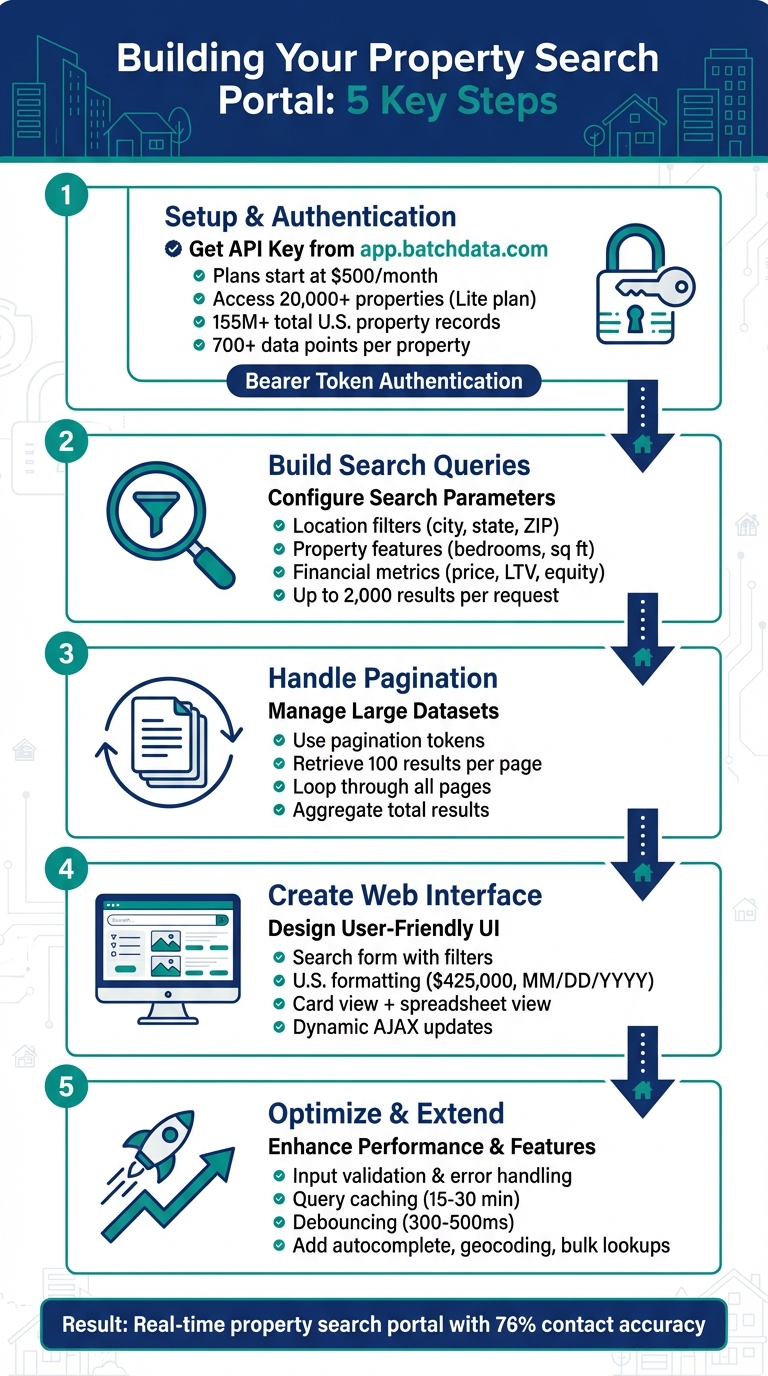
Want to create a property search portal that’s fast, reliable, and packed with features? Here’s how you can use BatchData‘s API to build one that filters properties by location, price, size, and ownership details – all in real-time.
Key Takeaways:
- BatchData API Overview: Access over 155 million U.S. property records with 700+ data points, including tax records, mortgages, and owner info.
- Setup: Get an API key, secure it with environment variables, and authenticate API requests.
- Search Features: Filter properties by city, state, ZIP code, price, or size. Retrieve up to 2,000 results per request.
- Code Examples: Python and JavaScript snippets to make test requests and build search queries.
- Pagination: Handle large datasets by implementing pagination for seamless results.
- UI Tips: Create user-friendly search forms and display results with U.S. formatting (e.g., $425,000, MM/DD/YYYY).
Why it’s useful: Whether you’re a real estate investor, developer, or agent, this guide shows you how to save time and streamline property searches using BatchData’s robust API. Let’s dive in!
Step-by-Step Guide to Building a Property Search Portal with BatchData API
Setting Up Access to BatchData‘s Property Search API

Getting Your API Key and Documentation
To get started, sign up at app.batchdata.com to obtain your API key. API access is included with all subscription plans, starting at $500 per month for the Lite plan, which provides access to 20,000 property records. For larger needs, custom Enterprise solutions are available. Once you’ve created your account, you can find your API key in your account settings. Make sure to review the detailed API documentation to understand how to use the service effectively.
The documentation outlines over 700 data points, including property details, mortgage information, and tax assessor records. BatchData’s developer portal, powered by Stoplight, offers an interactive interface where you can test API endpoints directly in your browser.
Authenticating Your API Requests
Every API request requires authentication. To do this, include your API key in the HTTP header using this format:
Authorization: Bearer [your-40-digit-API-token] For better security and convenience, store your API key as an environment variable (e.g., BATCHDATA_API_KEY). This practice ensures your credentials are secure and simplifies key management across different environments.
Additionally, include these headers in all your API requests:
- Accept: application/json
- Content-Type: application/json
Making Your First Test Request
You can test your connection by performing a property lookup. Below are examples in Python and JavaScript (Node.js) using the asynchronous version of the Property Lookup API. This method is ideal for working with large datasets, as it helps avoid timeouts.
Python Example:
import os import requests from dotenv import load_dotenv # Load environment variables load_dotenv() api_key = os.getenv('BATCHDATA_API_KEY') # API endpoint url = 'https://api.batchdata.com/api/v1/property/lookup/async' # Set request headers headers = { 'Authorization': f'Bearer {api_key}', 'Accept': 'application/json', 'Content-Type': 'application/json' } # Request body payload = { 'requests': [ { 'street': '1600 Amphitheatre Parkway', 'city': 'Mountain View', 'state': 'CA', 'zip': '94043' } ], 'options': {} } response = requests.post(url, json=payload, headers=headers) if response.status_code == 200: print('Success! Property data retrieved.') print(response.json()) elif response.status_code == 401: print('Error: Invalid API key.') elif response.status_code == 403: print('Error: Your plan does not have access to this dataset.') elif response.status_code == 429: print('Error: Rate limit exceeded.') else: print(f'Error: {response.status_code}') JavaScript (Node.js) Example:
require('dotenv').config(); const axios = require('axios'); const apiKey = process.env.BATCHDATA_API_KEY; const url = 'https://api.batchdata.com/api/v1/property/lookup/async'; // Configure request headers const config = { headers: { 'Authorization': `Bearer ${apiKey}`, 'Accept': 'application/json', 'Content-Type': 'application/json' } }; // Request body const payload = { requests: [ { street: '1600 Amphitheatre Parkway', city: 'Mountain View', state: 'CA', zip: '94043' } ], options: {} }; axios.post(url, payload, config) .then(response => { console.log('Success! Property data retrieved.'); console.log(response.data); }) .catch(error => { if (error.response) { switch(error.response.status) { case 401: console.log('Error: Invalid API key.'); break; case 403: console.log('Error: Your plan does not have access to this dataset.'); break; case 429: console.log('Error: Rate limit exceeded.'); break; default: console.log(`Error: ${error.response.status}`); } } else { console.log('Error:', error.message); } }); A successful test will return a 200 OK response, confirming that your connection is working. Once verified, you can start building advanced search queries to retrieve property data tailored to your needs.
Building Property Search Queries
Understanding Search Parameters
The API offers a powerful dataset that allows you to filter properties by location, features, and financial details.
- Location filters: Narrow your search by city, state, county, or ZIP code. You can even combine multiple locations in one query, such as searching across several ZIP codes simultaneously.
- Property characteristics: Specify details like the number of bedrooms and bathrooms, square footage, lot size, year built, or property use codes.
- Financial metrics: Define criteria like price ranges, Automated Valuation Models (AVM), estimated equity, or Loan-to-Value (LTV) ratios. To access active listing prices or property valuations, ensure your plan includes the relevant add-ons (Listing or Property Valuation).
The API can return up to 2,000 results per request, which suits most property search platforms.
Writing API Requests in Python and JavaScript
Here’s an example of a search query to find single-family homes in Austin, Texas, with at least 3 bedrooms, priced between $300,000 and $500,000, and a minimum living area of 1,500 square feet.
Python Example:
import os import requests from dotenv import load_dotenv load_dotenv() api_key = os.getenv('BATCHDATA_API_KEY') url = 'https://api.batchdata.com/api/v1/property/search' headers = { 'Authorization': f'Bearer {api_key}', 'Accept': 'application/json', 'Content-Type': 'application/json' } # Search parameters for Austin, TX properties payload = { 'filters': { 'city': 'Austin', 'state': 'TX', 'property_type': 'Single Family Residential', 'bedrooms_min': 3, 'square_feet_min': 1500, 'list_price_min': 300000, 'list_price_max': 500000 }, 'limit': 100 # Results per page } response = requests.post(url, json=payload, headers=headers) if response.status_code == 200: data = response.json() print(f"Found {len(data['results'])} properties") # Display first property using U.S. number and currency formatting if data['results']: prop = data['results'][0] print(f"nAddress: {prop['street']}, {prop['city']}, {prop['state']} {prop['zip']}") print(f"Price: ${prop['list_price']:,.2f}") print(f"Size: {prop['square_feet']:,} sq ft") print(f"Bedrooms: {prop['bedrooms']} | Bathrooms: {prop['bathrooms']}") else: print(f'Error: {response.status_code}') JavaScript (Node.js) Example:
require('dotenv').config(); const axios = require('axios'); const apiKey = process.env.BATCHDATA_API_KEY; const url = 'https://api.batchdata.com/api/v1/property/search'; const config = { headers: { 'Authorization': `Bearer ${apiKey}`, 'Accept': 'application/json', 'Content-Type': 'application/json' } }; // Search parameters for Austin, TX properties const payload = { filters: { city: 'Austin', state: 'TX', property_type: 'Single Family Residential', bedrooms_min: 3, square_feet_min: 1500, list_price_min: 300000, list_price_max: 500000 }, limit: 100 // Results per page }; axios.post(url, payload, config) .then(response => { const data = response.data; console.log(`Found ${data.results.length} properties`); // Display first property using U.S. number and currency formatting if (data.results.length > 0) { const prop = data.results[0]; console.log(`nAddress: ${prop.street}, ${prop.city}, ${prop.state} ${prop.zip}`); console.log(`Price: ${prop.list_price.toLocaleString('en-US', { minimumFractionDigits: 2 })}`); console.log(`Size: ${prop.square_feet.toLocaleString('en-US')} sq ft`); console.log(`Bedrooms: ${prop.bedrooms} | Bathrooms: ${prop.bathrooms}`); } }) .catch(error => { if (error.response) { console.log(`Error: ${error.response.status}`); } else { console.log('Error:', error.message); } }); Both examples format numbers and currency using U.S. conventions, ensuring clarity in property details.
Working with Pagination and Large Result Sets
When dealing with large datasets, implement pagination to retrieve all results efficiently. If your query returns more than 100 properties, use the pagination token provided in the API response to fetch additional pages.
Python Pagination Example:
import os import requests from dotenv import load_dotenv load_dotenv() api_key = os.getenv('BATCHDATA_API_KEY') url = 'https://api.batchdata.com/api/v1/property/search' headers = { 'Authorization': f'Bearer {api_key}', 'Accept': 'application/json', 'Content-Type': 'application/json' } payload = { 'filters': { 'city': 'Austin', 'state': 'TX', 'property_type': 'Single Family Residential' }, 'limit': 100 } all_properties = [] page = 1 while True: response = requests.post(url, json=payload, headers=headers) if response.status_code != 200: print(f'Error on page {page}: {response.status_code}') break data = response.json() all_properties.extend(data['results']) print(f"Retrieved page {page}: {len(data['results'])} properties") # Check if there is a next page if 'pagination' in data and 'next_token' in data['pagination']: payload['next_token'] = data['pagination']['next_token'] page += 1 else: break # No more pages print(f"nTotal properties retrieved: {len(all_properties):,}") JavaScript Pagination Example:
require('dotenv').config(); const axios = require('axios'); const apiKey = process.env.BATCHDATA_API_KEY; const url = 'https://api.batchdata.com/api/v1/property/search'; const config = { headers: { 'Authorization': `Bearer ${apiKey}`, 'Accept': 'application/json', 'Content-Type': 'application/json' } }; const payload = { filters: { city: 'Austin', state: 'TX', property_type: 'Single Family Residential' }, limit: 100 }; const allProperties = []; let page = 1; async function fetchAllPages() { while (true) { try { const response = await axios.post(url, payload, config); const data = response.data; allProperties.push(...data.results); console.log(`Retrieved page ${page}: ${data.results.length} properties`); // Check if there's a next page if (data.pagination && data.pagination.next_token) { payload.next_token = data.pagination.next_token; page++; } else { break; } } catch (error) { if (error.response) { console.log(`Error on page ${page}: ${error.response.status}`); } else { console.log('Error:', error.message); } break; } } } fetchAllPages(); Building the Web Interface
Creating the Search Form
The search form is the centerpiece of your property portal, sitting right at the top where users naturally look for it. Its prominent placement above the results area encourages interaction – an easily accessible search box can significantly boost engagement on both desktop and mobile devices.
To build your search form, use standard HTML input fields for common parameters like city, state, ZIP code, price range, and property type. For the search fields, use <input type="search">. To make your form accessible, include <label> tags with for attributes, ensuring screen readers can properly identify each input. This also makes the clickable area larger, improving usability.
For mobile users, set the input font size to at least 16px. This prevents browsers from zooming in automatically when a user taps the field, which can be frustrating. Apply box-sizing: border-box to all input fields so padding and borders don’t affect the specified width. Adding 12px of internal padding ensures that text doesn’t touch the edges, making the fields easier to read and interact with.
Use CSS Flexbox (display: flex) to arrange the input fields and the submit button in a neat row for desktop layouts. For mobile screens, switch to a stacked layout to optimize the user experience. Additionally, include a "Reset" button. This feature is particularly helpful for users conducting complex searches, allowing them to clear all filters with a single click.
Once the search form is in place, the next step is to properly format and display the search results.
Displaying Results with U.S. Formatting
When search results are returned, display each property as a card that includes a photo, address, and key details. For U.S. users, stick to standard measurements like square feet (sq ft) for living spaces and acres for lot sizes. Format prices with the dollar sign and commas for thousands – for example, $425,000.
Dates should follow the MM/DD/YYYY format, which is the standard in the U.S.. This is especially important for details like property tax assessments or last sale dates, ensuring clarity for your audience. Keep property descriptions concise, ideally under 250 words, to align with common MLS and listing site guidelines.
Consider offering two viewing options: a card view, which highlights visuals like photos and key stats, and a spreadsheet view for users who prefer sorting and comparing data-heavy details like price per square foot or property taxes. Place filter controls at the top of the page rather than in a sidebar – users are more likely to interact with filters positioned above the results.
Once your results are formatted, you can enhance the experience further by incorporating dynamic search functionality.
Adding Dynamic Search with AJAX
Dynamic search takes your static UI to the next level by updating results instantly, without requiring a page reload. Use the keyup or input event listener on your search fields to trigger updates as users type. If a search field is empty, clear the results container immediately to avoid showing outdated data.
When a user enters a city name or ZIP code, send an asynchronous POST request to your backend script. This script should query the BatchData API and return properties that match the search criteria. Use JavaScript’s fetch() method or jQuery’s $.ajax() to handle these requests. Once the data is returned, update the results container dynamically using .innerHTML or jQuery’s .html() method.
To improve the user experience, show a loading indicator while the request is being processed. You can implement this using .ajaxStart() and .ajaxComplete() handlers. To ensure the interface updates correctly when multiple search fields are active, give each input a unique ID (e.g., id="city-results") and link it to its corresponding results container.
Improving and Extending Your Portal
Validating Input and Handling Errors
When building a robust portal, server-side input validation is non-negotiable. Skipping this step leaves your application open to security threats and creates a frustrating experience for users. Considering that APIs now handle over 80% of internet traffic, strong validation is crucial for both safety and performance.
Start by implementing server-side validation – never rely solely on client-side checks, as they can be bypassed. For example, use regular expressions to validate U.S. ZIP codes (e.g., ^[0-9]{5}), ensure that price_min is always less than price_max (both should be above zero), and limit city names to a maximum of 200 characters to prevent buffer overflow attacks.
If validation fails, return a 400 Bad Request status code along with a clear, field-specific error message. For instance, messages like "ZIP code must be exactly 5 digits" or "Maximum price must be greater than minimum price" guide users without revealing sensitive internal details. Avoid exposing stack traces or database paths in your error messages, as attackers could exploit this information.
To further protect your portal, implement rate limiting on search endpoints. This helps prevent data scraping and reduces the risk of system overload. Additionally, configure your API to reject requests with unexpected fields instead of ignoring them, which can block potential injection of malicious parameters.
"Input/output validation is your API’s silent bodyguard – invisible when working properly, but catastrophic when absent." – Zuplo
Beyond security, proper validation can also enhance performance, leading to faster response times for users. Once your validation processes are secure, you can shift your focus to improving speed and efficiency.
Improving Performance
A fast, responsive portal is essential for keeping users engaged. Optimizing performance starts with reducing unnecessary API calls and minimizing server load.
One effective method is debouncing your search input. Instead of sending an API request every time a user types, wait for them to pause for 300–500 milliseconds before triggering the request. This approach avoids overwhelming your server with excessive calls.
For popular searches, consider implementing query caching. For example, cache results for frequently searched terms like "Miami condos under $425,000" for 15–30 minutes. This reduces API calls during high-traffic periods while still delivering reasonably up-to-date information.
When handling large-scale operations, such as database backfills or machine learning model training, use bulk data delivery. BatchData’s S3 or Snowflake delivery options allow you to process millions of records efficiently without making thousands of individual API calls.
Ensure your hosting solution can handle traffic spikes by opting for a provider with sufficient bandwidth. Also, cache static assets like property images and CSS files to reduce redundant rendering and improve load times for all visitors.
With these performance optimizations in place, you can focus on adding new features to take your portal to the next level.
Adding More Features
Once your portal is running smoothly, it’s time to expand its capabilities. By integrating additional BatchData API endpoints and advanced features, you can transform your portal into a comprehensive property intelligence platform.
Start with address autocomplete. By using BatchData’s address verification endpoint, you can suggest valid addresses as users type. This reduces input errors and ensures only verified addresses are submitted. You can even use geolocation to prioritize suggestions based on the user’s location.
Enhance the user experience with detailed property views. Create individual property pages that display key details like ownership history, tax assessments (formatted as MM/DD/YYYY), square footage, lot size (in acres), and comparable sales data. Be sure to format prices properly, including dollar signs and commas (e.g., $425,000).
Another valuable feature is phone number verification. BatchData provides 76% right-party contact accuracy, which is three times higher than the industry average. This ensures users can connect with the right contacts, whether for leads or property inquiries.
For advanced functionality, consider adding geocoding to convert addresses into geographic coordinates. This enables features like interactive maps, radius searches, and route planning. You can also implement bulk property lookups, allowing users to analyze up to 2,000 properties per request – a great option for investors looking at entire neighborhoods.
Lastly, offer custom datasets tailored to specific needs, such as distressed properties, recent sales, or unique property characteristics. BatchData’s professional services team can help create and deliver these specialized datasets via API or bulk delivery.
Conclusion
Creating a property search portal used to be a time-consuming process involving intricate integrations and coordination with multiple vendors. This tutorial simplifies that journey by guiding you through querying BatchData’s extensive database of over 155 million U.S. properties, managing pagination for large datasets, and designing a user-friendly web interface with native U.S. formatting.
BatchData’s Property Search API offers a straightforward yet robust solution. Instead of maintaining your own property database, you can tap into over 700 data points per property – covering ownership history, tax assessments, mortgage details, zoning information, and more – through easy-to-use REST endpoints. Features like multi-location queries allow you to search across ZIP codes, cities, or counties in a single request, while boundary search supports radius-based lookups ideal for map-driven applications.
This tutorial sets the stage for building advanced functionalities, such as saved searches, investor workflows, and detailed property analytics. With structured JSON responses and comprehensive documentation, expanding your portal with features like address autocomplete, geocoding, or bulk property lookups becomes a matter of extending query parameters and enhancing your UI components.
Your portal is designed to scale effortlessly from prototype to production. Use the count-properties endpoint to estimate dataset sizes before retrieving full results, implement caching for frequently accessed searches, and monitor API usage to manage rate limits as your traffic grows. For high-volume needs – like database backfills or machine learning applications – BatchData’s bulk delivery options via S3 or Snowflake allow you to process millions of records efficiently, bypassing the need for countless individual API calls.
Now, you have a fully functional property search portal delivering real-time data. Whether your audience includes real estate investors, lenders, or homebuyers, the skills and patterns covered in this tutorial give you a strong starting point for building advanced property intelligence tools. Dive deeper into BatchData’s API to unlock even more possibilities and elevate your portal’s capabilities.
FAQs
What’s the best way to keep my BatchData API key secure?
To keep your BatchData API key safe, here are some key practices to follow:
- Store your key securely: Avoid including your API key directly in your source code. Instead, use environment variables. For instance, in Python, you can access your key with
os.getenv("BATCHDATA_API_KEY"). Don’t forget to add your.envfile to your.gitignorefile to prevent accidental uploads to version control systems like Git. - Restrict access: Use the BatchData developer portal to limit your key’s permissions. You can set restrictions based on IP addresses, domains, or specific API scopes. This way, even if your key is leaked, its usability is significantly limited.
- Keep it on the backend: Never include your API key in client-side code, where it could be easily accessed. Instead, make API calls through a secure backend server that manages the key.
By applying these practices, you can reduce the risk of unauthorized access and maintain better control over your API key.
How can I implement pagination effectively with BatchData’s API?
To effectively implement pagination with BatchData’s API, start by setting a practical limit parameter – something like 100 records per page works well. This helps maintain fast response times while staying within rate limits. Make sure your API responses include helpful metadata like the total record count, the current page, and either a token or URL for the next page. This makes navigating through the data much easier.
For better reliability, consider using cursor-based pagination instead of numeric offsets. This approach ensures you won’t miss or duplicate records if the data changes during navigation. To enhance performance, request only the specific fields your application needs and consider caching frequently accessed pages. Always stay mindful of API rate limits, and use strategies like exponential backoff to manage large data requests effectively. These steps will make working with the massive 155 million+ property dataset much more seamless while keeping the user experience smooth.
How can I manage API rate limits when making multiple requests?
To handle API rate limits effectively, start by checking the documentation for your endpoint to understand the maximum number of requests allowed within a specific time frame (like per second or minute). Spread out your requests to avoid hitting these limits – introducing small delays between calls can make a big difference. If you receive a 429 Too Many Requests response, consider using an exponential back-off approach. This means pausing briefly after the first failure and then increasing the wait time with each retry.
Another smart move is to use pagination to fetch smaller chunks of data instead of making large, single requests. Additionally, caching frequently accessed results locally can cut down on redundant API calls. Keep an eye on your API usage by tracking response codes and setting up alerts when you’re nearing the limit. If you do hit the limit, handle it gracefully by showing a friendly message or falling back on cached data to keep your application running smoothly. These strategies will help your app stay responsive while adhering to BatchData’s rate-limit policies.