
Your CRM’s data quality directly impacts your sales success. Outdated or incomplete information wastes time, drains budgets, and leads to missed opportunities. BatchData‘s API offers tools to clean up bad leads, verify contact details, and enrich your database with accurate, real-time property and owner information. Here’s how it works:
- Identify and flag bad leads: Use filters like equity, ownership duration, and absentee status to clean your CRM.
- Verify contact details: Standardize addresses to USPS formats and validate phone numbers to reduce errors and compliance risks.
- Enrich missing data: Fill gaps in owner profiles and property details by learning how to skip trace property owners with skip tracing and advanced matching.
- Automate updates: Sync enriched data into your CRM for seamless lead management and improved outreach.
BatchData’s API makes your CRM data actionable, helping your team focus on high-value leads and close deals faster. Whether you’re handling a few records or millions, their flexible pricing and bulk processing options ensure efficient database management.
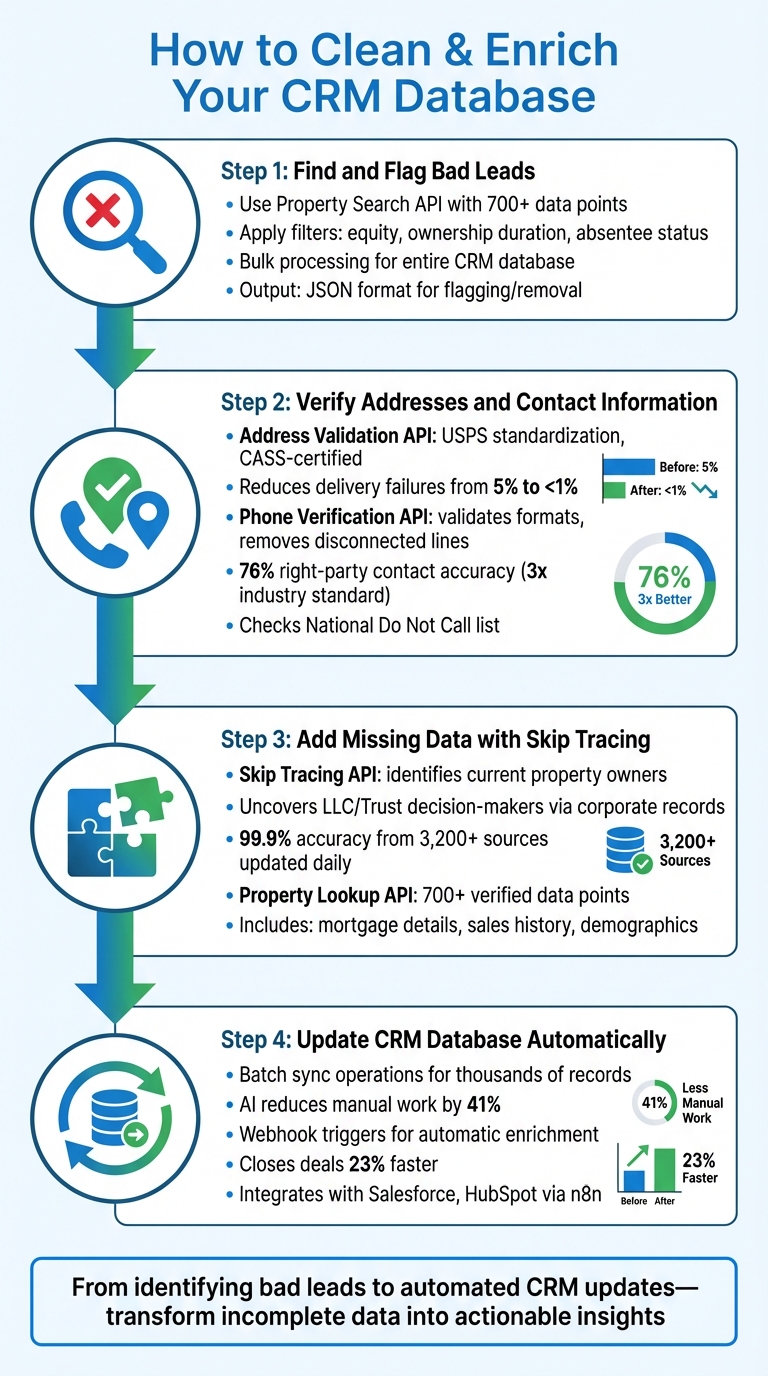
4-Step Process to Clean and Enrich CRM Data with BatchData API
Step 1: Find and Flag Bad Leads in Your CRM
Common Types of Bad Leads
Bad leads come in all shapes and sizes, but they share one thing in common – they waste time and resources. Think about disconnected phone numbers or bounced emails. Not only do these lead nowhere, but they can also hurt your email sender reputation. Then there’s incorrect property information, like outdated ownership records. You might end up contacting someone who sold their home years ago or sending mail to invalid addresses that never reach the intended recipient.
Another issue? Low-quality leads. Properties with little equity, recent purchases, or those outside your target market clutter your CRM and pull focus away from the leads that actually matter.
Using BatchData‘s Property Search API to Analyze Leads
This is where BatchData’s Property Search API steps in. With access to over 700 data points per property, this tool lets you cross-check your CRM records with real-time data on property characteristics, ownership details, and financial metrics. It’s like giving your database a much-needed tune-up. Automated queries can instantly flag any problematic entries.
The API’s filtering capabilities are a game-changer. You can use filters like ownership duration to spot properties acquired too recently to be viable leads. Equity filters help you weed out properties with less than 20–30% equity, and absentee status filters let you identify whether the owner actually resides at the property. Plus, the multi-location search feature makes it easy to verify leads across multiple cities, counties, or zip codes in one go – perfect for cleaning up large databases efficiently.
In 2024, a real estate team using an n8n integration scored leads based on property value, year built, and size. They flagged those below a certain threshold for immediate deprioritization.
The API also supports bulk processing, so you can scan your entire CRM database in one sweep. All you need to do is map your CRM fields – like street address, city, state, and zip code – to the API’s input parameters. Then, apply your filters to automatically identify and flag leads that don’t meet your criteria. The API delivers results in JSON format, which can either update your CRM records directly or tag entries for removal based on your rules.
Once you’ve flagged the bad leads, the next step is verifying addresses and contact details to ensure your data is accurate and actionable.
Step 2: Verify Addresses and Contact Information
Address Validation and Standardization
Once you’ve identified bad leads, the next step is ensuring the addresses in your CRM are accurate and deliverable. Incorrect address data doesn’t just cause frustration – it costs U.S. businesses billions each year, with delivery failures reaching as high as 5%. By verifying address data, you can cut mail waste to below 1%, achieve deliverability rates over 99%, and free up staff time for more strategic tasks.
BatchData’s Address Validation API is a game-changer here. It transforms messy address entries into clean, standardized formats that comply with USPS standards. For instance, it can convert “123 main st, apt four” into “123 MAIN ST APT 4”, ensuring USPS compatibility. The API uses CASS-certified software to add ZIP+4 codes, confirm valid delivery points, and break down addresses into detailed components like Street Number, Pre-directional, Suffix, and Secondary Unit. Plus, it provides Delivery Point Validation (DPV) codes and vacancy indicators, helping you spot duplicates and verify whether properties are occupied – features especially useful for professionals in real estate.
“What used to take 30 minutes now takes 30 seconds. BatchData makes our platform superhuman.” – Chris Finck, Director of Product Management
To keep your data fresh, aim to run bulk address verification at least every quarter – or even monthly if you can. Better yet, integrate the API directly into your CRM to stop unverified data from entering in the first place.
Phone Number Verification
Bad phone numbers can be just as damaging as incorrect addresses, hurting your ability to successfully connect with leads. BatchData’s Phone Verification API ensures phone numbers in your database are valid and up to date. It checks formats, removes disconnected lines, and cross-references numbers against the National Do Not Call list. Additionally, it flags numbers linked to frequent litigants, helping you avoid TCPA-related risks[7,8]. Impressively, BatchData’s tools deliver a right-party contact accuracy of 76% – nearly three times the industry standard.
Both the Address and Phone Verification APIs integrate seamlessly with your CRM, flagging and correcting bad data at the point of entry. This not only saves money on wasted leads but also helps you steer clear of potential regulatory fines. With the ability to process thousands of records quickly, these tools ensure your contact database stays updated and reliable.
Once your addresses and phone numbers are verified, you’re ready to move on to enriching your database with missing owner and property information through skip tracing.
Step 3: Add Missing Data with Skip Tracing
Adding Owner Details and Contact Information
Once you’ve verified the contact details, the next step is to fill in any gaps in your lead profiles. BatchData’s skip tracing API makes this easy by taking basic property identifiers – like the address, city, state, and ZIP code – and using advanced matching technology to cross-reference multiple identity databases. This process identifies the current property owner, even when the information is incomplete.
What makes this service stand out is its ability to dig into corporate records. If you encounter LLCs or Trusts, the API doesn’t stop at the registered agent’s name. Instead, it connects to corporate entity records and filings from the secretary of state to uncover the actual individuals making decisions. This means you’ll receive the owner’s name rather than just generic or placeholder information. The API delivers a full profile, including mobile and landline numbers, deliverable email addresses, and correct mailing details, so you can reach out immediately.
BatchData ensures accuracy by cross-verifying contact details through more than 3,200 independent sources, which are updated daily. This is crucial because phone numbers and email addresses change often, and the system’s 99.9% accuracy rate keeps your data reliable.
To streamline your process, automate skip tracing for each new lead to enrich data right away. Before doing this, use property search APIs to filter out low-value leads, such as those without equity or distressed properties, so you don’t waste resources. Compliance flags are also included to help you avoid legal risks before starting any outreach campaigns.
Once you’ve enriched your owner contact details, the next step is to use property data to refine your lead scoring and focus on the most promising opportunities.
Adding Property Data for Lead Scoring
With the contact data enriched, you can move on to property-specific information to improve lead scoring. BatchData’s property lookup API provides access to over 700 verified data points per property, drawing from more than a dozen reliable sources. This includes mortgage details, sales history, tax assessments, and even physical property characteristics.
The financial and transactional details are especially useful for scoring leads. For example, mortgage data can help you find owners with high equity or identify properties likely to sell based on ownership history. The API also highlights distress indicators, such as foreclosures or specific listing statuses, which can help you target properties needing immediate attention. Additionally, demographic insights – like the homeowner’s age, income, education level, and household size – allow you to further refine your CRM leads and tailor your marketing to fit each property owner’s situation.
| Data Point | Lead Scoring Application | Example Scoring Rule |
|---|---|---|
| Total Market Value | Prioritize high-equity properties | > $500,000: +20 points |
| Year Built | Favor newer properties | > 2010: +15 points |
| Total Building Area | Target larger assets | > 2,000 sq ft: +10 points |
To make the most of this data, map the API’s confidence scores to your CRM lead fields. This helps your sales team focus on high-priority contacts first. For compliance, label phone numbers as either “mobile” or “landline” to ensure adherence to TCPA rules when using automated SMS or dialing systems. Since contact details can become outdated quickly, set up a schedule to refresh your CRM records regularly, ideally monthly or at least quarterly, using the API’s updated datasets.
With enriched contact and property data, your CRM will be set up for seamless management, allowing you to focus your efforts on the leads most likely to convert.
Step 4: Update Your CRM Database Automatically
Bulk Data Processing and Delivery
Once you’ve enriched your records with property and owner details, the next step is integrating these updates seamlessly into your CRM. Handling large datasets efficiently is key here. By processing data in batches, you can avoid duplicates and maintain data accuracy. Tools like BatchData’s batch sync operations can update thousands of records on a schedule, minimizing API usage while keeping your CRM up-to-date with the latest property and contact details.
One way to ensure clean data integration is through fuzzy matching. This method uses phonetic similarities and domain patterns to cross-check records, ensuring that updates merge with existing entries rather than creating duplicates. To further safeguard your data, maintain audit logs and apply master selection rules – like prioritizing the most recent update – to allow for safe rollbacks if needed. Incorporating AI into data entry and enrichment can also cut down manual work by as much as 41%.
When importing enriched data into CRMs like HubSpot, take precautions to protect existing ownership assignments. For example, you can use HubSpot’s “Don’t overwrite” option for the Contact Owner field during imports. HubSpot consultant Karsten Köhler highlights:
“When a record in your import matches a record that already exists in HubSpot, the existing value is overwritten with the new value by default. To keep existing data as-is, select Don’t overwrite”.
This ensures that leads already being managed by your team aren’t accidentally reassigned. After securely updating your bulk data, you can move on to automating CRM integrations using BatchData’s API.
Automating CRM Updates with BatchData’s API
To save time and reduce errors, automate your CRM update process after enriching your data. BatchData’s API can connect directly to CRMs like Salesforce or HubSpot through automation platforms like n8n. By setting up webhook triggers in your CRM, you can automate the enrichment of new leads as soon as they’re added – no manual intervention required.
A typical workflow includes a trigger event, an HTTP request to BatchData’s Property Search, Property Lookup, or Skip Trace APIs, data transformation via code nodes, and a final update to your CRM through integration nodes. You can even use function nodes to calculate lead scores based on property attributes like market value, year built, or building area. This ensures your sales team focuses on high-priority leads, helping them close deals 23% faster.
When handling bulk data, it’s critical to respect BatchData’s rate limits by introducing delays or batching API calls. To enhance security, store API tokens and CRM access keys in a credential store or use environment variables instead of embedding them directly in workflows. Finally, configure your automation to route high-value leads to channels like Slack or Microsoft Teams for immediate follow-up, ensuring your team responds quickly to the best opportunities.
How to Clean and Enrich Your CRM Using AI (No Manual Work)
BatchData API Plans and Rate Limits
Before you finalize your CRM integration, it’s crucial to understand BatchData’s pricing options and rate limits. This will help you balance performance needs with budget considerations.
Pricing Plans Comparison
BatchData provides solutions for different property data, skip tracing, API, and data delivery requirements. Pricing and commercial terms vary based on the products selected, data requirements, usage, volume, and customer needs.
For current pricing and plan information, contact the BatchData sales team to discuss your requirements and the appropriate solution.
| Plan | Pricing | Volume | Key Features |
|---|---|---|---|
| BatchData Solutions | Contact Sales | Based on requirements | Property data, API access, skip tracing, and other available services |
| Custom Solutions | Contact Sales | Based on requirements | Custom data and integration options |
| Enterprise | Contact Sales | Based on requirements | Custom integration, service requirements, and other enterprise options |
Once you’ve chosen the appropriate solution, review the current API documentation to understand the applicable API requirements and usage limits for your integration.
API Rate Limits
API rate limits and usage requirements can vary by endpoint, service, and account configuration. For the latest rate limits and API usage requirements, refer to the current BatchData API documentation or contact the BatchData team.
When building a high-volume integration, developers should design their workflows around the applicable limits documented for their BatchData account and the endpoints they use.
Pricing Plans Comparison
BatchData provides solutions for different property data, skip tracing, API, and data delivery requirements. Pricing and commercial terms can vary based on the products selected, data requirements, usage, volume, and customer needs.
For current pricing and plan information, contact the BatchData sales team to discuss your requirements and the appropriate solution.
| Plan | Pricing | Volume | Key Features |
|---|---|---|---|
| BatchData Solutions | Contact Sales | Based on requirements | Property data, API access, skip tracing, and other available services |
| Custom Solutions | Contact Sales | Based on requirements | Custom data and integration options |
| Enterprise | Contact Sales | Based on requirements | Custom integration, service requirements, and other enterprise options |
Once you’ve chosen the appropriate solution, review the current API documentation to understand the applicable API requirements and usage limits for your integration.
API Rate Limits
API rate limits and usage requirements can vary by endpoint, service, and account configuration. For the latest rate limits and API usage requirements, refer to the current BatchData API documentation or contact the BatchData team.
When building a high-volume integration, developers should design their workflows around the applicable limits documented for their BatchData account and the endpoints they use.
| API Feature | Current Limits |
|---|---|
| Address Verification | Refer to current BatchData API documentation |
| Phone Validation | Refer to current BatchData API documentation |
| Property Search | Refer to current BatchData API documentation |
Conclusion
Integrating BatchData’s API into your CRM workflow can streamline operations and transform incomplete data into actionable insights. By following the steps in this guide – such as flagging bad leads, verifying contact information, enriching records with skip tracing, and automating updates – you’ll ensure your data works harder for you. BatchData’s API provides verified contact details, property information, and demographic data, enhancing lead scoring, improving conversion rates, and simplifying outreach efforts.
Accurate data has a direct impact. Real estate professionals can focus on high-intent prospects using verified phone numbers and ownership data. Title companies minimize closing errors by confirming ownership details early. Enterprise teams benefit from automated bulk updates that keep their databases current and efficient.
BatchData’s API is designed to grow with your needs, offering both real-time lookups for immediate results and batch processing for larger datasets. It also prioritizes compliance with U.S. data privacy standards, including opt-out mechanisms. Whether you choose the flexible Pay-As-You-Go plan or opt for a Custom Solutions plan, there’s a pricing option to suit your budget and workflow.
When your CRM relies on verified, up-to-date information, every interaction – whether it’s a call, email, or marketing campaign – becomes more effective. Clean data doesn’t just improve operations; it gives you a competitive edge in making smarter, faster real estate decisions.
FAQs
What CRM fields do I need to map before running BatchData enrichment?
Before you start running CRM enrichment with BatchData, it’s essential to map the fields where the enriched data will be stored. Focus on key fields like:
- Contact name
- Phone number
- Address
- Company name
- Job title
You can also include any other details relevant to your CRM needs. Make sure your CRM is set up to handle data updates – whether through auto-filling or overwriting existing information. Taking the time to properly map these fields ensures that the enriched data integrates seamlessly into your records, keeping everything accurate and workflows running smoothly.
How often should I re-verify addresses and phone numbers in my CRM?
Regularly checking and updating addresses and phone numbers is crucial for keeping your data accurate, meeting compliance standards, and ensuring high-quality leads. Although there’s no set timeline for how often this should be done, performing periodic reviews is a smart way to maintain reliable and up-to-date CRM information.
How can I avoid duplicates and overwriting owners during bulk updates?
When working with BatchData’s API for bulk updates, it’s crucial to prevent duplicates and avoid overwriting existing owners. Here’s how you can achieve that:
- Use Duplicate Detection Rules: These rules help spot and block duplicate records before they can be processed, ensuring your data remains clean and consistent.
- Leverage Unique Identifiers: Rely on unique identifiers, such as external IDs, to make sure updates are applied to the correct records. This approach minimizes errors and ensures the right data is updated.
By combining these strategies, you can safeguard data integrity and protect critical fields during large-scale updates.
Related Blog Posts
- GoHighLevel + BatchData: Automatically Enrich Real Estate Leads with Property & Contact Data
- The Developer’s Guide to CRM Automation with BatchData’s Real Estate Data API
- How to Clean and Verify Your CRM Data with BatchData’s Skip Tracing API
- CRM Data Hygiene for Real Estate: Automate Contact Verification with BatchData