


































Stop wasting time on manual lead scoring. BatchData‘s API lets you automate this process, pulling data from over 155 million properties to score and rank leads directly in your CRM. With 60+ property metrics like market value, equity, and days on market, you can focus on leads with the highest potential – saving hours and boosting efficiency.
Key Steps:
- Get API Credentials: Sign up on BatchData and retrieve your API keys.
- Set Up CRM Integration: Configure webhooks in your CRM to send lead data to BatchData.
- Develop a Scoring System: Assign points based on property attributes (e.g., equity, property age, lot size).
- Update CRM with Scores: Automate updates to your CRM with lead scores and categories.
BatchData’s API simplifies lead prioritization, helping you target the best opportunities and increase conversions. Whether you’re a wholesaler, rental investor, or agent, you can customize the scoring system to align with your goals. Start automating today and focus on closing deals instead of sorting through spreadsheets.
Prerequisites for Using BatchData‘s API
Before diving into automating lead scores in your CRM, it’s essential to gather a few key items. Having these ready beforehand will make the integration process smoother and save you from unexpected delays. Here’s what you’ll need to ensure everything runs without a hitch.
Get Your BatchData API Credentials
Start by creating an account on BatchData and selecting a pricing plan that suits your requirements. Once your account is set up, head over to the developer portal at developer.batchdata.com to generate your API keys. These keys act as your secure gateway to BatchData’s real estate data. Keep them safe – every API call your CRM makes to fetch property details will require them.
Configure Your CRM for Integration
Next, set up your CRM to work with BatchData’s API. This involves configuring webhook triggers to send HTTP POST requests whenever leads are created or updated. Additionally, create custom fields in your CRM to store the property data and lead scores provided by BatchData.
Most modern CRMs support webhooks, but double-check that yours can send HTTP POST requests to external APIs. Once configured, test the webhook triggers to ensure they’re working as expected.
If you’re handling this setup yourself, make sure you’re comfortable with the technical aspects of CRM configuration.
Required Technical Skills
To complete this integration, you’ll need a basic understanding of JavaScript. Specifically, you should know how to make API calls using GET and POST methods and work with JSON, which is the data format BatchData uses to send property details back to your CRM. If coding isn’t your strength, consider collaborating with a developer or hiring a freelancer to handle the initial setup for you.
sbb-itb-8058745
How to Integrate BatchData’s API with Your CRM
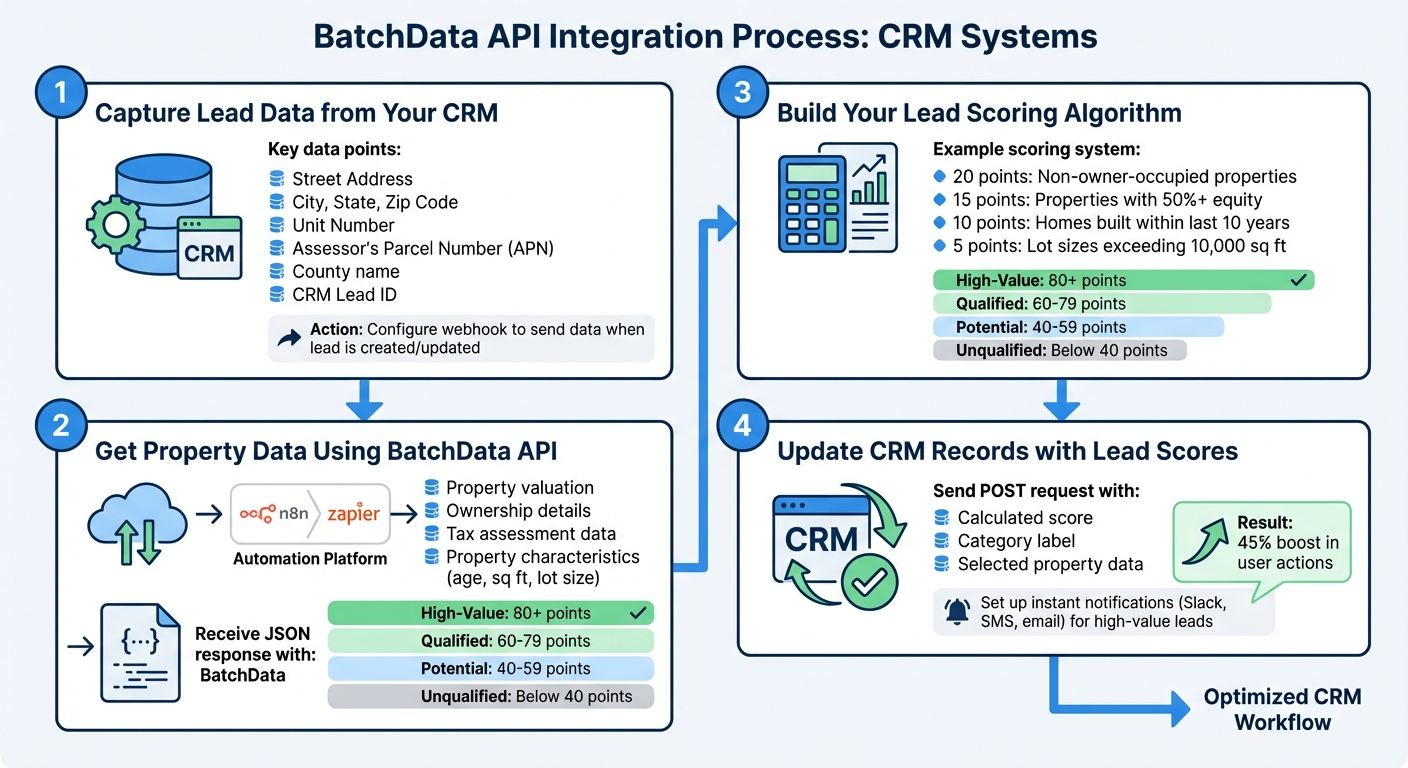
4-Step Process to Integrate BatchData API with Your CRM for Automated Lead Scoring
Integrating BatchData’s API with your CRM involves a straightforward four-step process. This setup creates a real-time, automated pipeline that captures lead information, enriches it with property data, calculates a lead score, and updates your CRM. The result? A seamless flow of data and insights every time a new lead is added or an address is updated.
Step 1: Capture Lead Data from Your CRM
Start by configuring your CRM to send a webhook whenever a new lead is created or an address gets updated. This webhook should include key address details: Street Address, City, State, and Zip Code. For multi-unit properties, make sure to include the Unit Number to pinpoint the specific unit. If available, also pass additional identifiers like the Assessor’s Parcel Number (APN) and County name. Don’t forget to include the CRM Lead ID – this ensures that the final lead score is correctly linked to the right record in your system.
Step 2: Get Property Data Using BatchData API
Use an automation platform like n8n or Zapier to handle the webhook data and trigger a GET request to BatchData’s real estate API property enrichment endpoint. Pass the address components as query parameters, and BatchData will return a comprehensive JSON response. This response includes property valuation, ownership details, tax assessment data, property characteristics (such as age, square footage, and lot size), and occupancy status (whether it’s owner-occupied or an investment property). Store this data in your workflow for the next step.
Step 3: Build Your Lead Scoring Algorithm
Develop a scoring system that assigns points based on property attributes. For example:
- 20 points for non-owner-occupied properties
- 15 points for properties with over 50% equity
- 10 points for homes built within the last 10 years
- 5 points for lot sizes exceeding 10,000 square feet
Add up these points to generate a total lead score ranging from 0 to 100. You can also set up categories like "High-Value" (80+ points), "Qualified" (60-79 points), "Potential" (40-59 points), and "Unqualified" (below 40 points) to make it easier to prioritize leads in your CRM.
Step 4: Update CRM Records with Lead Scores
Finally, send a POST request to update the lead record in your CRM using the CRM Lead ID. Include the calculated score, category label, and selected property data. To speed up follow-ups, configure your automation to send instant notifications – via Slack, SMS, or email – for leads marked as "High-Value" or "Qualified." Quick responses matter: real estate professionals who use automated lead scoring and routing have seen a 45% boost in user actions on their websites. This shows just how crucial timing can be in closing deals.
How to Customize Your Lead Scoring System
Once you’ve got the basic scoring algorithm in place, you can tweak it to fit your specific investment goals. The type of business you run will dictate which property attributes carry the most weight. For example, a wholesaler looking for quick flips will focus on ARV spreads and absentee ownership differently than a rental investor prioritizing cash flow. Similarly, an agent targeting motivated sellers will have their own criteria. With BatchData’s API, you can adjust the scoring weights and incorporate additional data points to align with your strategy.
Modify Scoring Criteria and Weights
Fine-tuning your scoring system starts with adjusting the point values for various property attributes. Let’s say you’re into wholesaling. You might assign:
- 35 points for an ARV spread above 20%
- 25 points for absentee ownership
- 20 points for equity over $50,000
- 20 points for verified contact information
On the other hand, rental investors might weigh factors differently. For instance:
- 30 points for positive cash flow indicators
- 25 points for property value compared to market rents
- 25 points for owner motivation signals
- 20 points for verified contact information
Once you’ve adjusted these weights, you can take things a step further by integrating additional data points for an even more detailed scoring system.
Add More Data Points from BatchData API
BatchData’s API allows you to pull in extra information to refine your scoring. For example, you can:
- Use tax assessment history to identify properties with rising tax burdens.
- Analyze transaction records to track ownership changes.
- Check occupancy status to distinguish between owner-occupied and investment properties.
You can also incorporate contact enrichment and skip tracing data to create a multi-layered scoring system. Here’s an example of how you might distribute points:
- 0-40 points for property value and equity
- 0-30 points for investment potential (factors like property type, age, and condition)
- 0-20 points for owner motivation (based on absentee status, years owned, and skip tracing verification)
- 0-10 points for contact quality (availability of verified phone and email information)
This structured approach ensures you’re prioritizing leads that combine solid property fundamentals with accessible and verified owner details.
Conclusion
Transform your CRM into a powerful prioritization tool by automating lead scoring. With BatchData’s API, you can evaluate critical attributes like square footage, property age, and lot size to classify leads into categories such as high-value, qualified, potential, or unqualified. This automation cuts down on repetitive data entry, freeing your team to focus on closing deals rather than pursuing leads that go nowhere. The result? Faster lead qualification and sharper decision-making.
Accurate data plays a big role here. By replacing outdated records with verified, up-to-date information, you ensure every lead is evaluated consistently. This standardized scoring system brings your top opportunities to the forefront, making it easier to focus on what matters most.
Better lead prioritization also means higher conversion rates and lower acquisition costs. Your sales team can zero in on pre-scored leads with verified details, avoiding wasted time on prospects that don’t fit your criteria. Moving from manual research to a data-driven process speeds up deal cycles and makes better use of your marketing budget.
Getting started is simple. You’ve already seen how to integrate BatchData’s API to streamline lead scoring. With flexible, pay-as-you-go pricing, you only pay for the data you need – whether it’s 50 leads or 5,000 each month.
FAQs
Which BatchData property fields matter most for my lead scoring?
When it comes to lead scoring, certain BatchData property fields play a critical role. These include metrics such as:
- Equity: Indicates the financial stake an owner has in the property.
- Loan-to-Value (LTV): Reflects the ratio of the loan amount to the property’s value.
- Vacancy Status: Shows whether the property is occupied or vacant.
- Property Value: Provides an estimate of the property’s market worth.
- Size and Age: Details like square footage and the property’s age give insight into its condition and potential.
- Ownership Details: Includes information like absentee ownership and how long the property has been owned.
These fields are essential for assessing a lead’s potential value and urgency, helping teams prioritize effectively and make informed decisions.
How do I prevent bad or incomplete addresses from breaking the workflow?
Bad or incomplete addresses can throw a wrench into your workflow, especially when using BatchData’s API. The solution? Address validation and verification.
By using tools to catch typos, missing information, or invalid entries before processing, you can sidestep these issues entirely. For example, BatchData offers services like USPS address validation to standardize addresses and flag inaccuracies. This ensures that the data you’re working with is clean and reliable.
Incorporating this step not only preserves data integrity but also keeps processes like lead scoring or ranking running smoothly – no hiccups, no delays.
How often should I re-score leads when property data changes?
When it comes to re-scoring leads based on property data updates, there’s no hard-and-fast rule for how often it should be done. Real estate data – such as mortgage status, property value, or vacancy – can change frequently. To stay on top of these shifts, it’s a good idea to re-score leads whenever significant updates happen. This way, you can keep your prioritization accurate and make more informed decisions.