





































If your team still exports lists, runs skip tracing, and pastes results back into the CRM, you’re losing time and adding errors. I’d sum it up like this: CRM integration works best when I clean records first, map fields clearly, pick the right connection method, and set rules for updates, routing, and compliance.
Here’s the short version:
- Skip tracing data should flow straight into the CRM, not through manual copy-and-paste.
- Field mapping matters most. Phone, email, mailing address, vacancy status, and source fields need clear write rules.
- There are 3 main ways to connect: API, workflow automation, or bulk CSV.
- Workflows should act on enriched records right away by updating stages, assigning reps, and creating follow-up tasks.
- Data goes stale fast. Contact data can decay by about 30% per year, so I’d set a refresh schedule by lead type.
- Verified rep edits should be protected. I would not let a new enrichment run replace an agent-confirmed phone number.
- Compliance and audit logs matter. DNC checks, consent flags, and field history should be part of the setup from day one.
BatchData covers 150+ million U.S. properties and includes 150+ data points, which shows why clean CRM structure matters before any write-back begins.
What is Skip Tracing in Real Estate ? | REsimpli CRM

sbb-itb-8058745
Quick comparison
| Method | Best for | Update timing | Main drawback |
|---|---|---|---|
| API | New leads that need instant enrichment | Real time | Needs developer setup |
| Workflow automation | Trigger-based updates without custom code | Near real time | Depends on middleware limits |
| Bulk CSV | Large backlogs and older records | Manual | Higher risk of import mistakes |
In other words: the integration itself is only half the job. I need clean data, tight rules, and post-enrichment workflows so new contact info turns into calls, follow-ups, and tracked results.
Prepare your CRM data before connecting a skip tracing tool
Once you’ve picked a connection method, get your CRM ready so new data lands in the right place. The goal is simple: clean records in, clean writes back out.
Before you connect any enrichment tool, standardize your CRM records. Focus on addresses, owner names, ZIP Codes, and the main search fields your team relies on. If those inputs are messy, the write-back will be messy too.
Clean records and map CRM fields before enrichment
Normalize addresses, owner names, and phone numbers before import. Then format each record to match your CRM schema and field limits. This step helps you avoid duplicate writes and mixed-up contact data.
Use this field map as a model:
| CRM Field Name | Skip Tracing Data Element | Overwrite Policy | Expected Format |
|---|---|---|---|
| Primary Phone | Owner Mobile Number | Overwrite only if empty | +1XXXXXXXXXX |
| Secondary Phone | Owner Landline | Append to record | (XXX) XXX-XXXX |
| Email Address | Owner Email | Overwrite only if empty | name@example.com |
| Mailing Address | Verified Mailing Address | Overwrite if empty | Standard USPS Format |
| Vacancy Flag | Vacancy Status | Always update | Boolean (True/False) |
| Lead Source | Skip Trace Provider Name | Never overwrite | String such as BatchData |
After you map the fields, decide which values are allowed to update records that already exist. That way, your CRM doesn’t swap out trusted data just because a new file came in.
Set overwrite rules, permissions, and compliance flags
Set overwrite rules so enriched data fills empty fields without replacing records your team has already checked. Also, limit write-back to mapped fields only.
Keep vacancy, pre-foreclosure, and tax delinquency flags active so workflows can send follow-up to the right place.
At that point, the CRM is set up for enrichment.
Connect skip tracing to your CRM via API, automation, or bulk files
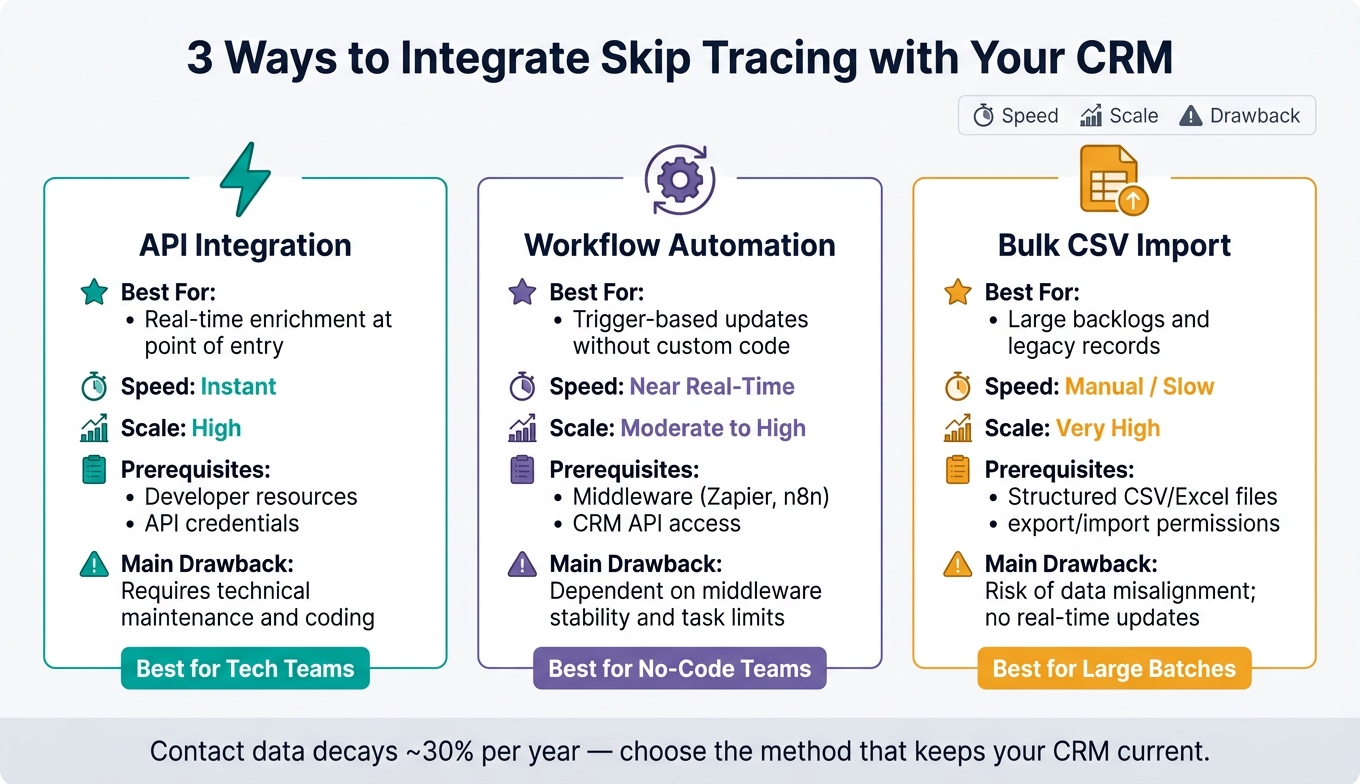
3 Ways to Integrate Skip Tracing with Your CRM
Once your CRM is set up, pick the connection method that matches how fast you need updates, how many records you process, and how much technical support your team has. In each case, skip-traced data gets written back to the CRM fields you mapped earlier. What changes is when that happens and how the data gets there.
| Method | Use Case | Prerequisites | Speed | Scale | Tradeoffs |
|---|---|---|---|---|---|
| API Integration | Real-time enrichment at the point of entry | Developer resources, API credentials, secure token storage | Instant | High | Requires technical maintenance and coding |
| Workflow Automation | Trigger-based updates on new leads or properties | Middleware (n8n, Zapier), CRM API access, no-code logic | Near real-time | Moderate to High | Dependent on middleware stability and task limits |
| Bulk CSV Import | Large batch processing of legacy records | Structured CSV/Excel files, permission to export and import files | Slow (Manual) | Very High | Risk of data misalignment; lacks real-time updates |
Use an API for real-time enrichment and verification
Use the API route when records need to update right away. This is especially effective for real estate wholesale lead generation, where speed determines who reaches a motivated seller first. If a new lead or property lands in your CRM, the API call can fire on the spot and write contact data into the mapped fields with no manual work.
The setup is pretty simple in concept: store credentials in a safe place, authenticate with an API key or bearer token, send a property address or parcel ID, and write the returned phone and email data into the right fields.
BatchData’s RESTful API covers 150+ million properties across all 50 U.S. states. It returns owner contact info, tax records, and equity positions, which makes it a good fit for teams that need data to show up inside the CRM as soon as a record is created.
Use workflow automation for trigger-based updates
If your team doesn’t have in-house developers, middleware like n8n or Zapier can handle trigger-based enrichment without custom code. You can set the workflow to run each day or have it fire whenever a new lead is added to the CRM.
A common flow looks like this: a new property or lead is created in your CRM, the middleware catches the trigger, calls the skip tracing service, and writes the returned data into the mapped CRM fields. Add error handling and keep an eye on task limits so you can spot failed runs before they pile up.
Use bulk CSV imports for large batches and legacy processes
Bulk imports make sense when you need to process a large set of older records. Export records from your CRM into a CSV, upload the file for batch processing, get the enriched output file back, and then import it into your CRM so the skip-traced data fills the mapped fields from the previous section.
Before you do a full overwrite, check the column order and field types. Start with a small test import first. One shifted column can throw off a lot of records fast. Also check U.S. formatting for phone numbers, dates, and currency so the data lands cleanly in your CRM.
Build CRM workflows that turn enriched records into follow-up actions
Once enrichment writes data back into the CRM, the next step should happen on its own. That means using workflows to move records forward with no manual chasing: update stages, assign the right rep, and create tasks the moment a record is ready.
Use enriched CRM records to trigger the next step automatically: stage updates, assignment, and task creation.
Define lead stages and automation triggers
A clean pipeline keeps new records from getting stuck. More importantly, it turns enriched fields into direct workflow actions instead of letting data just sit there.
| Lead Stage | Entry Condition | Automation Triggered | Required Fields |
|---|---|---|---|
| Imported | New property record created in CRM | Property data validation | Property Address, Owner Name |
| Skip Tracing Pending | Property meets motivation score threshold | API call to skip tracing provider | Owner Name, Mailing Address |
| Enriched | Contact data returned | Agent assignment | Verified Phone, Verified Email, Match Score, Vacancy Flag |
| Contacted | First outbound activity logged | Task creation for follow-up | Contact Date, Agent ID |
As soon as a record reaches the Enriched stage and has a verified phone number, the workflow should create a Call Task for the assigned agent.
Score and route leads based on contact quality
After assignment, score records so the best leads rise to the top first. A scoring model can rank leads using factors such as valid phone numbers, verified email addresses, match score, years owned, equity percentage, and distressed property indicators.
When a lead crosses your threshold, assign it automatically based on geography, estimated value, or equity position. BatchData property data can support routing rules with sales history, valuation estimates, and equity positions.
Keep enriched CRM data current, compliant, and auditable after launch
Once enrichment is live, the job shifts from a one-time lookup to steady data upkeep. Enrichment loses value over time. CRM contact data can decay by about 30% per year without maintenance, and records with many attributes can drift even faster. In plain English: a phone number that worked a few months ago may not work now, which can throw off follow-up if you don’t refresh records on a set schedule.
Re-enrich records, resolve conflicts, and protect verified edits
Use a tiered refresh schedule instead of putting every record on the same timer. High-intent leads should be refreshed every 30–60 days. Cold leads can wait 6–12 months. Active opportunities need a refresh monthly or at major milestones. Apply those same rules to new property owner imports before first outreach. For priority segments, run refreshes nightly or weekly. For new or high-priority records, use on-demand refreshes.
Conflicts are bound to happen. A new enrichment run may return a different phone number than the one already sitting in the CRM. When that happens, don’t overwrite a number an agent has confirmed. Mark confirmed fields with a status like Agent Verified, along with a timestamp and user ID. Then set up the integration so new enrichment data goes into a secondary field, such as proposed phone, instead of replacing the confirmed primary number.
Only demote a verified number after repeated failed calls or a confirmed disconnect result. That simple rule helps keep trusted data steady before you start judging results.
Track performance and enforce governance
Fresh data also needs audit trails before it can safely drive outreach. To see whether the integration is doing its job, track four KPIs:
- Enrichment success rate: the share of records that return at least one valid contact
- Valid contact rate: verified, dialable numbers
- Time from import to first contact
- Lead-to-conversion rate for enriched versus non-enriched cohorts
Providers that return detailed status codes and verification results can populate the CRM fields needed to calculate those KPIs.
On the compliance side, check DNC status automatically before dialing, and log the source, date, and result. Turn on field history tracking for core fields like primary phone, primary email, DNC status, and consent flags so every change is timestamped and tied to either a user or an integration.
Field history tracking can retain changes to up to 60 fields per object for up to 10 years, which makes it much easier to see who changed a number, when they changed it, and which enrichment run triggered the update. That audit trail matters when reps and automations are both touching the same record.
FAQs
How do I choose between API, automation, and CSV imports?
Choose the setup that fits your team’s tech bandwidth, data volume, and how fast you need results.
- API: best for real-time, event-driven lead enrichment and the highest level of automation, but it needs developer setup.
- Automation tools: a good fit if your team has limited coding support and wants lead updates to run from CRM triggers automatically.
- CSV imports: best for bulk processing, so you can work through thousands of records without slowing down CRM performance.
What CRM fields should I protect from being overwritten?
Protect fields tied to compliance and contact history, especially DNC status, TCPA opt-out preferences, and consent records.
You should also protect manually verified or context-rich fields like lead source, custom relationship notes, and campaign engagement tags. That way, automated skip tracing updates don’t wipe out the outreach context your team depends on.
How often should I refresh skip-traced records in my CRM?
To keep data accurate and control costs, avoid repeat API calls when a record was already enriched in the last 30 days.
BatchData updates phone numbers and address data every day. But in your CRM, it makes sense to balance current data with spend. If you’re working at scale, filter records first so you only send contacts that actually need a skip trace.