


































Want to save time and improve lead management? Real-time CRM enrichment with BatchData lets you instantly enhance leads with detailed property and owner data. Instead of manually researching, your CRM can automatically populate fields like square footage, year built, equity, and contact details – within seconds of a lead being created.
Why It Matters:
- Faster Insights: Reduce data processing time from 30 minutes to 30 seconds.
- Better Targeting: 76% accuracy in reaching the right contacts.
- Industry Applications: Real estate, mortgage lending, and marketing teams can score leads, pre-qualify prospects, and personalize outreach.
How It Works:
- Get API Credentials: Secure your BatchData API key to access over 700 property attributes.
- Check Compatibility: Ensure your CRM supports RESTful APIs and Bearer Token authentication.
- Set Up Webhooks: Automate enrichment by triggering BatchData whenever a new lead is added.
- Map Fields: Align BatchData attributes (e.g., AVM, equity, compliance flags) with your CRM fields.
- Test and Refine: Verify the integration works by testing leads and monitoring data accuracy.
BatchData transforms your CRM into a powerhouse by automating property data enrichment, enabling smarter decisions and faster lead conversions.
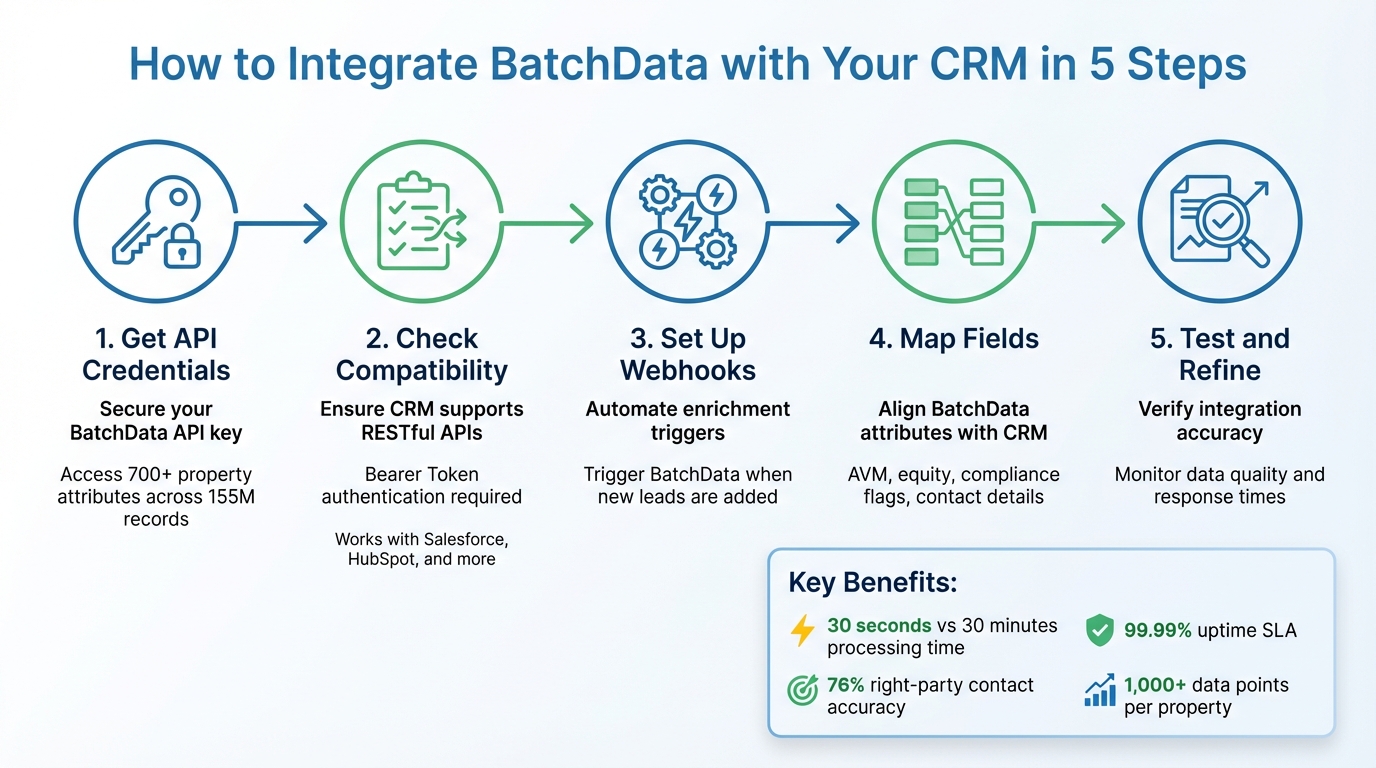
5-Step Process to Integrate BatchData with Your CRM for Real-Time Lead Enrichment
Mastering HubSpot API: Pt. 1 Platform Integration with Custom Coded Actions. Operations Hub

What You Need Before Starting
Before you connect BatchData to your CRM, make sure you have the necessary credentials, confirm your platform is compatible, and get a clear understanding of your data needs. Most integrations can be completed in under 30 minutes. This preparation is crucial for a smooth setup, as outlined in the next section.
Getting Your BatchData API Credentials

Start by grabbing your free BatchData API key from their website. This key is your main credential for the integration and is used as a Bearer token in the "Authorization" header for all HTTP requests.
To ensure everything works properly, test your API key and explore BatchData’s interactive developer portal. With access to over 700 attributes across 155 million property records, you can pinpoint the fields that are most relevant to your needs.
If you’re planning to enrich a large volume of leads – hundreds or even thousands daily – review the standard plan’s rate limits in the documentation. For more demanding requirements, such as enterprise-level operations, reach out to the sales team to discuss custom plans with higher rate limits and dedicated infrastructure. BatchData guarantees a 99.99% uptime SLA and lightning-fast response times, ensuring your sales process remains efficient.
Pro Tip: Treat your API key like a password. Store it securely to prevent unauthorized access, which could deplete your data credits or expose sensitive lead information.
Once your credentials are ready, the next step is to verify that your CRM is compatible.
Checking Your CRM Platform Compatibility
Make sure your CRM supports RESTful JSON APIs and HTTP Header Authentication with a Bearer token. Popular platforms like Salesforce and HubSpot (including HubSpot’s free tier) are fully compatible. You’ll also need proper permissions within your CRM to generate API keys or set up external data connections.
If your CRM doesn’t natively support webhooks, you can use tools like n8n or Zapier to enable webhook functionality.
Technical Requirements Checklist
To ensure a smooth integration, map BatchData’s property attributes – such as square footage, year built, or lien details – to the fields in your CRM. While BatchData provides access to over 1 billion data points, focus only on the ones that align with your lead scoring strategy.
BatchData offers client libraries and SDKs for platforms like Python and Node.js to simplify implementation. These resources, available in the developer portal, include code samples and best practices for managing API responses. Be sure to review the API documentation to understand the flexible input options, which include property address, owner name, or Assessor’s Parcel Number (APN).
Lastly, confirm that you have developer tool access within your CRM. This includes permissions to create custom fields, set up automation rules, and configure webhooks or API triggers. Without these permissions, even a compatible API and CRM may leave you stuck during setup.
How to Set Up the Integration
Once you’ve reviewed your setup checklist, you’re ready to integrate BatchData with your CRM. The process involves three key steps: adding API credentials, configuring webhook triggers, and testing the integration.
Adding API Credentials to Your CRM
Start by opening the external integrations section in your CRM. For example, in Salesforce, this is located under Setup > External Services, while in HubSpot, go to Settings > Integrations > Private Apps. Create a new API connection and name it something recognizable, like BatchData Property Enrichment.
Next, enter your BatchData API key in the authentication field. Select Bearer Token as the authentication method, ensuring the key is included in the Authorization header for all HTTP requests. For added security, create a specific integration user account and store the API details in your CRM’s secure credential vault.
Setting Up Webhook Triggers
To automate data enrichment, configure your CRM to trigger a webhook whenever a new lead is added or a contact’s property address is updated. Use your CRM’s automation builder to add a Send a webhook action, and set the HTTP method to POST.
Insert the BatchData API endpoint URL from the developer portal. The exact endpoint will depend on the specific service you’re using – whether it’s property data enrichment, skip tracing, or address verification. Map your CRM’s address fields to match the API’s parameters. For example, the CRM’s "Street Address" field should align with BatchData’s "address" parameter in the JSON payload. Don’t forget to include your API credentials in the webhook headers to ensure secure communication.
This setup enables your CRM to send property addresses to BatchData in real time whenever a lead is created. BatchData will then enrich the data with information like valuations, tax records, and sales history from a database of over 155 million properties.
Testing Your Integration
With the webhook triggers in place, it’s time to test the setup to ensure everything is functioning as expected.
Create a test lead in your CRM using a known property address, such as 123 Main Street. This allows you to verify that the API retrieves accurate data. Monitor the webhook to confirm it triggers correctly and check that fields like "Estimated Equity", "Year Built", and "Owner Name" populate in the CRM.
Review your CRM’s activity log to ensure the webhook fired successfully and that the API response was received quickly – BatchData is designed to process requests in under a second. During testing, pay attention to compliance-related data, such as DNC (Do Not Call) status and any litigator warnings included in the enriched information. If certain fields aren’t populating, revisit your field mapping and confirm the test address exists in BatchData’s database.
Once the test lead is enriched successfully, you can enable the integration for all incoming leads. This ensures that your CRM will automatically enrich new leads with detailed property data in real time, streamlining your workflow and enhancing your data quality.
Updating CRM Records with Property Data
Once webhooks are in place, the next step is transforming API responses into actionable data for your CRM. This involves mapping fields from the API to your CRM structure, addressing incomplete data, and ensuring updates happen automatically – no manual input required.
Matching BatchData Fields to CRM Fields
BatchData’s API delivers over 700 property attributes and more than 1,000 data points. To make this data useful, you’ll need to focus on the fields that align with your business needs. Start by mapping essential property details like square footage, number of bedrooms and bathrooms, year built, and lot size to your CRM’s property specifications. Ownership details should link directly to your CRM’s contact records.
Financial data requires precise handling. Fields like the Automated Valuation Model (AVM), estimated equity, and loan-to-value (LTV) ratios should be mapped to custom CRM fields that aid in lead scoring and qualification. Similarly, verified contact details – such as phone numbers, email addresses, and reachability scores – should populate your CRM’s communication preferences. Compliance data, including DNC (Do Not Call) and litigator flags, must be directly mapped to prevent contacting restricted numbers.
| BatchData API Field Category | Example Response Fields | CRM Field |
|---|---|---|
| Core Property | SqFt, Year Built, Beds/Baths | Property Characteristics / Specs |
| Valuation | AVM, Estimated Equity, LTV | Lead Scoring / Financial Qualification |
| Ownership | Owner Name, Absentee Status | Contact Record / Lead Type |
| Contact Info | Verified Phone, Email, Line Type | Contact Methods / Communication Preferences |
| Compliance | DNC Flag, Litigator Flag | Do Not Contact / Legal Status |
For properties owned by LLCs or trusts, BatchData’s "True Owner" feature identifies the decision-makers behind corporate entities. Map this information directly to your CRM’s contact fields for better targeting.
Once field mapping is complete, address any data gaps to maintain clean and complete records.
Dealing with Missing Data
Incomplete property records can disrupt workflows. Use conditional logic to trigger a skip trace automatically when key details are missing. For instance, if the AVM confidence score falls below your set threshold, flag the record for manual review instead of relying on unreliable valuation data.
Standardize addresses with BatchData’s Address Verification API to eliminate duplicates and undeliverable entries. For contact details, BatchData’s multi-source validation process checks phone numbers against over 50 providers, achieving 99.9% accuracy rates for reachability and confidence scores.
Automating the Data Update Process
After field mapping, your CRM should automatically update records whenever BatchData provides enriched data. The webhook you set up sends the property address to BatchData and uses the response to populate CRM fields, eliminating manual data entry. This ensures your sales team has access to complete, accurate lead information the moment a new contact enters the system.
Configure your workflow to compare new API results with previous data. This allows your CRM to flag property changes or newly available details that were missing in earlier scans. Regular updates ensure your CRM stays current, leveraging BatchData’s extensive database of over 155 million property records and 360 million property owners.
sbb-itb-8058745
Using Enriched Data to Grow Your Business
When enriched property data integrates seamlessly into your CRM, it transforms how you work – shifting from tedious manual research to focused, strategic action. The real game-changer lies in using this data to score leads, assign them to the right team members, and create personalized outreach. These tools turn your CRM into a powerhouse for lead management.
Scoring and Prioritizing Leads Automatically
Property data can help you automatically score and prioritize leads, focusing on those most likely to convert. For instance, your CRM can assign higher scores to properties with significant equity or absentee owners, making them prime candidates for investments or sales opportunities.
Leads can be categorized into groups like "high-value" or "potential" based on specific property attributes, such as value, square footage, or signs of distress (e.g., pre-foreclosure or tax delinquency). Home service providers might focus on details like the year a property was built or its permit history to identify homes that may require renovations.
| Scoring Criterion | Data Point Used | Business Impact |
|---|---|---|
| Seller Motivation | Pre-foreclosure, tax delinquency | Highlights urgent leads for investors |
| Investment Potential | Absentee owner, high equity | Identifies off-market opportunities |
| Service Need | Property age, permit history | Points to homes needing specific improvements |
| Financial Qualification | LTV ratio, estimated equity | Qualifies leads for loans or mortgage products |
| Contact Priority | Reachability scores | Focuses efforts on valid, up-to-date contact info |
BatchData’s reachability scores streamline your outreach by ranking phone numbers and emails based on their validity and recency. With a 76% right-party contact accuracy – three times the industry average – your team can avoid wasting time on dead ends. This approach sharpens your focus on promising leads, boosting conversions and optimizing resources.
Setting Up Conditional Lead Routing
Speed matters. Engaging with a lead within the first five minutes can increase conversion rates by up to eight times, and 78% of deals go to the first responder. Conditional routing ensures top-priority leads are handled by the right team members without delay.
Instead of relying solely on geography, use BatchData’s property attributes to create smarter routing rules. For example, leads with high estimated equity can go to senior acquisition managers, while properties showing distress factors can be assigned to specialized closers. For portfolio buyers, BatchData’s entity resolution can identify properties owned by the same individual or entity, ensuring new leads are routed to the account manager already handling that portfolio.
Fallback routing adds another layer of efficiency. If the assigned representative doesn’t respond within two hours, the lead can be reassigned automatically. Syncing routing software with your CRM’s business hours ensures leads aren’t sent to unavailable team members.
"My North Star is providing an accurate book of business for our sales team. That way they’re spending less time focusing on validating the account and firmographic data… and more time on cultivating customer relationships."
- Heidi Davis, Manager of Sales Operations and Global Data, Zoom
BatchData’s phone and address verification tools also clean up your leads before they enter the routing process. This ensures your team isn’t wasting time on disconnected numbers or undeliverable addresses. The result? Every lead gets the attention it deserves, maximizing your chances of closing the deal.
Personalizing Your Marketing Campaigns
Generic marketing campaigns often fall flat. With enriched CRM data, you can take a more targeted approach that resonates with your audience. By leveraging over 700 property attributes – ranging from building specs to financial indicators like loan-to-value ratios – you can create campaigns that feel tailor-made.
For example, you can segment your audience by ownership status. Absentee owners might receive messages about investment opportunities or property management services, while owner-occupants could be targeted with offers for home improvements. For properties owned by LLCs or trusts, BatchData’s proprietary linking logic can help you identify the actual decision-makers, bypassing corporate barriers.
Financial data can also guide timely outreach. Homeowners with high equity might get refinancing offers, while properties with open liens could be targeted for debt consolidation solutions. Home service providers can use details like HVAC type or roof age to pitch relevant upgrades or repairs.
BatchData ensures your campaigns reach the right person through their preferred channel. Whether it’s SMS for mobile users, verified email for drip campaigns, or landlines for voice calls, the platform’s verified contact data keeps your outreach on point. Plus, compliance data updated every 24 hours automatically filters out contacts on the Do Not Call registry or known litigator lists, protecting your business while maintaining a personal touch. These precise marketing strategies help you connect with prospects at the perfect moment, increasing engagement and driving results.
Monitoring and Fixing Integration Issues
Once your integration is up and running, keeping a close eye on its performance and addressing issues quickly is essential to ensure your CRM enrichment stays on track. Here’s how you can monitor and resolve common problems effectively.
Checking Integration Performance
Start by keeping tabs on webhook successes and API response times. Webhooks are designed to push data updates directly to your CRM’s endpoint URL, and your server should respond with an HTTP 2xx status code to confirm the data was received successfully. If enriched data isn’t showing up in your CRM records within seconds of lead creation, your first step should be to examine the webhook logs. Most platforms maintain a 30-day history of sent events, making it relatively straightforward to track down delivery failures.
To safeguard against temporary network issues, implement a retry schedule – 10 attempts spread over several hours is a good rule of thumb. This ensures that brief disruptions don’t result in lost data. Additionally, use the unique event IDs included in webhook requests to avoid processing duplicate data.
Before going live, test individual nodes in your workflow. For instance, run your BatchData API Configuration node with sample property data to confirm it’s pulling records correctly. Then, test your notification nodes – whether they’re sending updates via Slack, email, or directly to your CRM – to make sure they’re delivering formatted leads as expected. Regularly checking your BatchData dashboard will also help you stay aware of usage limits and potential issues.
Fixing Common Problems
Some issues are more frequent than others, but they can often be resolved with simple steps:
- Authentication Failures: Errors like "401 Unauthorized" or "403 Forbidden" are typically due to API key or subscription issues. Double-check that your API key is correct and that the authorization header follows this exact format:
Authorization: Bearer YOUR_BATCHDATA_API_KEY. Even a small typo or missing space can cause requests to fail. - API Rate Limits: Exceeding your allocated API calls will stop your integration in its tracks. Keep an eye on your usage, especially during periods of high lead generation. If you’re frequently hitting these limits, consider upgrading your plan or using filters to prioritize pulling detailed property data only for high-value leads, such as those with high equity or absentee ownership.
- Field Mapping Issues: Incorrectly configured search parameters can lead to unexpected results or no results at all. Double-check that filters like city, state, or equity percentage are properly set in your API request node. If you see
missingScopeserrors in your API response, it’s likely a permissions issue. Testing with known property addresses can help pinpoint whether the problem lies in your filters or field mappings.
Maintaining Your Integration Over Time
Keeping your integration running smoothly isn’t just about the initial setup – it requires ongoing attention to adapt to changing needs and conditions.
Regularly review your search parameters, such as equity thresholds, property types, or market value ranges, to ensure they align with your current business goals. What worked six months ago may no longer be effective as your target audience shifts.
Schedule periodic data accuracy checks using BatchData’s real-time phone and address validation tools. These checks help eliminate disconnected phone numbers and invalid mailing addresses, saving your team from wasting time on dead leads. Daily compliance scrubbing against Federal DNC and known litigator lists is another must to protect your business from legal risks while keeping your database clean.
Whenever your CRM or BatchData releases updates, test your integration to ensure everything continues to function as expected. Use automated workflow tools to perform market scans, comparing new API results with previous data to identify property changes or new listings automatically. This proactive approach helps you catch potential issues early, ensuring your CRM enrichment stays reliable and effective.
Getting Started with CRM Enrichment
What You Gain from Real-Time CRM Enrichment
Real-time CRM enrichment takes property data management to a whole new level. Imagine your CRM instantly filling in the blanks with detailed property information – like valuations and verified contact details – right when a new lead enters the system. With access to over 155 million property records and more than 1,000 data points, your team can immediately evaluate and prioritize leads based on actual property details.
The benefits go beyond just saving time. A 76% right-party contact accuracy rate – three times higher than the industry standard – means your outreach connects with the right people, cutting down on wasted effort. Plus, daily updates to the DNC registry ensure your team stays compliant while maintaining an active outreach schedule.
How to Begin Your Integration
Getting started is easier than you might think. First, sign up with BatchData to get your free API key. This key gives you instant access to explore property and contact data endpoints. Use the interactive developer portal to test API calls and preview live responses before committing to any code. This ensures the data structure aligns perfectly with your CRM’s fields.
Next, configure your CRM’s webhook system to automatically capture property addresses from new leads and trigger API calls to BatchData. Set up workflows that score leads based on enriched property data and route high-value prospects to the right salespeople.
Growing Your Data Strategy with BatchData
Once your integration is up and running, you can expand your data strategy with BatchData’s scalable solutions. For businesses moving beyond individual property lookups, BatchData supports larger-scale operations. You can opt for Direct Cloud Access through platforms like Snowflake, BigQuery, or Databricks for nationwide data analysis or machine learning. For bulk data needs, BatchData offers delivery options via Amazon S3 or flat files like CSV, JSON, or Parquet.
If you need help with custom data matching or migration, BatchData’s professional services team has you covered. Enterprise plans also provide higher rate limits and dedicated infrastructure, making it easy to handle high-volume use cases as your business grows. With these tools, your data strategy can evolve right alongside your expanding needs.
FAQs
How does BatchData enhance lead targeting with real-time CRM enrichment?
BatchData takes your CRM to the next level by automatically updating lead records with comprehensive property details, ownership data, and contact information in real-time. This smooth integration streamlines your process, allowing you to pinpoint top-quality leads using automated scoring while filtering out less promising ones. The result? Less hassle and more focus on what matters.
Businesses using BatchData have seen impressive results, including a 3× increase in lead-to-sale conversions and a 40% cut in time spent on unqualified leads. It’s a game-changer for creating efficient workflows and crafting more precise marketing strategies.
How can I integrate BatchData with my CRM for real-time data enrichment?
To connect BatchData with your CRM and enable real-time data updates, here’s what you need to do:
- Set up a trigger in your CRM: Use tools like webhooks or automation to activate the process whenever a new lead is added. Make sure this includes key property details like an address or APN (Assessor’s Parcel Number).
- Configure your BatchData API credentials: Input your API key and endpoint details, then prepare the API request to fetch property and owner data.
- Map your CRM fields: Align fields such as address, city, and ZIP code in your CRM with the appropriate BatchData request parameters.
- Send the API request and update records: Once the API retrieves enriched data, update your CRM with the new details automatically.
- Test the integration: Run a test with a sample lead to confirm that everything syncs smoothly and updates occur in real-time.
This process eliminates the need for manual data entry, ensures your CRM stays accurate, and helps you optimize lead scoring, routing, and personalized marketing efforts.
How can enriched data from BatchData improve my marketing efforts?
BatchData offers enriched, real-time property and ownership data that gives you a deeper understanding of your leads. With this detailed information, you can evaluate leads more accurately, build tailored audience segments, and craft marketing messages that feel personal and relevant.
By automating the data enrichment process, you eliminate the need for tedious manual data entry. This not only saves time but also opens the door to targeted campaigns designed to boost engagement and drive conversions. The result? More efficient marketing efforts that connect with your audience on a meaningful level.