


































Tired of wasting hours on manual data entry and property research? Automating your Podio CRM with BatchData‘s API can save you time and eliminate errors. Here’s the deal:
- Streamline lead management by instantly pulling verified property and owner data for 155 million properties.
- Improve accuracy with real-time updates, over 700 property attributes, and verified contact details.
- Stay compliant by filtering out disconnected numbers and DNC-listed contacts.
This integration is ideal for real estate professionals, sales teams, and developers who need fast, precise data updates. Whether you’re targeting motivated sellers or qualifying leads, this setup simplifies workflows and boosts efficiency. Let’s break down how to make it happen.
Preparing for Integration
Before you connect BatchData to Podio, it’s essential to have all the right accounts, credentials, and tools ready. You’ll also need to set up your Podio workspace correctly to ensure everything runs smoothly. Taking the time to prepare will make the integration process much easier and more efficient.
What You Need Before Starting
To begin, you’ll need an active Podio account with access to a workspace where you can create custom apps. Additionally, you’ll need your BatchData API token, which you can get by reaching out to BatchData. This token is crucial – it allows you to access property and contact enrichment services via the API.
Within Podio, create a custom "Standard" app in your workspace. This app should include dedicated text fields for key data points like Owner Name, Property Address, Lead Score, APN, Year Built, Last Sale Amount, and Estimated Equity. These fields will help map the data from BatchData seamlessly. Make sure you document all the BatchData fields you plan to use so you can ensure complete synchronization.
To link the two platforms, consider using middleware tools such as n8n or Zapier, or write custom scripts using Python or Node.js. These tools will help manage the data flow through Podio’s webhooks. Also, make sure that Podio’s API permissions are configured to allow external services to push data into your workspace.
Security and Authentication Setup
BatchData’s API uses Bearer token authentication, meaning you’ll need to include your API token in the "Authorization" header for every HTTP request. For security, avoid hardcoding the token. Instead, store it securely using environment variables or encrypted vaults.
Middleware tools often have built-in credential vaults to securely store and encrypt API tokens. Use these features to minimize the risk of accidental exposure. Additionally, enable execution logging and monitoring to track how the integration is performing and to detect any unauthorized access or authentication issues as they occur.
To comply with BatchData’s API usage policies, implement rate limiting by batching your requests or adding short delays between them. This helps prevent interruptions or security flags. Be sure to include robust error-handling mechanisms in your workflows. This will allow you to manage issues like authentication failures or temporary API errors without exposing sensitive data.
Finally, ensure compliance with privacy regulations when handling owner contact information. Validate and filter the data before syncing it to Podio to maintain accuracy and follow legal requirements. Collaborate with your marketing and sales teams to design a data flow process that includes only necessary and compliant fields. This will help streamline the integration while protecting sensitive information.
sbb-itb-8058745
How to Integrate BatchData with Podio CRM

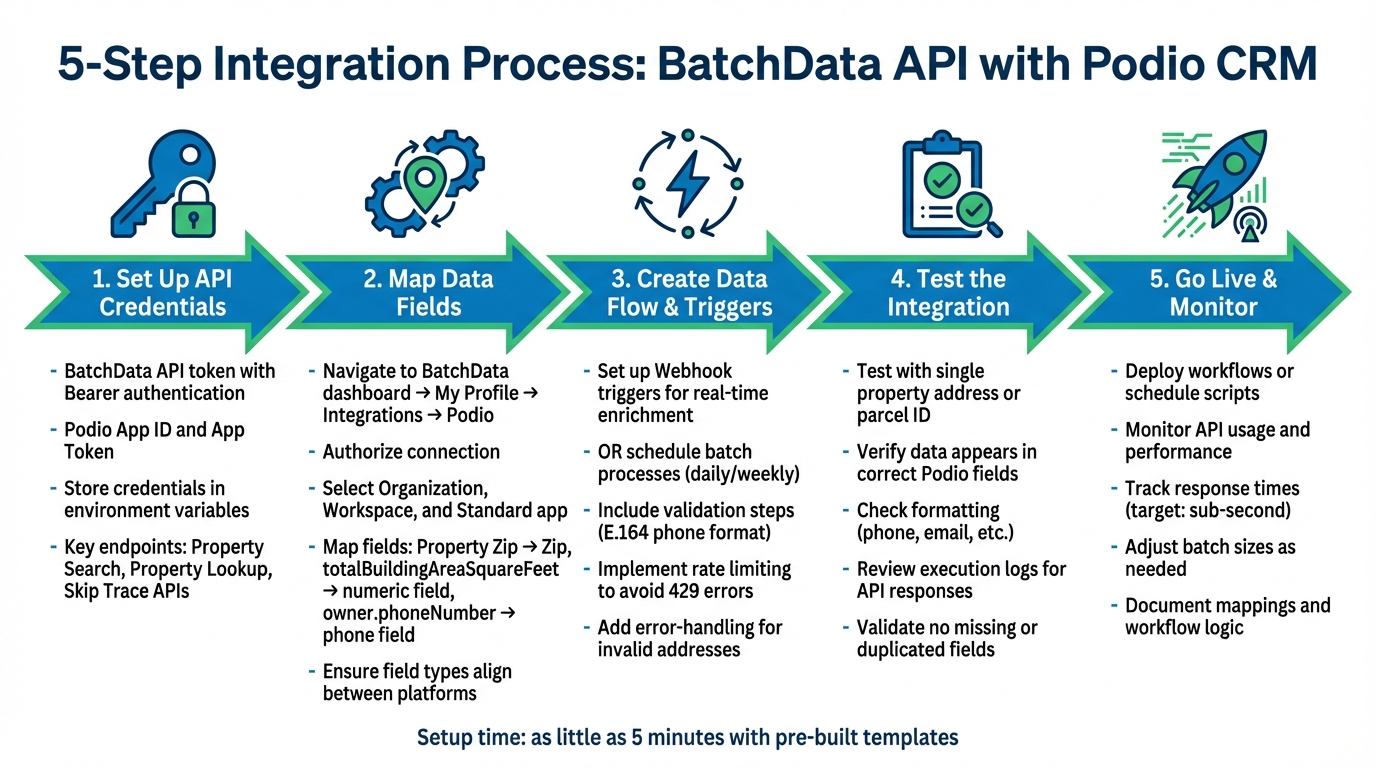
5-Step Process to Integrate BatchData API with Podio CRM
Once your account and security settings are ready, it’s time to automate data flows between BatchData and Podio. This process involves setting up API credentials, mapping data fields, creating triggers, and thoroughly testing before going live. With pre-built middleware templates, the setup can take as little as five minutes. Let’s break down the steps to configure, test, and deploy this integration.
Setting Up BatchData API Credentials
The BatchData API token is your key to authenticating all API requests. Include it in the HTTP header using Authorization: Bearer {YOUR_TOKEN} for every call to BatchData’s endpoints. The main endpoints you’ll use are:
- Property Search API:
https://api.batchdata.com/api/v1/property/search - Property Lookup API:
https://api.batchdata.com/api/v1/property/lookup - Skip Trace API:
https://api.batchdata.com/api/v1/property/skip-trace
For Podio, you’ll need your App ID and App Token, which can be retrieved from the custom app you created earlier. Be sure to store all credentials securely. If you’re using Python or Node.js, save these tokens as environment variables instead of hardcoding them into your scripts.
Mapping Data Fields Between BatchData and Podio
Field mapping is the bridge that ensures BatchData’s enriched information flows into the correct fields in Podio. Start by going to "My Profile" > "Integrations" > "Podio" in the BatchData dashboard and authorizing the connection. Select your Podio Organization, Workspace, and the custom Standard app you’ve set up.
In the mapping interface, pair each Podio field with the corresponding BatchData data point. For instance:
- Match "Property Zip" in Podio to BatchData’s
Zipfield. - Map
totalBuildingAreaSquareFeetto a numeric field. - Link
owner.phoneNumberto a phone field in Podio.
Ensure that Podio fields are created and properly named before mapping them in BatchData. Also, confirm that field types in Podio align with the data formats from BatchData to avoid errors.
Creating Data Flow and Triggers
Triggers control when data moves from BatchData to Podio. A common method is using a Webhook trigger in Podio or middleware to initiate a BatchData Property Lookup or skip trace whenever a new item is added to your Podio app. This allows real-time data enrichment as leads enter your CRM.
Alternatively, you can schedule triggers – running daily or weekly batch processes – to update multiple records at once. When setting up workflows, include validation steps to ensure data formats are correct (e.g., phone numbers in E.164 format). Be mindful of BatchData’s rate limits to avoid 429 errors, and include error-handling steps to manage issues like invalid addresses or API failures without disrupting the entire process.
Testing the Integration
Before going live, test the integration with a single property address or parcel ID. Trigger the workflow manually using your middleware or script, and verify that:
- Data appears in the correct Podio fields.
- Phone numbers, emails, and other details are formatted as expected.
- No fields are missing or duplicated.
Check execution logs to confirm successful API responses and data transfers. If something isn’t working, revisit your field mappings, validate API tokens, and ensure that your Podio app permissions allow external data entry. Testing with a small dataset first can help you catch and fix issues before scaling up.
Going Live with the Integration
Once testing is complete and everything checks out, deploy the integration for daily use. Activate your middleware workflows or schedule scripts using tools like cron jobs to run at regular intervals.
During the first few days, monitor performance closely. Keep an eye on BatchData API usage to ensure you stay within your plan limits, and adjust batch sizes or trigger frequencies as needed. Document your field mappings, workflow logic, and any custom scripts so your team can maintain or update the integration in the future. With the integration live, your Podio CRM will automatically enrich property and contact records, saving you time and improving lead accuracy. Use this enriched data to streamline your Podio workflows and enhance your overall efficiency.
Using Enriched Data to Automate Workflows
Integrating enriched data can streamline workflows, automating tasks like lead routing based on specific criteria. For example, when BatchData flags a property record with high equity and a vacancy status of "Absentee Owner", Podio can automatically mark that lead as "High Priority" and assign it to your acquisitions team. This eliminates the need for manual sorting, allowing your sales team to focus on leads with the highest potential.
Building Custom Workflows in Podio
Podio’s automation features rely on triggers and actions tied to enriched data. Start by identifying key data points from BatchData that can initiate workflows. Common triggers might include equity thresholds, distress indicators (like pre-foreclosure status), or successful contact verification for phone numbers and emails. When these conditions are met, Podio can handle tasks like updating lead statuses, notifying team members, or moving records between workspaces – all while avoiding duplicate entries.
You can also use property metrics to guide lead routing. For instance, properties with over 2,000 sq ft and significant equity might be directed to your wholesale team, while smaller properties could head to your fix-and-flip pipeline. This ensures each lead is managed by the right team for maximum efficiency.
Real Estate Use Cases
Custom workflows open the door to practical applications in real estate. Investors can use enriched data to automatically segment marketing lists within Podio. For instance, when BatchData fills in fields like occupancy status, lien details, and owner contact info, workflows can separate "High Equity Absentee Owners" from "Low Equity Owner-Occupants." This targeted segmentation helps ensure that direct mail campaigns deliver the right message to the right audience.
Another use case involves lead scoring. Properties marked with distress signals – such as tax delinquency, pre-foreclosure, or code violations – can be given higher scores, prioritizing them in your outreach efforts. Skip-traced contact information enables rapid follow-ups via phone or email, while property details like last sale date and estimated value help your team create tailored offers. Workflows can even trigger automated follow-ups when a property owner’s phone number is verified or when a direct mail piece is confirmed as delivered.
Improving ROI Through Automation
These automated workflows significantly cut down the time your team spends on repetitive tasks like data entry and lead qualification. Instead of manually researching property details or chasing down contact information, your team receives leads that are already pre-qualified, complete with owner contact data, equity calculations, and key property metrics – all within Podio. This allows acquisitions teams to focus on high-value activities like deal negotiations and relationship building.
With accurate, enriched data, your team can make faster, more confident decisions. Verified owner contact details and comprehensive property metrics provide a clear view of each opportunity, making it easier to assess deal potential and craft compelling offers. The combination of BatchData’s Property Search API for identifying leads and its data enrichment capabilities ensures a steady flow of qualified opportunities into your Podio workflows. This not only maximizes your marketing budget but also boosts your conversion rates, making your CRM processes more efficient and effective.
Maintaining and Improving Your Integration
After launching your BatchData-Podio integration, the real work begins. To keep things running smoothly and ensure your integration delivers value, regular maintenance and updates are essential. Here’s how to keep your data accurate and workflows efficient.
Tracking API Performance
Keeping an eye on API performance is crucial. Monitor metrics like response times and workflow success rates. BatchData typically delivers sub-second response times for real-time lookups. If you notice delays, address them quickly. Use Podio to log workflow runs and display success and failure rates on dashboards. Set up automated alerts – via email or Slack – to notify your team when workflows fail or API response times exceed expectations.
Efficiency matters too. Monitor how many API calls you’re using per enriched record to avoid hitting rate limits or triggering 429 errors. Implement retry logic to handle temporary network issues and keep data flowing. Since BatchData pulls information from over 50 sources, occasional delays can happen. However, persistent performance problems might require a closer look at your setup or network. Regular monitoring ensures you can make timely updates to workflows and field mappings.
Updating Field Mappings and Workflows
As your business evolves, so will your integration needs. When BatchData introduces new features – like expanded contact enrichment or additional property data – you’ll want to update your Podio workflows to take advantage of them. Keep mapping logic in dedicated function nodes to make updates easier when changes occur in BatchData’s API or Podio fields.
Before rolling out any changes, test them in a staging environment to ensure everything works as expected. Document each update with timestamps and notes on why the changes were made. Consider starting with a pilot project in a small market to measure the impact before scaling up. Regular communication between your technical team and end-users ensures workflows stay aligned with your team’s actual needs.
Keeping Your Data Accurate
Data accuracy is a cornerstone of effective integration. BatchData provides 99.9% accuracy through multi-source validation and real-time feedback loops, but maintaining that quality in Podio requires effort. Validate incoming data to prevent errors from entering your CRM, and use BatchData’s daily updates to ensure property profiles remain current.
Stay compliant with privacy regulations by leveraging Podio’s data retention policies to automatically delete records after two years. Build workflows to collect opt-in consents and take advantage of BatchData’s DNC (Do Not Call) and TCPA compliance features. Keep audit logs of all enrichment activities and review your data-handling practices regularly as regulations change. For frequently accessed property data, caching can reduce API calls and improve performance, but make sure to refresh the cache periodically to maintain accuracy.
Conclusion
Main Benefits of Automation
Integrating BatchData’s Property and Contact Data Enrichment API with Podio CRM takes workflow efficiency to the next level. By automating processes, you can skip the hassle of manual data entry and seamlessly add leads to your CRM with minimal effort. With access to over 60 detailed data fields – such as estimated equity, MLS status, mortgage details, and lead scores – your team gets a wealth of property insights at their fingertips.
This setup doesn’t just save time – it ensures your data stays synchronized and reliable. With streamlined processes, your team can focus on making timely, informed decisions, ultimately driving better ROI.
How to Get Started
Getting started with this integration is simpler than you might think. Start by creating a custom "Standard" app in Podio, adding text fields for the data points you want to track. Then, authorize BatchData to sync with Podio. Apply filters in BatchData to export only the most relevant records, keeping your database clean and focused.
For guidance, dive into BatchData’s API documentation or explore the interactive demo available in the help center. Whether you’re using the Pay-As-You-Go plan or need a custom solution, BatchData’s developer-friendly APIs and professional support make the integration process manageable for teams of any size. Start small with a pilot program, refine your workflows, and scale your lead generation as you see the results roll in.
FAQs
What Podio fields should I create first?
When setting up Podio, there’s no strict rule about which fields to create first. However, it’s a good idea to begin with fields that capture essential contact and property details. Examples include:
- Contact Name
- Email Address
- Phone Number
- Property Address
- Ownership Details
- Property Status
These basic fields lay the groundwork for BatchData’s enrichment API to work effectively. By having these in place, the API can accurately populate and update your data, helping you streamline workflows and maintain better data quality.
How do I prevent duplicates in Podio?
Keeping your Podio data clean and organized is crucial, and avoiding duplicates plays a big role in that. Here are some practical strategies:
- Use unique identifiers: Match records based on specific details like addresses, email addresses, or phone numbers. These unique data points help ensure entries don’t overlap.
- Standardize data formats: Address variations can create duplicates. For example, "123 Main St." and "123 Main Street" might be treated as separate entries. Setting consistent formatting rules for addresses and other fields can prevent this.
- Adjust import settings: When importing data, configure your CRM or integration tools to block duplicate entries. Many systems allow you to set rules that check for existing records before adding new ones.
By combining these approaches, you can maintain a cleaner database and streamline your workflows, saving time and effort in the long run.
How often should I re-enrich records?
There isn’t a strict rule for how often you should re-enrich records using BatchData’s API. Since the platform updates its data daily and offers real-time updates, you might want to re-enrich records regularly to ensure accuracy – daily could be a good option, especially if there are frequent changes in property or contact details. For more specific recommendations, check BatchData’s documentation or reach out to their support team for guidance.
Related Blog Posts
- Enriching Your CRM in Real-Time: A Guide to Integrating BatchData with
- Enriching Your CRM in Real-Time: A Guide to Integrating BatchData with
- How to Automate GoHighLevel with Property Data Enrichment Using BatchData’s API
- GoHighLevel + BatchData: Automatically Enrich Real Estate Leads with Property & Contact Data