


































Real estate investors face two major challenges: wasting hours manually gathering property owner details and dealing with outdated or incomplete data.
The HubSpot–BatchData integration solves these problems by automating lead enrichment. It pulls detailed property and owner information – like equity percentages, contact details, and ownership history – directly into your CRM. This saves time, improves accuracy, and helps you act faster on high-potential leads.
Key benefits include:
- 99.9% accuracy in identifying real owners behind LLCs.
- Automating workflows to prioritize leads based on equity, distress indicators, and more.
- Reducing time spent on manual research from 30 minutes per lead to seconds.
Smart Properties in HubSpot: 5 REAL Use Cases
sbb-itb-8058745
Why Integrate BatchData with HubSpot for Real Estate Investing

Integrating BatchData with HubSpot takes the hassle out of manual data entry by automatically pulling in property values, ownership details, and verified contact information directly into your CRM. This ensures your pipeline stays up-to-date and ready for precise targeting and workflow automation.
With precise targeting, you can avoid wasting resources. BatchData enriches your HubSpot leads with data like equity percentages, distress indicators, and owner types (e.g., absentee owners). This allows you to filter out less promising prospects early, so your team can focus on leads more likely to sell.
Take Havenpark Communities as an example. This operator, managing 85 manufactured home communities across North America, saw incredible results after using HubSpot’s Data Hub to streamline operations. Over three years, they closed 6,000 deals, doubled their deal volume, and cut their deal cycle time-to-close by 51%.
Benefits of Automated Property and Owner Data Enrichment
BatchData adds a wealth of information – more than 700 data points – to each property record in HubSpot. This includes valuations, ownership history, financial indicators, and even up to 5 phone numbers and 3 emails per property. With this level of detail, you’re better positioned to connect with the right decision-maker on the first try.
Custom fields in HubSpot let you organize and act on this enriched data. For example, you can create fields for BatchData attributes like “Estimated Equity”, “Distress Indicators”, and “Owner Type.” This data becomes searchable and actionable, enabling you to build dynamic Smart Lists. These lists can group leads by motivation level, such as “Foreclosure Leads” or “Out-of-State Owners”, helping you prioritize your outreach.
Finding Off-Market Deals Faster
BatchData doesn’t just enrich records – it also highlights off-market opportunities. By flagging properties with potential indicators, such as absentee ownership, the platform helps you zero in on motivated sellers. Combine this with HubSpot’s lead scoring, and you can quickly identify properties that align with your investment criteria. Factors like years owned, equity percentages, and tax delinquency status can further refine your focus, ensuring your efforts go toward deals with the best chance of closing on favorable terms.
Improving HubSpot Workflow Automation
This integration doesn’t stop at data enrichment – it also powers advanced workflow automation. BatchData’s Property Search API can identify properties that meet your specific criteria, such as location, property type, value range, and equity percentage. Once identified, the workflow automatically performs skip tracing to retrieve owner contact information and filters leads based on your investment parameters.
HubSpot’s Data Hub takes it from there, automating lead prioritization, follow-ups, and deal tracking through your sales cycle. For instance, if a property is flagged as “high equity”, it can automatically move into a priority sales pipeline or trigger a follow-up sequence. You can even set up sequences that send personalized mailers as soon as a property meets your criteria.
These automated workflows streamline every step of the process, from lead discovery to follow-up, giving you more time to focus on closing deals instead of juggling administrative tasks.
Setting Up BatchData and HubSpot Integration
This section walks you through configuring BatchData with HubSpot to streamline your lead processing using automated enrichment. Setting things up correctly from the start ensures a smooth operation and avoids potential troubleshooting down the line.
What You Need for Integration
To connect BatchData with HubSpot, you’ll need three main components:
- An active BatchData account with API access. You can enable API functionality directly from your BatchData dashboard.
- A HubSpot CRM account with permissions to edit contacts and deals.
- An automation middleware platform – n8n is highly recommended.
Why n8n? It excels in handling complex workflows like filtering, scoring, and batching records, which are common for real estate investors. While tools like Zapier or Make are alternatives, they can become costly or cumbersome when dealing with large volumes of property data that require advanced logic or formatting. For example, n8n Cloud plans start at $20 per month for unlimited workflows, and you can even self-host it for free on your own VPS.
From a technical perspective, you’ll need access to specific BatchData API endpoints:
- Property Search API: For identifying potential leads.
- Property Lookup API: For verifying property details.
- Skip Trace API: For retrieving owner contact information.
Both BatchData and HubSpot rely on Bearer Token authentication. You’ll need an API token from your BatchData dashboard and an access token from a HubSpot Private App. Be sure to store these credentials securely, either in your automation tool’s credential storage or as environment variables.
Once you’ve gathered these components, it’s time to prepare your accounts to ensure the data flows smoothly into HubSpot.
Preparing Your BatchData and HubSpot Accounts
Before starting the integration, set up custom properties in HubSpot to match the fields you’ll be enriching from BatchData. For instance, create properties like Property Value, Year Built, and Lead Score to map fields such as totalMarketValue and totalBuildingAreaSquareFeet. Without these custom properties, the enriched data won’t have a designated place in HubSpot, leading to potential mapping errors.
Here are the base API URLs for reference:
- BatchData:
https://api.batchdata.com/api/v1/ - HubSpot:
https://api.hubspot.com/crm/v3/
Finally, set up error-handling mechanisms in your workflow. Use tools like Slack or email notifications to alert you about API authentication issues or workflow failures. To stay within API rate limits, consider adding delays or processing records in batches. This ensures your automation runs efficiently without interruptions.
Step-by-Step Guide to Automating Lead Enrichment
Once your accounts are ready, you can set up workflows to automatically pull property data from BatchData and push it into HubSpot. The method you choose will depend on how comfortable you are with technical tools and how complex your lead qualification process is.
Connecting BatchData with HubSpot Using Zapier
If you’re looking for a straightforward solution, Zapier is a great starting point. It’s perfect for workflows where you need to enrich a single property address at a time. Here’s how to set it up:
- Create a new Zap with HubSpot as the trigger (e.g., New or Updated Contact).
- Add an HTTP POST action step pointing to
https://api.batchdata.com/api/v1/property/search. Use theAuthorization: Bearer [YOUR_API_KEY]header and include the necessary JSON parameters like city, state, property type, and minimum equity. - Once BatchData returns the property details, map the response fields to your custom HubSpot properties. For instance, link
totalMarketValueto your Property Value field andtotalBuildingAreaSquareFeetto Square Footage. - Add another HTTP POST step to call
https://api.batchdata.com/api/v1/property/skip-trace. Use the returned data to update HubSpot contacts with owner details like email and phone number.
Keep in mind that Zapier is ideal for single-record processing. If you need to handle large datasets – BatchData’s database covers over 150 million properties across all 50 states – you’ll need a more robust solution.
Building Custom Workflows with n8n

For more advanced needs, such as batch processing or lead scoring, n8n provides greater flexibility. Here’s an outline for creating a more complex workflow:
- Start with a Webhook or Schedule trigger to run searches automatically, such as daily or weekly.
- Add an HTTP POST node to call BatchData’s Property Search API. Use filters like
quicklist: "out-of-state-owner"or set minimum equity thresholds to focus on off-market opportunities. - Use a Code node to filter and score leads based on criteria like property value, square footage, age, occupancy status, and lot size. For example:
- Assign 10 points for properties valued over $200,000.
- Add 5 points for homes built before 1980.
- Award 15 points for absentee owners with more than 50% equity.
This scoring system helps your team prioritize high-potential leads.
- Add a Loop node to process each property through the Skip Trace API (
https://api.batchdata.com/api/v1/property/skip-trace). Before syncing the data to HubSpot, use another Code node to validate that BatchData returned at least one valid phone number or email address. This step ensures your CRM stays clean and avoids clutter from incomplete records. - Finally, use the HubSpot node (set to “Create or Update”) to push the enriched contact data into your pipeline. You can also configure the workflow to generate Excel lead lists or send updates via Slack or Microsoft Teams.
How to Use BatchData and HubSpot Integration in Your Business
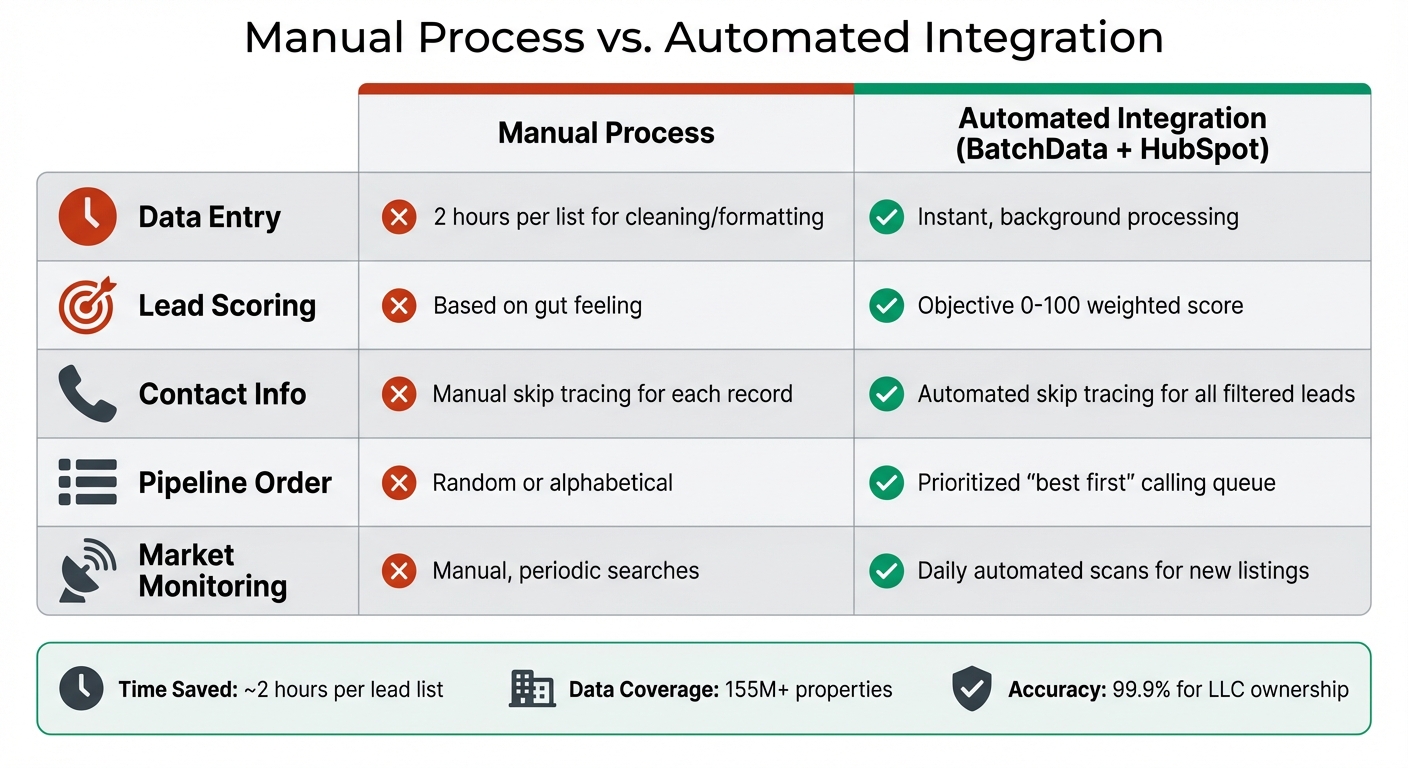
Manual vs Automated Real Estate Lead Processing Comparison
BatchData goes beyond just automating processes – it turns raw data into actionable insights that can supercharge your real estate investment strategies. By integrating BatchData with tools like n8n and Zapier, you can seamlessly apply enriched data to your existing workflows, making day-to-day operations more efficient and effective.
Identifying and Prioritizing High-Potential Leads
One standout advantage of automated data enrichment is objective lead scoring. Instead of relying on intuition, your workflow can be set to sync only the leads meeting specific criteria, such as properties with an LTV below 70%, an “Off Market” status, and “High Equity” indicators. Once qualified, your n8n workflow automatically triggers skip tracing, adding owner contact details – like phone numbers and emails – directly into the corresponding HubSpot contact record.
This level of automation can save roughly 2 hours per lead list by handling tasks like cleaning, filtering, and skip tracing in the background. For example, n8n can deliver a daily prioritized “call this first” list to HubSpot, ensuring your acquisition team focuses on the most promising leads every morning. Here’s how manual processes compare to the BatchData-HubSpot integration:
| Feature | Manual Process | Automated Integration (BatchData + HubSpot) |
|---|---|---|
| Data Entry | 2 hours per list for cleaning/formatting | Instant, background processing |
| Lead Scoring | Based on gut feeling | Objective 0–100 weighted score |
| Contact Info | Manual skip tracing for each record | Automated skip tracing for all filtered leads |
| Pipeline Order | Random or alphabetical | Prioritized “best first” calling queue |
| Market Monitoring | Manual, periodic searches | Daily automated scans for new listings |
By identifying the most valuable leads, you can structure your pipeline to focus on opportunities that are more likely to convert.
Managing Your Deal Pipeline in HubSpot
Once enriched data flows into HubSpot, you can organize your pipeline around the metrics that matter most. BatchData gives you access to over 1 billion data points across 155 million properties, with more than 1,000 data points available per property. These data points can be mapped to custom HubSpot fields, such as property specs (e.g., beds, baths), ownership status (absentee vs. owner-occupied), financial metrics (like LTV ratios), and legal statuses (e.g., pre-foreclosure notices).
You can then create deal stages in HubSpot that mirror your acquisition process – think stages like “New Lead”, “Contact Attempted”, “Offer Sent”, and “Under Contract.” Automated workflows can move deals forward based on triggers from enriched data. For example, if a property’s equity percentage jumps or a pre-foreclosure notice is issued, HubSpot could automatically create a task for your team to follow up.
A well-structured pipeline like this ensures your team works smarter, not harder, and keeps deals moving toward closure.
Automating Follow-Ups with Enriched Contact Data
With enriched contact details, you can scale personalized and timely communication. When workflows automatically add verified phone numbers and emails to each contact, HubSpot sequences can send tailored messages based on specific property details. For instance, a message to a distressed property owner might differ from one sent to an absentee landlord with high equity.
You can also set up HubSpot email sequences that reference property-specific details – like square footage, estimated value, or years of ownership – to show prospects you’ve done your homework. Use HubSpot’s calling features to prioritize leads with multiple verified phone numbers, which can increase your chances of making a connection. To keep things running smoothly, regularly update your BatchData API keys and ensure HubSpot field mappings are properly configured to avoid blank records.
Troubleshooting and Best Practices
After setting up your integration, you might run into a few common hiccups. Here’s how to address them and keep your workflow running smoothly.
Even the best automation setups can face occasional challenges. Fortunately, most issues with BatchData and HubSpot integrations are predictable and can be resolved with the right steps.
Resolving API Authentication and Data Mapping Errors
Authentication problems are one of the most frequent issues. If you encounter “403 Forbidden” errors, it likely means your HubSpot Private App doesn’t have the necessary permissions. To fix this, make sure the following scopes are enabled in your HubSpot settings: crm.objects.contacts.write, crm.objects.contacts.read, and crm.objects.deals.write. Also, double-check your BatchData API key – it can become invalid if your subscription changes or if the key is regenerated.
Data mapping errors occur when BatchData’s output format doesn’t align with HubSpot’s requirements. For instance, one wholesaler discovered that BatchData provided equity as a decimal (0.65), but HubSpot required a percentage (65%). The solution? They used an n8n node to multiply the value by 100 before mapping it to a custom “Equity %” field. This adjustment made lead prioritization much more effective. Additionally, using a consistent unique identifier, such as the Assessor’s Parcel Number (APN) or BatchData’s property_id, can help prevent duplicate records from cluttering your CRM.
To stay ahead of potential issues, set up error workflows in n8n. These workflows can log failed API calls as HubSpot tickets or send alerts to Slack. After importing data, take advantage of HubSpot’s built-in enrichment tools to catch any mapping errors.
Once you’ve tackled authentication and mapping issues, focus on handling request volumes effectively.
Handling Rate Limits and Large Data Volumes
When processing thousands of leads, rate limits can quickly become a bottleneck. Both BatchData and HubSpot have limits on the number of requests allowed within a specific timeframe. If you exceed these limits, you’ll see “429 Too Many Requests” errors, which can disrupt your workflow.
To avoid this, process large datasets – like 10,000+ leads – in smaller batches of 100 to 500, adding brief delays between batches. This approach helps you stay within the rate limits while maintaining efficiency. Keep an eye on your usage through BatchData and HubSpot dashboards, and schedule workflows during off-peak hours to spread out requests.
To improve data quality, set up HubSpot rules to flag unmapped fields, such as missing owner emails, so you can address these gaps quickly. Test your workflow thoroughly using sample data that includes a variety of property types (e.g., absentee owners, high-equity properties) to ensure accurate mapping. Also, when importing CSVs, format your data using U.S. conventions – currency as $1,234.56 and dates as MM/DD/YYYY – to avoid mapping issues.
Wrapping It Up
Using BatchData and HubSpot to automate lead enrichment reshapes the way real estate investors find and pursue opportunities. Instead of losing hours digging through property records or juggling spreadsheets, you can build a system that works around the clock. This system automatically adds equity percentages, mortgage details, ownership history, and contact information to every lead that enters your CRM.
The real game-changer? Shifting from reactive research to proactive targeting. By applying filters like “out-of-state owners”, “50%+ equity”, or “10+ years of ownership”, you can zero in on motivated sellers before their properties even hit the market. Following the integration steps – like setting up API connections and designing custom workflows – makes this seamless. Automated lead scoring also helps prioritize efforts, awarding points for factors like pre-foreclosure status or high equity. This ensures your acquisitions team focuses on leads most likely to close, while others are placed into nurturing campaigns for future opportunities.
With HubSpot managing your pipeline, you’ll have a clear view of every step – from the first contact to closing the deal. Start by setting up real-time API lookups for web form leads, and then route high-priority prospects straight to your top team members. Don’t forget to check for DNC compliance and verify contact details before outreach. The payoff? More closed deals, less manual work, and a scalable, data-driven strategy.
This automated method can take your investment approach from reactive guesswork to precise, data-backed decision-making.
FAQs
Which HubSpot objects should store property data (contact, company, or deal)?
Property details are ideally stored within HubSpot’s company objects. This approach keeps information well-structured and easy to access, making it simpler to manage property-related data efficiently.
How do I prevent duplicates when syncing the same property or owner into HubSpot?
To keep your HubSpot data clean, enable and configure HubSpot’s duplicate detection feature. This tool automatically spots and handles duplicate records, saving you time and effort.
Another key step is proper field mapping during integration. By ensuring accurate matching criteria, you reduce the chances of duplicate entries slipping through.
It’s also a good idea to audit your CRM data regularly. This helps you identify and merge or remove duplicate records before they become a bigger issue.
By combining automated detection with consistent data entry habits, you can maintain accurate and organized records for both properties and owners.
What’s the best way to score leads using equity and distress signals in HubSpot?
HubSpot’s lead scoring tools make it easy to prioritize your prospects by assigning scores based on specific criteria. To get started, you can create custom scoring models using factors like property value, ownership status, and financial distress indicators.
For even better results, integrate enriched data such as property equity and mortgage status. This extra layer of information helps you identify high-potential leads, ensuring your sales team spends their time on the prospects most likely to convert. A data-driven strategy like this keeps your efforts focused and effective.