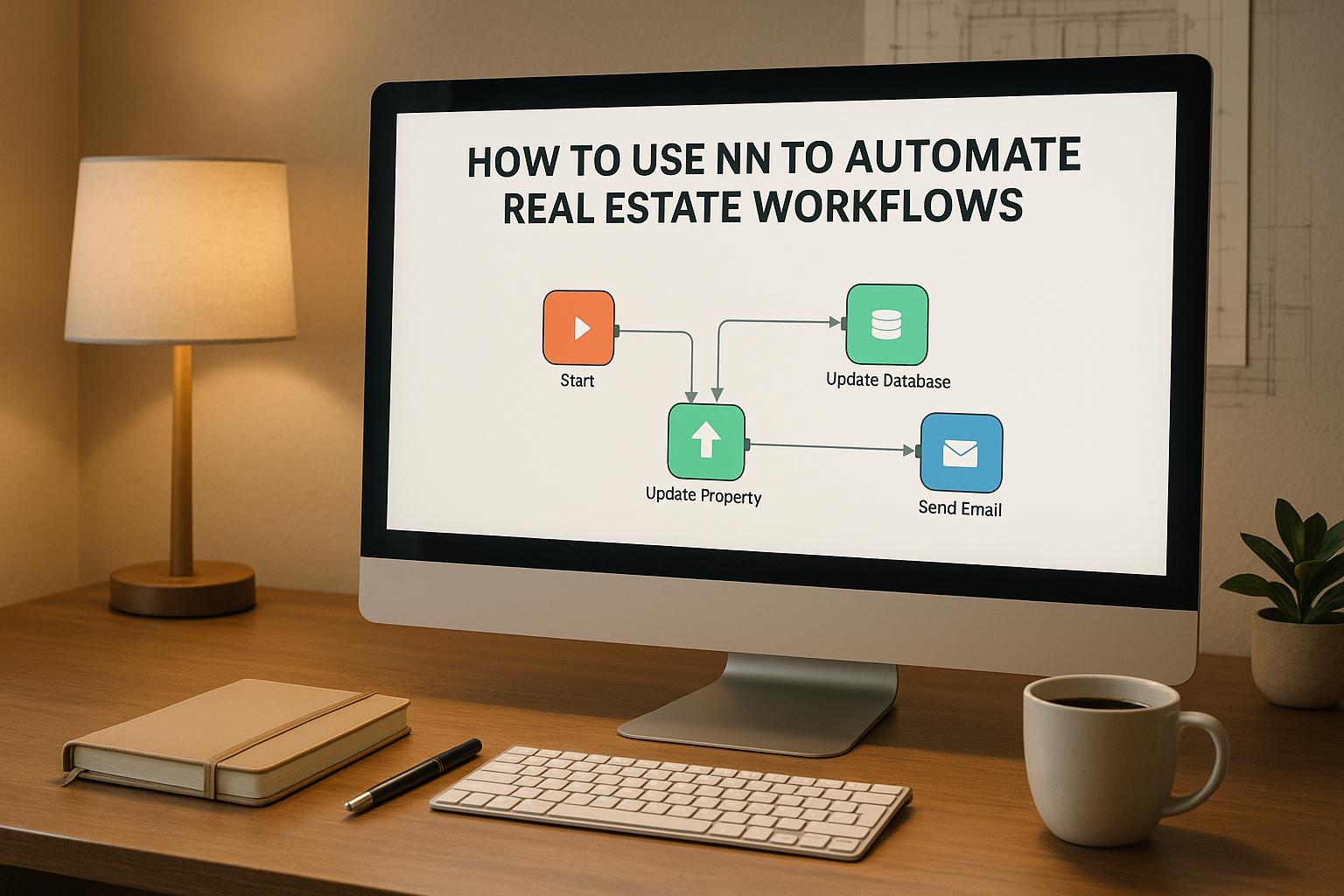
Save hours on manual research and boost lead conversion rates by automating GoHighLevel with property data enrichment. This guide explains how to transform basic property addresses into actionable insights with tools like BatchData and GoHighLevel. Real estate professionals who use these integrations report:
- 40% higher lead conversion rates in campaigns.
- 70% less time spent on manual data gathering.
- Skip tracing success rates jumping from 25% to 68%.
Here’s what you’ll learn:
- How to set up GoHighLevel and BatchData for property enrichment.
- Configuring webhooks and APIs to automate data flow.
- Building workflows to instantly enrich leads with property details like value, equity, and owner contact info.
- Troubleshooting integration issues and optimizing for cost and efficiency.
With these steps, you can process thousands of leads daily, prioritize high-value prospects, and close deals faster – all without lifting a finger.
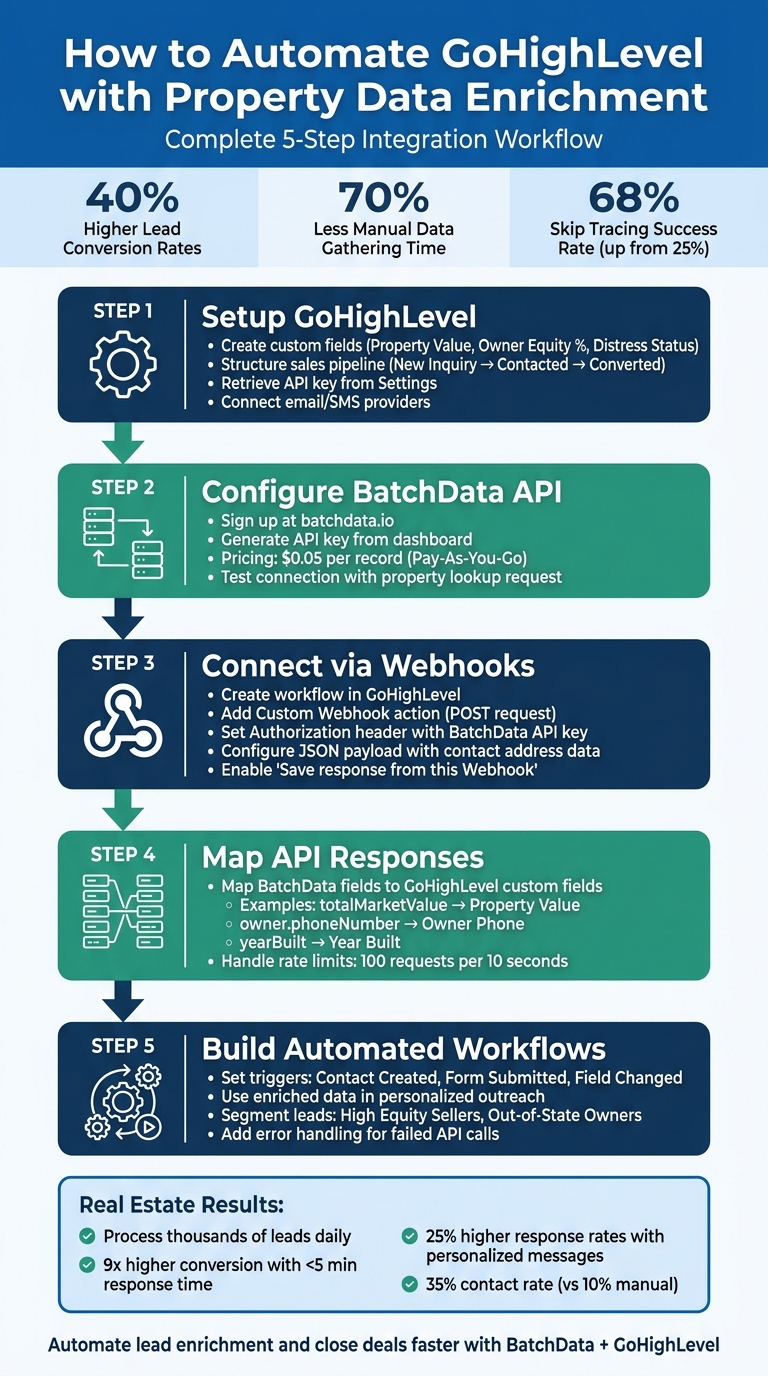
5-Step GoHighLevel Property Data Enrichment Automation Workflow
How to Add Real Estate Leads to GoHighLevel Automatically
Setting Up GoHighLevel and BatchData
To automate property data enrichment effectively, you’ll need to configure two essential platforms: GoHighLevel and BatchData. GoHighLevel acts as your CRM, storing lead data and managing workflows, while BatchData provides the property intelligence that feeds into those workflows. Setting up both platforms correctly ensures smooth integration and automation.
Configuring Your GoHighLevel Account
Start by preparing your GoHighLevel CRM to handle enriched property data. This involves creating custom fields in your contact records to store information such as Property Value, Owner Equity %, Distress Status, and Skip Trace Phone. To do this, go to Settings > Custom Fields and add the necessary text or number fields for each type of data.
Next, structure your sales pipeline to track the progress of enriched leads. For instance, you might create stages like New Inquiry, Contacted, and Converted to monitor which leads have been processed and which still need attention. Think of GoHighLevel as the central hub where all your lead data is stored and organized.
Don’t forget to connect your email and SMS providers within GoHighLevel. This enables automated follow-ups as soon as new data is enriched. You’ll also need to retrieve your API key from Settings > API Keys. Keep this key secure, as it grants full access to your CRM data.
"The High Level API is the key to unlocking GoHighLevel’s full potential. It gives you complete control over your data, allowing you to automate, integrate, and customize every part of your system."
Once your CRM is ready, you can move on to configuring BatchData.
Setting Up BatchData API Access
After preparing GoHighLevel, turn your attention to BatchData, which supplies the property data needed for enrichment. Head to batchdata.io and sign up using your business email. BatchData operates on a Pay-As-You-Go pricing model, charging $0.05 per record for services like property enrichment and skip tracing – so you only pay for what you use.
From the BatchData API dashboard, generate your API key to authenticate requests between GoHighLevel and BatchData. Copy this key and use BatchData’s API documentation to test it. Send a basic property lookup request to ensure the connection works and returns accurate data, such as owner details, tax assessments, and sales history. A successful test means you’re ready to integrate BatchData into your workflows and begin automating property enrichment.
Connecting BatchData Property Data API to GoHighLevel
To link GoHighLevel with BatchData, you’ll need to set up webhooks that send property addresses from your CRM to BatchData’s API. The enriched data returned is then captured and stored back in GoHighLevel. This process relies on GoHighLevel’s workflow automation to handle everything seamlessly. Here’s how to configure the webhooks and API endpoints for this integration.
Setting Up Webhooks and API Endpoints
GoHighLevel uses outbound webhooks to send data and inbound ones to receive responses. Start by creating a new workflow in GoHighLevel, and under the "Send Data" category, add a Custom Webhook action. Set the event type to CUSTOM, allowing you to control the HTTP method, headers, and body.
Configure the webhook to send a POST request to BatchData’s Property Lookup API endpoint. Under the Headers section, include your BatchData API key like this:
Authorization: Bearer your_api_key_here
This ensures the request is authenticated. For the request body, use "application/json" as the Content-Type and insert dynamic contact data. For instance, the JSON payload might look like this:
{ "address": "{{contact.address1}}", "city": "{{contact.city}}", "state": "{{contact.state}}", "zip": "{{contact.postal_code}}" } Before going live, test your webhook setup using a tool like webhook.site. This helps you catch any errors in headers or JSON formatting. Once the test is successful, update the webhook URL to BatchData’s API endpoint. Enable the "Save response from this Webhook" option to store the enriched property data returned by BatchData.
"GoHighLevel’s API and webhook system is one of its most powerful features, letting you connect virtually any external system to your GHL account."
– Josh Miller, Marketing Technology Consultant
Mapping API Responses to Custom Fields
When BatchData sends back enriched property details, you’ll need to map the returned JSON values to custom fields in GoHighLevel. These fields might include totalMarketValue, yearBuilt, totalBuildingAreaSquareFeet, and owner.name. After the webhook step in your workflow, add an Update Contact Field action.
For each custom field, choose the field name (e.g., Property Value) and map it to the corresponding variable from the webhook response. For example, use {{webhook.totalMarketValue}} for property value. If you’re using BatchData’s Skip Trace API to retrieve owner contact details, map fields like {{webhook.owner.phoneNumber}} to Owner Phone and {{webhook.owner.email}} to Owner Email.
To prevent duplicate entries, use GoHighLevel’s search endpoint (GET /contacts/search?email=...) before adding new contacts. If you’re processing a large volume of property data, handle rate limits with exponential backoff. GoHighLevel allows about 100 requests per 10 seconds per location. If you get a "429 Too Many Requests" error, retry after 1, 2, and then 4 seconds to keep the integration running smoothly. These steps complete the integration, enabling automated workflows that enrich your CRM data effortlessly.
Building Automated Enrichment Workflows
Once you’ve connected BatchData’s API to GoHighLevel, the next step is all about creating workflows that automatically add property data to every lead. These workflows run in the background, triggered by specific events in your CRM, and instantly update contact records with property insights. The trick is setting up the right triggers and making the most of the enriched data to improve your outreach and boost conversion rates. This integration enhances your CRM’s functionality, opening the door to more precise engagement.
Setting Up Triggers for Lead Enrichment
In GoHighLevel, start by creating a workflow triggered by events like "Contact Created," "Form Submitted," or "Field Changed" when an address is updated. These triggers ensure immediate enrichment, allowing you to respond quickly and effectively. Studies show that responding to a lead in under 5 minutes can lead to a 9x higher conversion rate. Plus, 78% of buyers and sellers tend to work with the first real estate agent who responds to their inquiry.
Before rolling this out, use the workflow test tool to validate the triggers and ensure the data is populating correctly. By enriching leads as soon as they enter your system, you’ll make the most of the groundwork laid during the setup process.
Using Enriched Data in Workflows
Put the enriched data to work in your follow-up sequences. Automated outreach, when combined with personalized details, can convert leads at twice the rate of manual efforts. Use merge tags to customize messages, such as: "Your property at {{contact.address}} was built in {{contact.year_built}} and is valued at ${{contact.bd_market_value}}." This level of personalization strengthens your follow-ups, which is one of the main advantages of integrating property data enrichment.
You can also segment leads based on enriched data to create targeted lists like "High Equity Sellers" or "Out-of-State Owners". With conditional logic, you can route leads more effectively – for instance, sending high-value properties to your top agents while placing others into a longer nurture sequence.
To maintain professionalism, always include error handling in your workflows. Set conditions to check if the BatchData webhook returned valid data, such as a numeric market value, before triggering personalized messages. If the API fails or returns incomplete data, route those leads to manual review or send them a more generic follow-up message. This ensures your communication stays polished and avoids awkward gaps like blank merge fields in automated messages.
Real Estate Use Cases for Automated Property Enrichment
When it comes to streamlining processes and boosting results, real-life applications show how integrating BatchData and GoHighLevel can make a difference. Real estate professionals commonly rely on these tools for tasks like instant lead enrichment, bulk property data processing, and automated skip tracing.
Enriching Leads on Form Submission
Imagine a prospect fills out a "Free Home Valuation" form on your website. You can set up a workflow that automatically taps into BatchData’s API to gather key details such as the owner’s name, phone number, and property equity. By mapping this data to custom fields, you can identify high-equity leads and send tailored messages like: "Cash out your $200K equity today." This personalized approach has been shown to achieve 25% higher response rates compared to generic follow-ups.
Here’s how it works: Use a "Form Submitted" trigger to start the workflow, then add a "Custom HTTP Request" action to call BatchData’s Property Lookup API. Map fields like "Property Owner" and "Estimated Equity" to make the data immediately actionable for your campaigns.
Processing Bulk Property Data
For broader campaigns, bulk processing takes things to the next level. Start by uploading a CSV file with property addresses to BatchData’s bulk enrichment API. Once enriched, the file will include valuable details like owner contact information, mortgage specifics, and delinquency status. You can then import this data into GoHighLevel using the Bulk Import tool. By tagging and segmenting properties – such as labeling those with liens over $10,000 as "Bulk Enriched – Distressed Properties" – you can create highly targeted campaigns, increasing ROI by 40%.
To make the most of this data, map fields like property value, number of bedrooms and bathrooms, and delinquency status to custom fields in GoHighLevel. These fields allow you to build smart lists for drip campaigns, speeding up your sales pipeline by 30%. Keep in mind that bulk processing should be limited to 10,000 records per day to ensure accuracy and avoid hitting rate limits.
Automating Skip Tracing for Investor Targeting
Skip tracing can be fully automated for leads tagged as "Investor Prospect." This process uses a workflow to call BatchData’s skip tracing API via a webhook, retrieving owner contact details from property records. From there, the system launches multi-channel outreach campaigns through SMS and voicemail. By automating this task, you can cut down processing time from hours to minutes per lead and increase contact rates from 10% (manual efforts) to 35%.
One wholesaler leveraged this setup to close 15 deals per month from 500 enriched skips, focusing on absentee owners – who make up 20% of U.S. rental properties. Their results included a 60% success rate for phone appends and an average deal value of $50,000. To ensure success, start with small batches of 100 records to confirm a hit rate above 90%, then scale up while adhering to TCPA compliance.
Testing, Optimizing, and Scaling Your Workflows
Testing Workflow Functionality
Before diving into full-scale implementation, it’s essential to test your workflows thoroughly to ensure everything is functioning as expected. Start by creating a test lead in GoHighLevel with a simple address, like "123 Main St, Austin, TX 78701." Trigger the enrichment workflow and verify that the webhook successfully sends a request to BatchData’s API. You should see custom fields populate with key details such as owner name, property value, and equity figures. This step confirms that your webhook configuration is correctly mapping property data to the appropriate CRM fields.
Leverage GoHighLevel’s workflow logs to double-check that the API responses are mapping accurately. Run between 5 and 10 test cases, using a mix of property types – urban and rural – to ensure at least 95% accuracy. To test error handling, input invalid ZIP codes and confirm that fallback notifications are triggered as intended. Setting up test alerts, like an email or SMS notification post-enrichment, can help you quickly identify whether the workflow succeeded or failed. Aim for response times under 5 seconds to maintain efficiency. Once you’re confident in functionality, you can shift focus to optimizing costs and performance.
Optimizing for Cost and Performance
Keeping API costs manageable starts with smart filtering. Instead of enriching every lead, focus on high-intent prospects. For example, you can set conditions to process only leads with phone numbers or properties showing equity above $50,000. By doing this, you could cut unnecessary API calls by up to 40%, potentially reducing your monthly spend from $500 to $300 for processing 10,000 leads.
Track your API usage through BatchData’s dashboard to identify and eliminate redundant requests. Cache frequently queried data in custom fields to avoid repeated API calls. Monitor workflow execution times, aiming for an average of under 10 seconds, and maintain success rates above 98%. To further enhance efficiency, use conditional triggers and parallel processing within your workflows. Once you’ve optimized these aspects, your system will be better prepared to handle larger volumes.
Scaling with BatchData Professional Services
After optimizing, the next step is scaling your workflows to handle growing lead volumes without compromising performance. When you’re ready to process thousands of daily enrichments, BatchData’s bulk delivery options become critical. You can upload CSV or Excel files containing up to 100,000 records per batch, with pricing at $0.005 per record for large-scale operations. For automated processes, use SFTP delivery for nightly uploads of extensive datasets. BatchData’s API bulk endpoints can manage 10,000+ simultaneous enrichments, specifically tailored for U.S. property data.
For even larger operations, BatchData Professional Services offers tailored solutions, including custom integrations and dedicated support for handling over 1 million records monthly. These services, starting at $5,000 per project, include workflow audits and white-glove onboarding. One real estate firm in the U.S. scaled from 500 daily enrichments to 20,000 using BatchData’s bulk API and Pro Services. This led to a 35% boost in lead-to-appointment conversions while managing peak loads of 5,000 records per hour without hitting rate limits. Additional perks include data normalization for U.S. properties and GoHighLevel-specific templates, ensuring match rates of up to 92%, even at high volumes.
Troubleshooting Common Integration Issues
After setting up automated enrichment workflows, you might run into integration challenges that need quick attention.
Resolving API Rate Limits and Errors
One common issue is the HTTP 429 error, which happens when your workflow triggers exceed the API call limit. This often occurs during bulk imports or when large groups of leads move through pipeline stages. A 2024 Zapier report found that 42% of API integration failures in CRM tools like GoHighLevel stem from rate limiting.
To avoid this, introduce a 1–2 second delay between your trigger and the BatchData webhook in your GoHighLevel workflow. Use exponential backoff for retries: start with a 1-second wait, then double the delay each time, up to 60 seconds. Real estate agencies have seen fewer rate limit errors by queuing requests through custom fields.
Keep an eye on your API usage in the BatchData dashboard under "API Usage." Here, you can check metrics like calls made, remaining quota, and reset times (which occur at midnight UTC). Set up a trigger to pause enrichments automatically when usage hits 80% of your quota. If limits are consistently reached, contact BatchData support for advice or explore bulk endpoints to reduce the number of API calls.
Other frequent errors include:
- 401 "Unauthorized": Caused by an invalid or expired API key.
- 404 "Not Found": Often due to an incorrect endpoint URL.
- 500 "Internal Server Error": Indicates a problem on BatchData’s end.
Check your execution logs for response codes and error messages. Ensure your API key is correctly entered in your subaccount settings, and test your endpoints with tools like Postman before integrating them into workflows.
Next, let’s tackle data mapping issues that can disrupt workflows.
Fixing Data Mapping and Workflow Failures
Data mapping errors can bring workflows to a halt. These issues often show up as blank custom fields, mismatched data (like ZIP codes in state fields), or "invalid JSON" errors. According to surveys in real estate tech, 35% of users have faced data mapping issues while enriching leads, with 90% resolving them through logging tools.
To troubleshoot, review your GoHighLevel workflow logs under "Executions" and filter by "Error" to identify the problem. Use dot notation to map nested fields (e.g., {{property.owner.name}} for the owner’s name or {{parseFloat(property.value)}} to format numeric values in U.S. dollars). Make sure your custom field types match the data provided by BatchData – for example, set "Year Built" as a Number field if the API returns an integer. Test payloads thoroughly and include conditions to handle null values.
Other workflow issues include:
- Infinite loops: Prevent these by adding "IF error exists" routers.
- Trigger failures on form submissions: Double-check that your webhook URL matches the BatchData endpoint exactly.
- Data truncation: Increase custom field character limits to 255 or more to avoid cutting off data.
Enable debug mode in your workflow settings to capture full JSON responses and variable states. Limit retries to three attempts and set up SMS or email alerts to notify admins of workflow failures.
If problems persist, reach out to BatchData support with detailed information, including your API key, sample request/response JSON, workflow ID, timestamp (MM/DD/YYYY), and how often the error occurs. BatchData forum discussions suggest that 70% of integration issues are resolved within 24 hours when users provide detailed logs and execution IDs.
Conclusion
Automating workflows with BatchData turns time-consuming manual tasks into streamlined, data-driven processes. For real estate professionals, this means a game-changing upgrade in lead generation and investor targeting. By setting up your GoHighLevel account, integrating BatchData API access, and designing enrichment workflows with webhooks and custom field mapping, you can cut down manual lead research by up to 80%. Even better, you could see conversion rate boosts of 30–50% compared to older methods.
Start small with simple triggers like form submissions, then expand into bulk processing and skip tracing as you gain confidence. For instance, some real estate investment firms have reported identifying 15% more high-equity absentee owners every month while reducing manual data entry by 90%. This allows teams to focus more on closing deals. Plus, BatchData’s property intelligence APIs have helped users achieve 25–35% higher close rates and an ROI of $5–10 for every dollar spent.
To ensure everything runs smoothly, thorough testing and proactive troubleshooting are key. BatchData’s 99% uptime and responsive support team are there to quickly address integration issues, especially when detailed logs are provided. These practices complete the framework for building a seamless, data-powered real estate operation.
Take the next step – automate your GoHighLevel workflows with BatchData and start generating property-enriched leads for faster deal qualification and scalable growth.
FAQs
What fields should I add in GoHighLevel for property enrichment?
To make property data more useful and actionable in GoHighLevel, it’s important to include details that provide a well-rounded view of each property. Here are the key areas to focus on:
- Property Dimensions and Characteristics: Include details like square footage, number of bedrooms and bathrooms, lot size, and any unique features or upgrades.
- Ownership and Sale History: Record previous owners, purchase dates, and sale prices to give a clear picture of the property’s transaction history.
- Tax Assessments and Property Taxes: Add information about past and current tax assessments, property tax rates, and any exemptions or liens.
- Market Trends: Highlight price history, comparable properties in the area, and any recent market shifts to better understand the property’s value.
- Neighborhood Insights: Include factors like school ratings, zoning regulations, crime rates, and environmental risks (e.g., flood zones or wildfire risks).
By incorporating these details, you can provide a comprehensive property profile that’s useful for decision-making and analysis.
How do I avoid rate limits when enriching lots of leads?
When you’re enriching a large number of leads, managing API rate limits is crucial. To handle this effectively, use throttling to control the number of API requests sent per second or minute. This prevents overwhelming the system and hitting those limits.
Additionally, set up automated retries with backoff strategies to handle temporary errors gracefully. This means spacing out retries progressively when an error occurs, reducing the chance of repeated failures.
It’s also smart to start with small test batches. This allows you to track key metrics like match rates and cost per lead, helping you fine-tune your approach before scaling up. These practices not only help you stay within limits but also ensure your workflows remain efficient and uninterrupted.
How can I use enriched data to segment and route leads automatically?
Integrating property data enrichment APIs, like BatchData, with GoHighLevel allows you to automatically segment and route leads. By enriching profiles with details such as equity, ownership duration, or property age, you can set up workflows to categorize leads into specific priority groups. From there, automation takes over – assigning leads to agents or campaigns based on their profiles. This approach simplifies lead management and ensures timely follow-ups without requiring manual intervention.
Related Blog Posts
- How to Automate GoHighLevel with Property Data Enrichment Using BatchData’s API
- GoHighLevel + BatchData: Automatically Enrich Real Estate Leads with Property & Contact Data
- Podio for Real Estate: Auto-Enrich Property Records with BatchData’s Developer API
- The Developer’s Guide to CRM Automation with BatchData’s Real Estate Data API