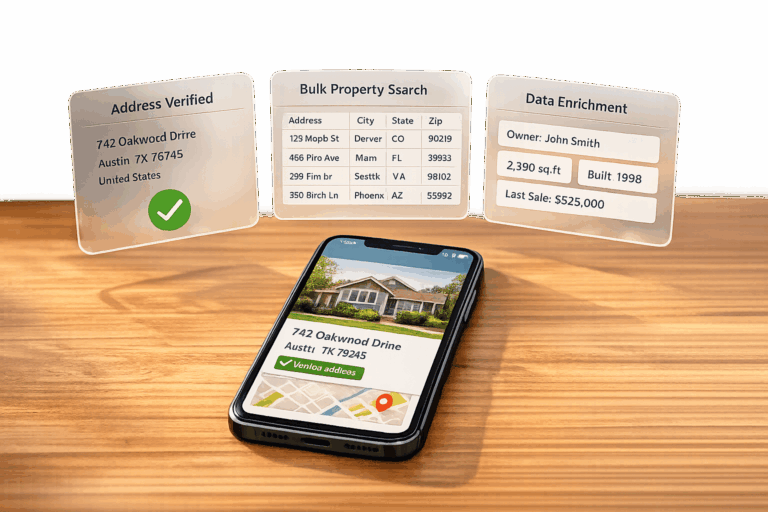
Accessing property data shouldn’t be a hassle. BatchData‘s API connects you to detailed information on over 155 million U.S. properties, offering 700+ attributes per property. From ownership details to tax records and sales history, this API simplifies data retrieval for real estate professionals, saving time and effort.
Here’s how you can create a property lookup tool using BatchData:
- Set Up Your Account: Choose between Pay-As-You-Go or Custom Solutions based on your needs.
- Generate an API Key: Authenticate requests securely to access property and contact data.
- Design a User Interface: Include search fields, results display, and mobile-friendly features.
- Integrate the API: Use endpoints like Property Lookup and Property Search for detailed data.
- Add Advanced Features: Enable bulk searches, address/phone verification, and error handling.
- Test and Deploy: Validate data accuracy, optimize performance, and monitor for ongoing improvements.
BatchData’s API helps you streamline workflows, retrieve property insights faster, and build tools tailored to real estate needs. Ready to get started? Follow these steps to create a powerful property lookup solution.
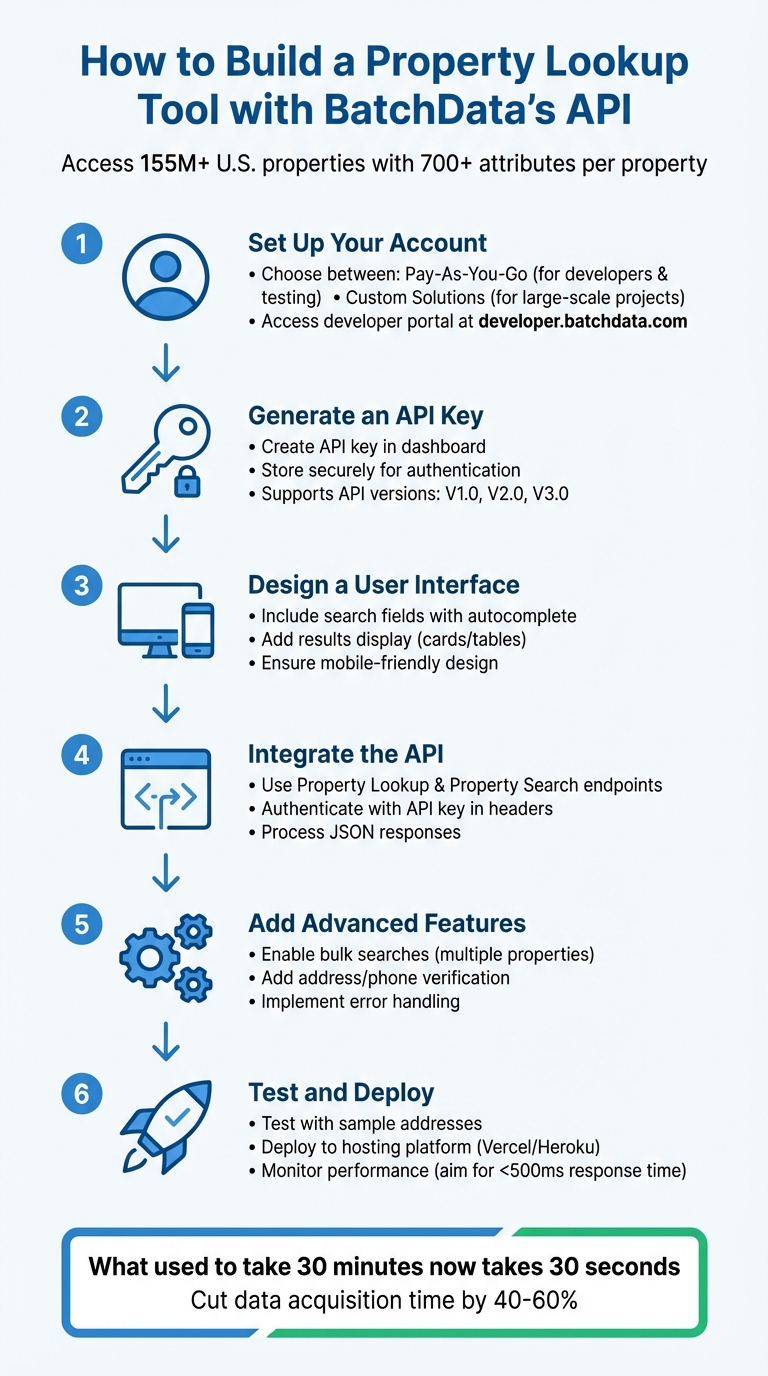
6 Steps to Build a Property Lookup Tool with BatchData API
API Crash Course – Integrate, Build, & Sell an API $$$ (EASY!)
Setting Up BatchData API Access
Getting started with BatchData lays the groundwork for creating a reliable property lookup tool.
Creating Your BatchData Account and Choosing a Plan
The first step is to create an account and select the pricing plan that fits your needs. BatchData offers two main options: Pay-As-You-Go and Custom Solutions.
- Pay-As-You-Go: This option is perfect for developers working on property lookup tools. You only pay for the data you use, making it an excellent choice during the development phase when you’re experimenting with API calls and fine-tuning your tool.
- Custom Solutions: Designed for businesses with specific needs, this option provides tailored datasets and personalized support. If you’re working on large-scale projects, reach out to BatchData’s sales team or request a demo to explore these features.
Once you’ve signed up, you’ll gain access to the developer portal at developer.batchdata.com. There, you can check out the "Getting Started" guide and dive into the platform’s detailed documentation.
Generating Your API Key
After registering, the next step is to generate an API key through the BatchData dashboard. This key is essential – it acts as your authentication credential for all API requests and ensures secure access to the platform’s data.
To generate your API key, go to your account settings in the dashboard and find the API key section. Once created, store your key securely and include it in the request headers for every API call. BatchData supports multiple API versions (V1.0, V2.0, V3.0), each with endpoints for services like Property Lookup, Property Search, and Skip Tracing property owners.
Before diving into full-scale development, use the "Test a Sample Address" feature on the BatchData website. This tool shows how the Contact Enrichment API works, helping you understand the response format and data quality before writing extensive code.
Make sure to familiarize yourself with the platform’s rate limits and usage policies to ensure smooth integration.
Understanding API Rate Limits and Usage Policies
With your API key ready, it’s important to understand how to manage your usage effectively. BatchData’s API is scalable, offering plans that cater to small teams and large enterprises alike.
If you’re on the Pay-As-You-Go plan, keep an eye on your API calls during testing to avoid unexpected costs. For better efficiency, consider using compound queries. These allow you to retrieve property data for multiple areas – like cities, counties, or zip codes – in a single request, reducing the overall number of API calls.
Stay updated by regularly checking the dashboard for maintenance notices or system updates. BatchData also provides onboarding assistance, detailed API documentation, and integration support to help you get started. The platform’s low-latency endpoints are designed for real-time property searches, contact enrichment, and data appending, ensuring your tool performs well even under heavy usage conditions.
Designing the Property Lookup Interface
Creating a user-friendly interface is key to connecting users with BatchData’s extensive property database. The front end acts as the gateway, transmitting data – usually in JSON format – between users and the property database. To cater to diverse needs, your interface should support multiple search methods, including specific street addresses, parcel numbers, and broader filters like ZIP codes or cities.
Building Input Fields and Search Functions
Start with an HTML5 search bar that includes autocomplete functionality. This helps users enter properly formatted addresses and reduces errors. Pair this with real-time geocoding validation to catch invalid entries before they trigger API requests.
When users hit the search button, it should activate a JavaScript function that authenticates the request using your BatchData API key. Once authenticated, this function will retrieve property data. The next step is figuring out how to present that data in a way that’s both clear and visually appealing.
Displaying Property Results
After receiving JSON responses from the API, use CSS Grid or Flexbox to structure the data. High-level property details – such as address, square footage, year built, and the number of bedrooms and bathrooms – can be displayed in a card format for quick browsing. For more in-depth information, like tax assessment history, ownership records, or valuation estimates, use expandable tables to keep the interface clean but informative.
To add context, overlay property data on an interactive map. This makes it easier for users to understand the property’s location. When showing valuation data, present it as a range rather than a single figure to reflect market fluctuations. With BatchData’s Property Search API offering over 700 detailed data points, focus on displaying the most relevant details prominently on each property card. This ensures users aren’t overwhelmed while still having access to deeper insights if needed. Make sure these layouts adapt smoothly to mobile devices.
Making the Interface Mobile-Friendly
Given that real estate professionals often work in the field, optimizing the interface for mobile use is crucial. A mobile-first design ensures the tool is practical and easy to use on smaller screens. Position search bars and filters within thumb’s reach to allow for one-handed use.
To improve performance, implement lazy loading for long property lists and compress images for faster load times on mobile networks. Ensure buttons and links have large tap zones to minimize accidental clicks. You might also consider integrating geolocation features to auto-fill the user’s current location in the search fields, reducing manual input and offering quick access to relevant property data. This kind of responsiveness ensures users can work efficiently, no matter where they are.
Integrating BatchData’s API for Property Data
With your interface ready to go, the next step is integrating BatchData’s API to access property data seamlessly. BatchData offers over 1 billion data points spanning 155 million properties, including details like building specs, ownership records, and tax assessments.
Authenticating Your API Requests
To ensure secure access, every API request must include your unique API key. You can manage your credentials and find detailed documentation on the developer portal at developer.batchdata.com.
Add your API key to the authorization header for all requests. When working with Property Lookup or Property Search endpoints, use POST requests to send complex query parameters and retrieve detailed property data efficiently. Once authentication is set, you’re ready to structure and send API calls.
Making API Calls to Retrieve Property Data
You can query properties using either a property address or an Assessor’s Parcel Number (APN). The Property Enrichment API provides comprehensive details about a specific property, while the Property Search API allows you to find properties by applying advanced filters across more than 700 data points.
Use tools like JavaScript’s fetch() method or Python’s requests library to send your API calls. To minimize latency, structure requests to pull multiple datasets – such as core property details, valuations, and sales history – at once. Before performing lookups, leverage the Address Verification API to clean up duplicate or inaccurate mailing addresses, which helps improve match accuracy. Once the data is retrieved, it will need to be parsed and formatted for display.
Processing API Responses and JSON Data
Extract important fields like square footage, year built, and tax assessments from the JSON responses. Format numerical values into US currency ($) for figures like net worth, equity, and mortgage balances, and use imperial units for measurements like lot size and square footage.
Focus on key data points such as lien information and financial distress indicators to help categorize properties for investors. The API’s entity resolution feature can identify the real owners behind LLCs and corporate entities, adding another layer of insight. When dealing with phone numbers, ensure you process the "litigator" and "National Do Not Call Registry" flags to protect users from potential legal issues. By applying these steps, you can turn raw API data into meaningful property intelligence that users can act on.
Adding Advanced Features
Once you’ve set up basic API integration, you can take your tool to the next level by incorporating advanced features. These refinements help improve data accuracy, simplify workflows, and reduce errors, making them invaluable for real estate professionals handling large datasets.
Adding Phone and Address Verification
BatchData’s verification endpoints are essential for avoiding wasted marketing efforts and legal troubles. Address verification ensures cleaner mailing lists by eliminating duplicates and invalid entries. Phone verification checks for active lines and flags disconnected numbers, keeping your contact lists fresh.
To stay compliant with regulations, phone verification also cross-checks contacts against known litigator lists and the National Do Not Call (DNC) Registry. This step minimizes the risk of TCPA violations. You can apply these litigator and DNC flags right after retrieving owner contact details.
If the property is owned by an LLC or corporation, you can combine verification with entity resolution to identify the individuals behind the corporate ownership. This method significantly improves contact precision. Chris Finck has previously noted how BatchData simplifies this process, cutting down research time dramatically.
Implementing Bulk Property Searches
Bulk search functionality allows users to query hundreds of properties in a single request. By grouping addresses into arrays and sending them as one payload, you can reduce API calls and speed up processing. BatchData supports multi-location searches, enabling queries across various cities, counties, or zip codes at once.
To keep the process efficient, use compound queries to pull only the data you need, such as property valuations or sales history. You can also integrate address and phone verification at the point of data retrieval to ensure your marketing lists stay accurate before exporting to CRM systems.
For better usability, present the results in a paginated table format. Include sortable columns for details like address, property value, and owner name, with 25 results displayed per page. Add a progress indicator for user convenience and a "Download All" button for exporting data in CSV or Excel formats. If some properties return valid data while others fail, group the results into categories – successful, failed, and partial. This approach ensures users can immediately access valid data while errors are flagged for later review.
After implementing bulk search capabilities, it’s crucial to address error handling and manage API limits effectively.
Managing Errors and API Limits
Start by validating inputs thoroughly. Ensure addresses are formatted correctly and phone numbers include only valid digits. For HTTP 429 rate limit errors, use exponential backoff – retry requests after 1, 2, and 4 seconds.
Keep an eye on API usage by monitoring response headers like X-RateLimit-Remaining and X-RateLimit-Reset. When the remaining quota dips below 10%, pause new requests and notify users with clear messages like, "You’ve reached your search limit. Please try again in 2 minutes."
Make error messages easy to understand. For example, instead of showing "Error 422: Validation failed", display something like, "We couldn’t verify this phone number. Please check the format and try again." For bulk searches with partial failures, show the successful results immediately and offer an automatic retry option for failed entries after a short delay. This ensures users can keep moving forward without unnecessary frustration.
Testing and Deploying Your Tool
Testing with Sample Addresses
Once your API is integrated and your interface is operational, it’s time to dive into testing. Start by checking how the API handles different U.S. address formats. For example:
- Government: "1600 Pennsylvania Ave NW"
- Commercial: "350 5th Ave"
- Residential: "123 Main St"
Verify that the API returns accurate data by comparing key details – such as owner names, assessed values, and sales history – against public records. Don’t stop there. Test edge cases too! Try invalid addresses like "999 Fake St", partial inputs like "Beverly Hills, CA", and even bulk queries with 10+ properties. Tools like Postman are great for isolating API calls, and you should aim for response times under 2 seconds.
Additionally, cross-check the API’s JSON responses with your platform’s 700+ data points. This includes verifying details like property size, age, construction specs, and ownership information to ensure everything is processed and displayed correctly.
Deploying to a Web Hosting Platform
When you’re ready to go live, platforms such as Vercel or Heroku make deployment straightforward. Connect your Git repository, configure environment variables, and use CLI commands to push your code. To avoid CORS issues and keep your API key secure, handle requests server-side using tools like Next.js API routes or Vercel functions.
For a polished deployment, ensure your site uses HTTPS connections and set up a custom domain (e.g., propertylookup.yoursite.com) via DNS. These steps not only enhance security but also boost user trust. Once live, keep an eye on performance to address any hiccups quickly.
Monitoring and Maintaining the Tool
After deployment, consistent monitoring is key to keeping your tool running smoothly. Track metrics like:
- API Response Times: Aim for under 500ms
- Error Rates: Keep them below 1%
- Uptime: Maintain 99.9% or higher
Tools like Google Analytics, Vercel Analytics, or Datadog can help you track these metrics effectively. Since API downtime could lead to revenue loss, staying on top of performance is non-negotiable.
Incorporate a feedback form within your tool asking, "Was this property data accurate?" to gather user insights. Review logs weekly to spot trends or issues. Address critical bugs – like data mismatches – immediately, while planning feature requests (e.g., bulk search functionality) based on user demand. For example, if 60% of users request a feature, prioritize it in future sprints.
Use semantic versioning (e.g., v1.0.1 for fixes, v1.1.0 for new features) and align updates with business goals, such as cutting manual lookups by half.
"What used to take 30 minutes now takes 30 seconds. BatchData makes our platform superhuman."
Conclusion
This guide walks you through creating a property lookup tool using BatchData’s API – from setting up your account and generating an API key to designing the interface, ensuring secure integration, adding advanced features, and deploying the tool. With access to property data on 155 million U.S. properties, these steps make data retrieval faster and operations more efficient.
Real estate professionals have reported cutting data acquisition time by 40–60%, allowing for quicker deal closures and better decision-making. The API provides over 1,000 data points per property, including owner names, assessed values in USD, sales history (formatted as MM/DD/YYYY), and square footage. Whether you’re a realtor confirming ownership during a showing, an investor evaluating portfolio values, or an agency optimizing marketing efforts, BatchData’s API equips you with the insights you need – fast.
To get started, consider BatchData’s Pay-As-You-Go plan. Generate your API key and use this guide to simplify property research. If you need tailored assistance, reach out to a BatchData expert.
It’s time to put these tools into action and boost your platform’s capabilities.
FAQs
Which BatchData API endpoint should I use for my use case?
The BatchData Property Search API is your go-to tool for property lookups. With advanced filtering options and access to more than 700 data points, it covers everything from property details to ownership records and valuation insights. This API is built to deliver precision and adaptability, making it a perfect choice for developing a reliable property lookup solution.
How do I keep my API key secure in a web app?
To keep your API key safe in a web app, never include it in client-side code or public repositories. Instead, store it securely in server-side environment variables and ensure all API requests are routed through your backend.
Use authentication protocols with limited permissions to minimize risk, and always monitor API usage for unusual activity. Protect data during transmission by applying encryption protocols like TLS/HTTPS. Adding role-based access controls can further safeguard your API by restricting access to authorized users only.
How can I handle rate limits without slowing users down?
To handle rate limits effectively while keeping things smooth for users, you can rely on strategies like throttling, asynchronous requests, and monitoring. Here’s how:
- Throttling: Restrict the number of API requests within a specific time frame to stay within limits.
- Asynchronous Requests: Use batch processing or async operations to minimize the number of individual calls.
- Monitoring: Keep an eye on API usage to ensure you don’t accidentally exceed the set limits.
If you do hit a limit, implement a retry mechanism with a delay to avoid overwhelming the system. These approaches help maintain performance and responsiveness without causing interruptions for users.