





































Every day, real estate professionals handle massive datasets like property records and contact details. Without proper integration between data sources and CRMs, manual entry and errors become bottlenecks. Bulk data transformation fixes this by automating data cleanup, standardization, and syncing, ensuring your CRM processes clean, actionable information. Here’s how you can streamline this process in five steps:
- Define Integration Goals: Identify issues like duplicate records or inconsistent formatting and set measurable objectives.
- Prepare Data and CRM: Audit and clean your data, standardize fields (e.g., phone numbers, dates), and map data to match CRM structures.
- Choose the Right Integration Method: Options include manual CSV imports, API-based automation, or middleware solutions like Zapier.
- Implement and Test: Secure your integration, test with sample data, and monitor for errors before full deployment.
- Optimize and Scale: Regularly monitor data quality, adjust sync schedules, and plan for growth with scalable solutions.
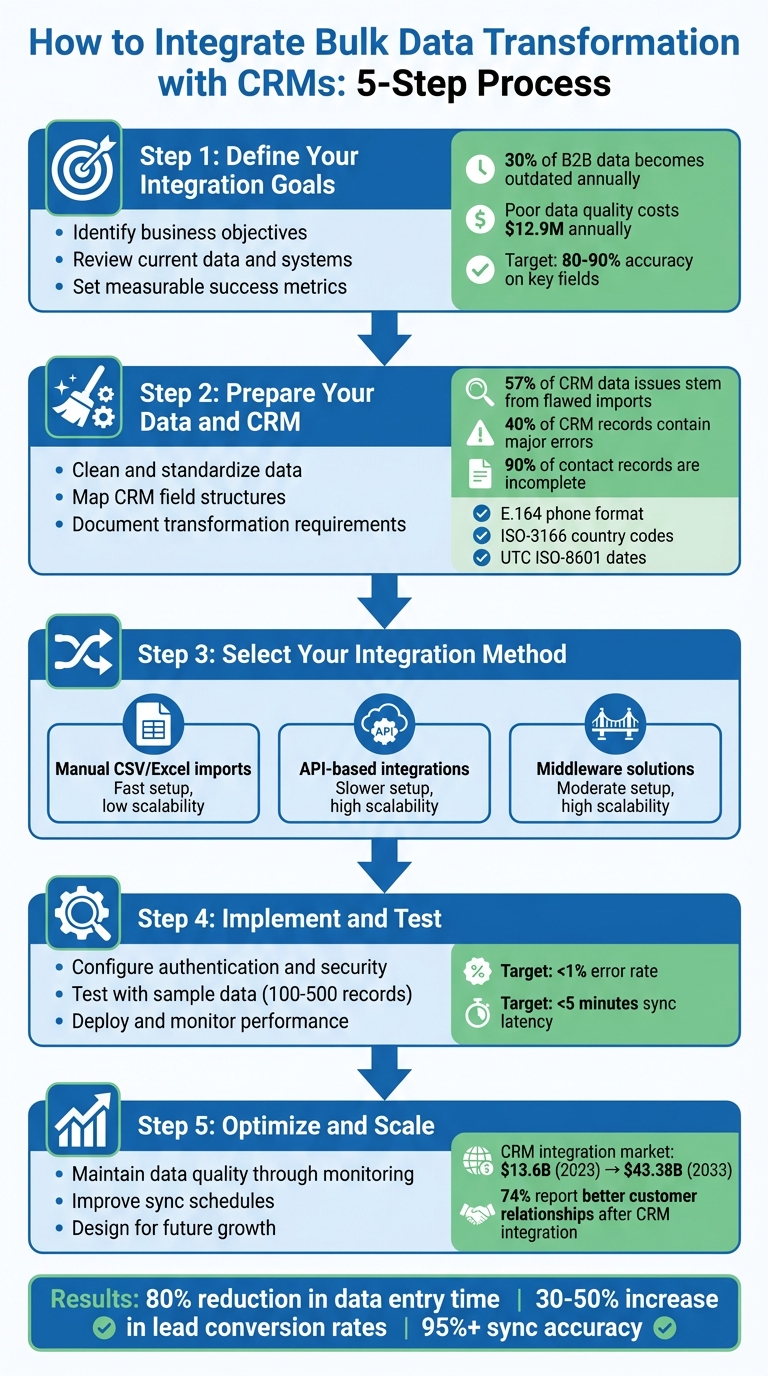
5-Step Process for Integrating Bulk Data Transformation with CRMs
Integrating Your CRM With Your Data Warehouse
sbb-itb-8058745
Step 1: Define Your Integration Goals
Before diving into the technical setup, it’s essential to outline clear objectives that address your business challenges. Are duplicate records slowing you down? Is inconsistent formatting for phone numbers or missing contact details causing inefficiencies? Utilizing a contact enrichment API can help fill these gaps automatically. Pinpointing these issues early will help shape your data preparation and integration strategy in the steps ahead.
Identify Your Business Objectives
Your integration goals should align with measurable outcomes. For example, focus on standardizing data, cutting down on manual cleanup, or improving lead routing. In real estate, this could mean ensuring property addresses follow a consistent format so leads are automatically assigned to the right territory manager. Or, it might involve standardizing owner names to make it easier to detect duplicates. The goal is to establish repeatable transformation logic that can handle increasing data volumes without needing a bigger team. Plus, when bulk data is standardized, reporting becomes more accurate. This ensures executive dashboards present a single, unified view of the truth instead of fragmented or conflicting data.
Review Your Current Data and Systems
Start by auditing your existing data and CRM setup to identify gaps. Export a sample dataset and look for issues like empty fields, duplicate entries, or inconsistent formatting (e.g., phone numbers). Create a data dictionary that maps each field in your source data to its corresponding CRM field, noting details like data types and character limits. Don’t forget to account for technical restrictions, such as API rate limits. Here’s a key insight: around 30% of B2B data becomes outdated every year due to staff changes or company restructuring, and poor data quality costs businesses an average of $12.9 million annually in lost productivity.
Set Measurable Success Metrics
Use your audit findings to define clear, measurable metrics to evaluate progress. For example, track the data completeness rate, deduplication rate, and processing time. If you’re working on a marketing integration, monitor metrics like reduced email bounce rates or faster lead response times. Start by taking a snapshot of your current CRM data to establish a baseline. Aim for goals such as achieving 80–90% accuracy on key fields and reducing duplicates by 90% within the first quarter. These specific targets will give you concrete benchmarks to assess whether your integration efforts are paying off.
Step 2: Prepare Your Data and CRM for Integration
Getting your data and CRM ready for integration is critical to ensuring a smooth process. Surprisingly, 57% of CRM data issues in mid-sized organizations stem from flawed import processes. Most of these problems are avoidable with proper cleaning, mapping, and documentation.
Clean and Standardize Your Data
Start by auditing your data objects – like contacts, companies, and deals – to identify incomplete fields, duplicates, and formatting inconsistencies. The numbers are eye-opening: 40% of CRM records contain at least one major error, and 90% of contact records are incomplete.
To avoid issues, standardize your data. For instance:
- Use E.164 formatting for phone numbers (e.g., +13125550199)
- Apply ISO-3166 alpha-2 codes for countries (e.g., "US" instead of "United States")
- Stick to UTC ISO-8601 for dates (e.g., YYYY-MM-DDThh:mm:ssZ)
These standards prevent failures in workflows like dialing systems and ensure consistency in reporting across time zones.
When addressing duplicates, begin with exact matches (e.g., email or domain) and then move to fuzzy matching (e.g., name and address combinations). Integration tools and web forms often produce duplicate rates as high as 80%, compared to 19% from manual CSV imports. To further clean your data, use APIs to verify email deliverability and phone carrier types. You can also append missing details like industry codes or revenue tiers for a more complete dataset.
"Dirty data doesn’t just annoy admins – it blocks forecasting accuracy, eats up SDR call time, and erodes the credibility of every dashboard your C‑suite eyeballs." – Fawwad Mirza, Founder, Pixcell
Once your data is clean, align it with your CRM’s structure.
Map Your CRM Field Structures
After standardization, the next step is mapping your data fields to match your CRM’s schema. Create a detailed matrix to align source fields with the correct CRM properties, ensuring that data types – like text, dropdowns, or multi-select fields – are an exact match. This step is crucial because 89% of duplicate record issues stem from field mapping errors.
For company or organization data, always use "Lookup" fields instead of generic text fields. Text fields can create disconnected data, making it harder for the CRM to recognize relationships. For example, a 48-person marketing agency mistakenly mapped "Company Name" to a new text field instead of the standard Company lookup. Over 18 months, this error led to 27,200 duplicate contacts, costing them $64,000 and 14 weeks to fix.
Follow a sequential strategy for mapping companies:
- Start with email domains (most reliable)
- Then match by exact names
- Normalize names by removing terms like "Inc." or "Corp."
- Finally, use fuzzy matching for any remaining discrepancies
Always include unique identifiers, like Contact IDs or Account IDs, in your exports. Without these, it’s impossible to map transformed data back to the original CRM records.
Set your integration to use "upsert" logic (update if the record exists, insert if it’s new) instead of simple "insert" operations. This prevents the creation of thousands of duplicates during bulk updates. For bi-directional syncs, designate a "master" system for each field. For example, let the CRM control contact names while your marketing automation platform manages lead scores. This avoids infinite sync loops.
Document Your Transformation Requirements
With your mappings finalized, document all transformation rules to maintain clarity and consistency. This step is essential for avoiding confusion when team members leave and prevents the need for time-consuming "reverse-engineering" later.
"Success in data integration comes from careful planning rather than rushing into technical solutions." – Beate Thomsen, Co-founder & Product Design, Rapidi
Your documentation should include:
- Primary keys: Unique identifiers like email for contacts or domain for companies
- Association keys: Fields that link different objects
- Master logic: Rules for resolving data conflicts (e.g., the CRM controls phone numbers, while the ERP system manages billing addresses)
Add compliance flags, such as GDPR or CCPA, to your mapping document to ensure lawful processing. Fines for GDPR violations have exceeded €5.65 billion, with average penalties topping €2.36 million per case.
Standardize formats for dates (YYYY-MM-DD), phone numbers (with country codes), and email addresses (use lowercase) to ensure validation passes smoothly. Document any custom properties that need to be created in the CRM before integration begins. Also, establish governance rules for sensitive fields, specifying which ones should be locked to prevent overwrites.
Plan your operations in a logical sequence. For example, load product items before orders and companies before contacts. This avoids broken references and ensures CRM workflows and lead-nurturing sequences trigger correctly. A well-thought-out plan ensures your records arrive with the proper properties and formats for seamless integration.
Step 3: Select Your Integration Method
Deciding how to load your clean, mapped data into your CRM is a critical step. The best method depends on factors like your technical capabilities, how quickly you need the data, and whether you’re handling a one-time migration or ongoing updates. This step builds on the groundwork you’ve already laid in preparing your data and CRM.
Manual Imports Using CSV or Excel Files
If you’re looking for a straightforward way to load data into your CRM, CSV and Excel imports are a solid choice. They’re perfect for one-time migrations, data cleanups, or teams without access to developer resources. The process is simple: export data from your source system, make any necessary adjustments in a spreadsheet, and upload the file using your CRM’s import tool.
The beauty of manual imports is how quickly you can get started – no coding required. You can process thousands or even millions of records in one batch, making it a practical option for large-scale data updates. It’s also a great way to test a new data provider. Uploading a sample file lets you verify your field mappings and ensure your data quality before diving into a full integration.
However, manual imports have a major downside – they’re static. Every update means repeating the export, transform, and upload process, which can be time-consuming and prone to errors. For teams that deal with new data daily, like real estate professionals managing fresh leads, this manual approach can quickly become a bottleneck. That’s where automation comes into play.
Automated API-Based Integrations
APIs offer a seamless way to connect your data sources to your CRM. They allow systems to communicate directly, either in real time or at scheduled intervals, eliminating the need for manual intervention.
For real estate teams, BatchData’s APIs provide tools to enhance and validate data automatically. For instance, the Property Search API helps identify properties based on specific criteria, while the Property Lookup API retrieves detailed records for known addresses. Phone verification APIs ensure contact numbers are valid before your team reaches out.
Here’s a real-world example: A higher-education client used a phone validation API to integrate data in real time, cutting bad phone numbers by 50%. By validating and enriching data as it enters your CRM, your team can always work with accurate, up-to-date information. While API integrations require developer resources to set up and maintain, they’re a game changer for scaling operations. For teams managing thousands of property records or running time-sensitive call centers, APIs remove the burden of manual data entry entirely.
Middleware Solutions for Data Transformation
Middleware acts as a bridge between manual imports and fully automated API integrations. Tools like Zapier, Make, or n8n let you connect systems and create workflows without writing code. They’re especially useful when your data needs to flow through multiple steps – like pulling leads from a website, enriching them with BatchData, and then sending the results to both your CRM and a dialer.
These platforms use visual logic to handle complex transformations. For example, you can reformat phone numbers, standardize addresses, or assign records to specific CRM pipelines based on property type – all before the data reaches your database. This ensures your CRM stays clean and organized from the start.
Middleware solutions don’t require coding skills, but you’ll need to understand workflow logic. They’re quicker to set up than custom API integrations but slower than a simple CSV import. Most platforms charge a monthly fee based on the number of tasks or records processed. Middleware is a great option when your needs are too complex for manual imports but you don’t have the resources for custom APIs. Plus, their visual interfaces make it easy to tweak workflows as your business evolves.
| Feature | Manual Imports (CSV/Excel) | API-Based Integrations | Middleware Solutions |
|---|---|---|---|
| Setup Speed | Fast/Immediate | Slower (Requires Coding) | Moderate (No-Code/Low-Code) |
| Scalability | Low (Labor Intensive) | High (Automated) | High (Automated) |
| Data Accuracy | Prone to Human Error | High (Systematic) | High (Systematic) |
| Cost | Low (Time Cost Only) | High (Developer Resources) | Moderate (Subscription Fees) |
| Best For | Small, one-off tasks | High-volume, custom needs | Complex, multi-app workflows |
As your data needs grow, so should your integration strategy. Many teams start with manual imports and later shift to APIs or middleware for greater efficiency. BatchData’s pay-as-you-go pricing makes this transition smoother, letting you start small and scale up to automated, high-volume integrations when you’re ready.
Step 4: Implement and Test Your Integration
Now that you’ve chosen your integration method, it’s time to bring it to life. This step builds on your earlier data preparation and mapping efforts, ensuring your integration is secure, accurate, and reliable. By focusing on authentication, trial imports, and performance monitoring, you can avoid costly errors and maintain the integrity of your CRM data.
Configure Authentication and Security
The first step in securing your integration is implementing strong authentication. OAuth 2.0 is widely regarded as the best method for connecting systems. It uses access tokens instead of passwords, making it easier to revoke access without disrupting the entire system. For platforms like Salesforce and HubSpot, set up connected or private apps with minimal permission scopes, such as "api" or "crm.objects.contacts.write", to restrict access to only what’s necessary.
Follow the Principle of Least Privilege – grant only the permissions your integration requires. For instance, if you’re importing property records, don’t allow access to sensitive data like financial details or user settings. Middleware solutions should rely on dedicated API keys or service accounts rather than personal credentials.
To protect data as it moves between systems, use TLS 1.3 for data in transit and AES-256 for data stored at rest. For sensitive fields – like personally identifiable information – apply field-level encryption before any data transformations occur. Additionally, set up role-based access controls (RBAC) in your CRM to limit who can view or edit imported data. Other measures like IP whitelisting and audit logs can help you maintain compliance with regulations such as GDPR or CCPA.
Be proactive about common pitfalls like expired tokens or insufficient permissions. Test your setup by deliberately attempting unauthorized access to ensure your safeguards are working as intended.
Test with Sample Data
Before diving into full-scale data imports, start small. Use a sample dataset of 100–500 records that mirrors your actual data to verify that field mappings, data types, and transformation rules are functioning correctly. This step helps you catch issues like date formatting errors, validation rule violations, or duplicate records before they affect your live database.
Take advantage of your CRM’s built-in tools for testing. For example, Salesforce Data Loader allows you to preview CSV imports, while HubSpot’s import validator can flag potential issues. If you’re working with API integrations, tools like Postman let you simulate bulk POST requests to confirm that the system handles data as expected.
Plan for multiple test iterations – two or three rounds are often enough to identify and fix errors. If you’re enriching data with services like BatchData’s skip tracing or phone verification, check that the enrichment flags appear correctly after processing. Many platforms also offer a "dry run" mode, which logs errors without committing changes. Use this feature to troubleshoot risk-free and compare pre- and post-transformation reports to ensure data quality improvements. Only proceed when your test data loads cleanly with an error rate below 1%.
Deploy and Monitor Performance
Once your sample tests show accurate results, move on to deployment. Begin in a sandbox environment, such as Salesforce Sandbox, to test with production-like data without risking live operations. Schedule your syncs based on your data needs – daily batches at 2:00 AM UTC are a popular choice for real estate teams, ensuring updated property records are ready each morning.
When going live, start small by loading just 10% of your records. This phased approach helps you identify and resolve issues before they affect your entire database. Always have a rollback plan in place, whether through CRM backups or transaction logs, so you can undo changes if needed.
Monitoring is key to keeping your integration running smoothly. Track metrics like sync latency (aim for under 5 minutes for batch processes), error rates (keep them below 1%), and data throughput (target at least 10,000 records per hour for high-volume operations). Use your CRM’s monitoring tools, such as Salesforce Event Monitoring or HubSpot activity logs, to track performance, or rely on middleware audit trails if available.
Set up automated alerts for issues like API rate limit breaches or expired tokens. Keep an eye on data quality metrics, such as the percentage of standardized addresses or verified phone numbers. Daily validation jobs can help catch missing values in critical fields, while spot-checking about 5% of records ensures accuracy. Tools like Datadog or New Relic can provide real-time dashboards, allowing you to address issues before they escalate.
If you’re using BatchData’s pay-as-you-go pricing, monitor your usage to stay within budget. Track the daily volume of processed records and adjust your sync schedule if costs rise unexpectedly. As your integration stabilizes, you can gradually increase the volume and frequency of data imports, confident that your monitoring system will catch any new issues.
Step 5: Optimize and Scale Your Integration
After successfully deploying your integration, the next step is to ensure it keeps up with your evolving data and business needs. Even though the system is live, continuous fine-tuning is crucial. Data changes all the time – new properties, updated contacts, and business growth mean your CRM must stay adaptable to remain a reliable source of truth.
Maintain Data Quality Through Regular Monitoring
Regular monitoring is essential to prevent data quality issues. Automated quality checks, like validation rules and anomaly detection, can be integrated into your workflows to catch problems before they hit your CRM. For instance, you can set up rules to flag missing ZIP codes in addresses or phone numbers that don’t align with U.S. formatting standards. If you’re using BatchData’s phone verification or skip tracing tools, you can configure the system to quarantine records that fail verification and notify your team for review.
Assigning data stewards to standardize fields – like deciding whether to use "St." or "Street" – can help address inconsistencies efficiently. Establish measurable goals, such as ensuring all customer addresses are current, and track weekly progress in resolving discrepancies. With the CRM data integration market expected to grow from $13.6 billion in 2023 to $43.38 billion by 2033, it’s no surprise that 74% of businesses report better customer relationships after adopting effective CRM integration.
Set up automated alerts for error rates exceeding 1% or latency issues beyond your baseline. Regular audits are also key to staying compliant with regulations like GDPR or CCPA, especially when handling sensitive personal data. These practices help ensure your sync operations run smoothly and efficiently.
Improve Sync Schedules and Performance
As your data volumes grow, fine-tune your sync schedules for better performance. Batch processing during off-peak hours – like between 2:00 AM and 5:00 AM local time – can help reduce strain on your CRM. Reserve real-time syncs for only the most critical data.
If you’re working with cloud data warehouses like Snowflake or BigQuery, consider switching to an ELT (Extract, Load, Transform) approach. This method loads raw data first and then transforms it using cloud computing power, making it more efficient for handling large volumes compared to traditional ETL pipelines. Keep an eye on your daily record counts and adjust sync frequencies; fewer, larger batches often save time and money.
Don’t forget to regularly rotate API keys and OAuth tokens, and monitor system access to maintain security.
Design for Future Growth
Most organizations use nearly 1,000 applications, yet only about 28% are integrated. To prepare for growth, choose integration solutions that can scale modularly, allowing you to add components or handle more data without overhauling your entire system.
AI is becoming a game-changer in integration, offering tools like predictive analytics and automated data mapping. For example, AI can detect intent signals – like which properties a contact has viewed – and enrich records with relevant data automatically. BatchData’s advanced APIs make it easier to scale your integration and incorporate new data enrichment workflows as your needs expand.
Before rolling out updates, test new integration logic in a production-like sandbox environment. Take Biolevox as an example: in 2024, this medical product distributor collaborated with DATAFOREST to digitize their legacy processes. By integrating their CRM with warehouse management and delivery tracking systems, they cut FTE costs by 32% and boosted revenue by 19%. This shift, led by CEO Aleksandr Kharin, eliminated manual data entry and improved operational efficiency.
"IT organizations can achieve accuracy and completeness by building data management into data integration projects as they go." – Boomi
Flexibility is key when designing your system. Document transformation logic, maintain version control for your integration code, and create runbooks for common troubleshooting scenarios. Clear documentation ensures your integration can evolve alongside your business and remain manageable as your team grows.
Conclusion
Streamline your real estate operations by integrating bulk data transformation with your CRM in five straightforward steps: define your goals, prepare your data and CRM, choose the right integration method, implement and test, and optimize for scale. These steps create a solid framework for improving efficiency and scalability as your business grows.
The benefits are hard to ignore. Automated integrations can reduce data entry time by as much as 80%, allowing sales teams to focus on closing deals instead of wrestling with manual data tasks. Real estate professionals have reported 30–50% increases in lead conversion rates thanks to accurate, automated syncing of property records and enriched contact data. This leads to better collaboration, quicker decision-making, and fewer data silos – delivering a CRM system that provides real-time insights when you need them most.
Whether you’re enriching leads with property valuations, performing skip tracing to find owner contacts, or syncing thousands of records daily, automation ensures consistency and accuracy that manual methods simply can’t match. BatchData’s bulk delivery services and APIs are tailored for real estate workflows, offering tools for property searches, phone verification, and scalable decision-making.
Start small with a pilot workflow in one market to confirm sync accuracy of over 95% before expanding. Use middleware or API-based solutions to scale gradually, document your transformation logic, set measurable data quality KPIs, and design your integration with future growth in mind.
FAQs
How do I pick between CSV imports, APIs, and middleware?
When deciding how to handle your data, consider your specific needs:
- CSV imports work well for infrequent, manual uploads. However, they don’t support real-time updates, which might limit their usefulness for dynamic data needs.
- APIs are perfect for automated, scalable, and real-time data syncs. They’re ideal for scenarios requiring continuous updates without manual intervention.
- Middleware acts as a bridge between systems, simplifying complex workflows and ensuring data flows smoothly across platforms.
For large-scale, frequent automation, combining APIs and middleware provides the most efficient and seamless solution.
What unique IDs should I use to prevent duplicates during syncs?
To prevent duplicates during CRM data synchronization, rely on unique external IDs. These IDs allow the system to identify and match existing records, ensuring updates are applied correctly without generating duplicate entries. By consistently assigning external IDs to each record, you can streamline bidirectional syncing and maintain accurate updates throughout the process.
How can I test bulk updates safely and roll back mistakes?
To handle bulk updates safely and recover from errors, it’s crucial to have a solid plan in place. Start by backing up your data before making any changes – this ensures you can restore it if something goes wrong. Testing in a sandbox environment or using small datasets first can help you identify potential issues without affecting your entire system.
For extra protection, implement error handling mechanisms and validate updates as they happen. Keep an eye on error logs to catch problems early, and address any issues immediately. Tools like batch APIs and version control can also be incredibly useful for managing updates and maintaining data accuracy throughout the process.